Saving Ron360 Charts and Tables to a Dashboard
Saving Ron360 Charts and Tables to a Dashboard
Ron360 charts and eligible tables can be saved as dashboard widgets. Saving a widget places it in the company-wide AI widget library, where it can be added to custom dashboards.
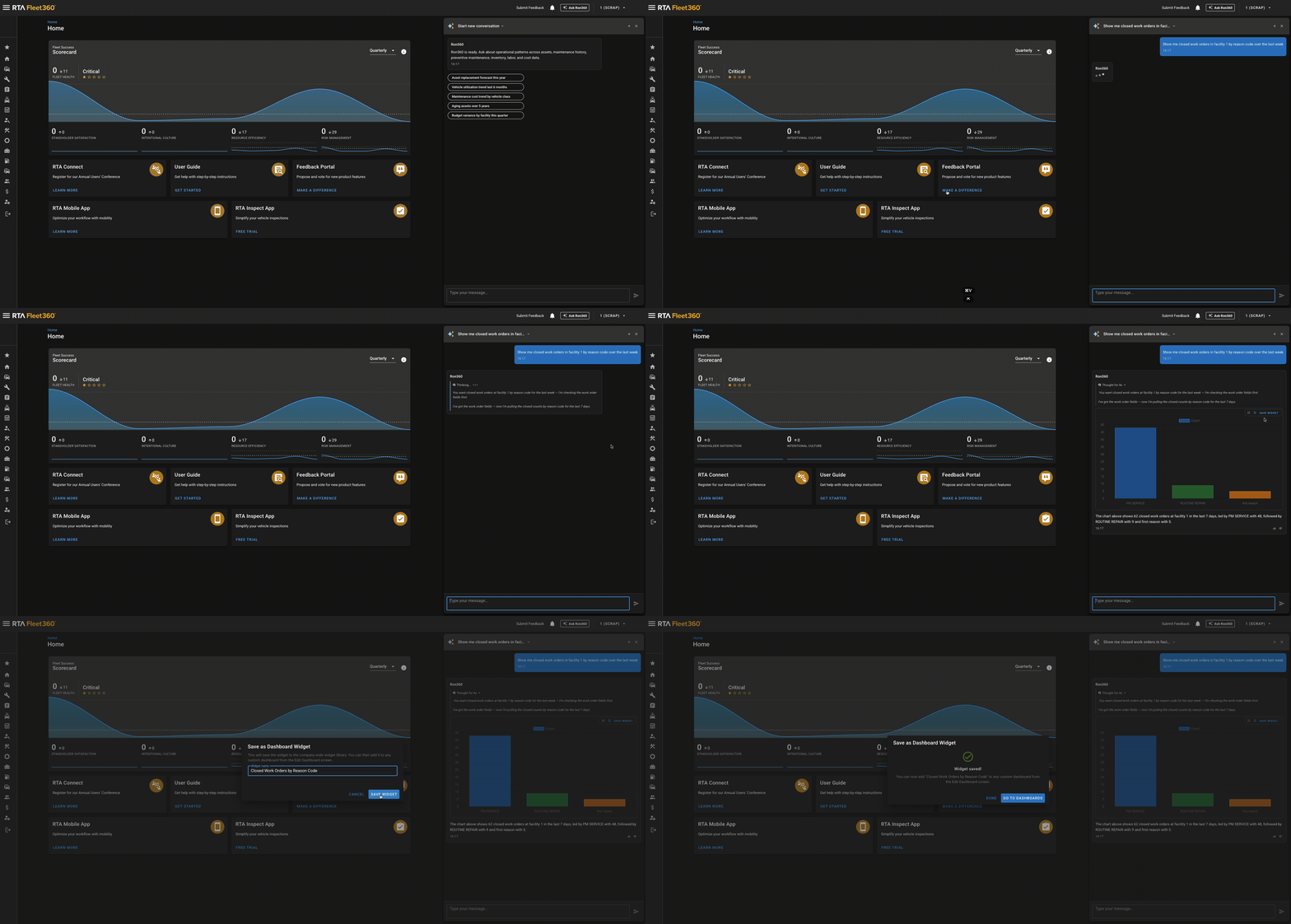
Save an AI response as a widget
To save a Ron360 chart or table:
Ask Ron360 a question that returns a chart or table.
Review the answer to confirm it shows the metric or records you want.
Click Save Widget on the chart or table.
Enter a clear widget name.
Click Save Widget.
After the confirmation appears, select Go to Dashboards or click Done.
Add the saved widget to a custom dashboard
To place the saved widget on a dashboard:
Open Dashboards.
Open or create the custom dashboard you want to edit.
Select Edit Dashboard.
Find the saved AI widget in the widget menu.
Add the widget to the layout.
Move or resize the widget as needed.
Save the dashboard layout.
The widget uses the saved AI query definition so the dashboard can rebuild the chart or table without reopening the original chat.
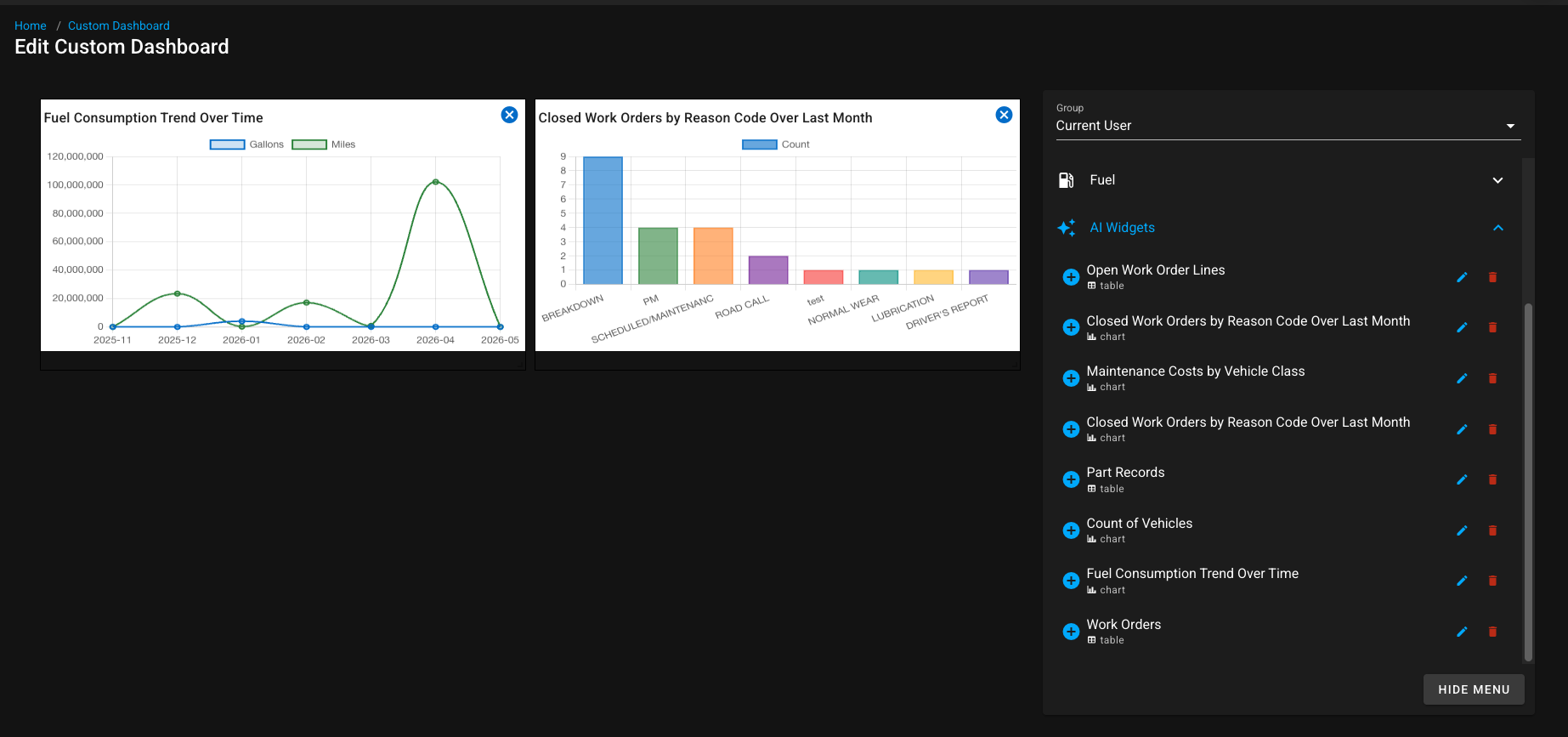
Managing saved AI widgets
In Edit Custom Dashboard, users with the correct dashboard permissions can rename or delete saved AI widgets.
Use clear widget names, such as:
Open Work Orders by Facility
Fuel Consumption Trend - Last 6 Months
Top Parts by Usage Cost
PM Due Vehicles
Permissions
Saving and managing AI widgets requires dashboard permissions. Viewing saved AI widgets requires dashboard view access.
Notes
A saved AI widget is available in the company-wide widget library, not only to the user who saved it.
If Save Widget is not available, ask Ron360 for a chart or table with a clear aggregation or record list.
If saving fails, retry with a shorter widget name or ask an administrator to verify dashboard permissions.