Inventory Count Sheet
Summary/Use Case
Report Summary
The Inventory Count Sheet report provides a detailed list of inventory items by facility, showing information such as part number, description, average price, issue units, total quantity, and count. Fleet managers will find this report useful for tracking inventory status and availability across facilities, ensuring accurate and efficient inventory management.
Use Case
Monitor inventory levels by part and facility to prevent stockouts
Evaluate inventory usage patterns to inform reordering decisions
Ensure accurate stock counts to reduce discrepancies and maintain inventory accuracy
Support audits by providing an organized record of current inventory by facility
Assist in budgeting and cost analysis by showing inventory quantities and values
Location: Where to Find It
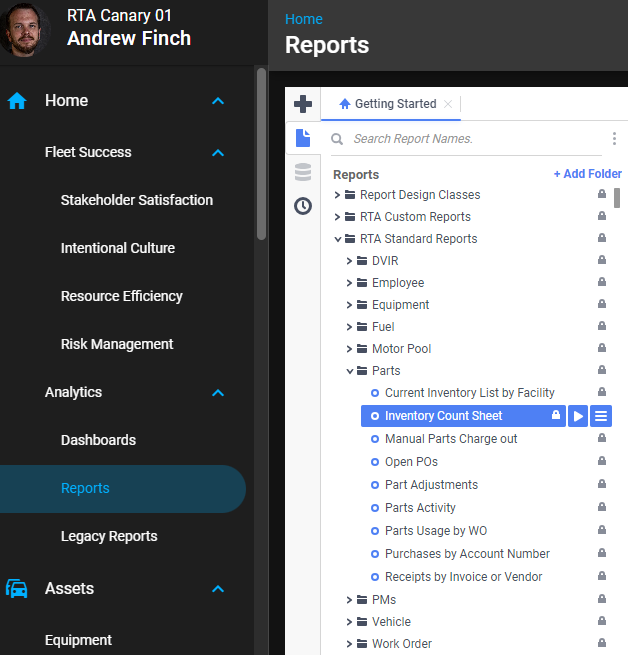
Reports > RTA Standard Reports > Parts > Inventory Count Sheet
Data Filter Prompts
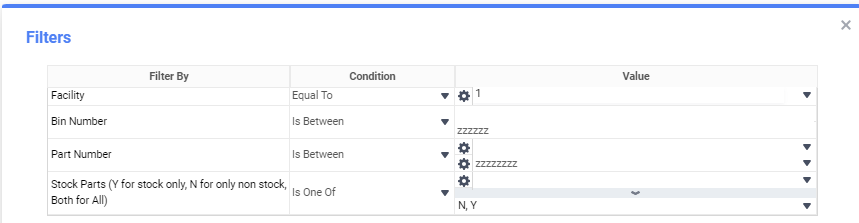
You will be prompted for filtering of the Data to specify and narrow down the data that will be pulled. See Data Filter List Below for Options.
Parameter List

Parameter Name | Value (Default) | Value (Notes) |
|---|---|---|
Blind Count | False | blank |
Data Filter List
Filter Name | Recommended Filter Condition(s) | Value (Options) | Value (Default) |
|---|---|---|---|
Facility | Equal To | 1 - 99999 | 1 |
Bin Number (prompt is titled Bin Location) | Is Between | blank - zzzzz; enter the same bin in both boxes to print one bin | blank - zzzzz (all bins) |
Part Number | Is Between | blank - zzzzzzz | blank - zzzzzzz |
Stock Parts (prompt is titled Is Stocking Part?) | Is One Of | Y (stock), N (non-stock), Both (all) | N, Y |
Consignment Part (prompt is titled Is Consignment Part?) | Is One Of | Y (consignment), N (owned), Both (all) | N, Y |
Printing a count sheet for one bin or a range of bins
You do not need to change the report’s grouping to count by bin. The report already sorts every facility’s parts by Bin Number, then Part Number, and Bin Number is the first column on the sheet, so a filtered run comes out in bin order ready to hand to the counter.
Run the report and answer the Facility prompt.
In the Bin Location prompt (the second prompt, directly after Facility) enter the first and last bin to include. To print a single bin, enter the same bin in both boxes. Leave the boxes as they are to include every bin.
Answer the remaining prompts as usual: Part Number range, Is Stocking Part?, Is Consignment Part?, and the Blind Count parameter.
The heading of each printed page repeats the Facility, Bin Number and Part Number ranges you entered, so a sheet for a single bin is clearly labelled.
Bin values are compared as text, character for character, and the range is inclusive. Bins are matched on the part’s primary bin as shown on the part record; a part is listed once, under its primary bin, even if it is also stored in other bins.
Grouping is optional. Grouping by Primary BIN only adds a bin heading (and a page or section break) to output that is already in bin order. Use it only if you specifically want each bin on its own section of the sheet; it is not required to filter or print by bin, and it is not one of the run-time prompts. Grouping is changed by saving your own copy of the report in the report designer, not from the prompt screen.
Blind Count = True hides the Total Quantity column so the person counting cannot see the expected quantity; the Bin Number filter works the same either way.
Report Output and Data Elements
Report Output
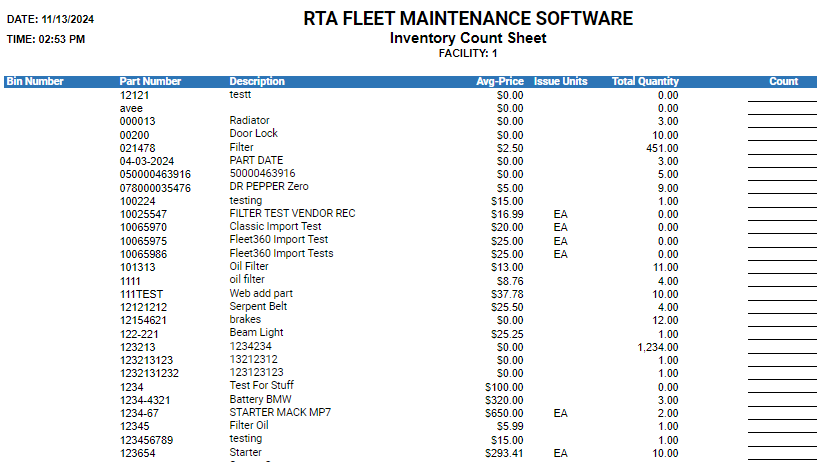
The Inventory Count Sheet report displays inventory items grouped by facility and sorted by bin number, then part number within each facility, providing information on part numbers, descriptions, stock and consignment flags, pricing, units, and quantities available. This report highlights total quantities for each item (hidden when Blind Count is True), assisting in accurate inventory management across facilities.
Report Data Elements
Column Number | Column Title | Data Notes |
|---|---|---|
1 | Bin Number | Identifies the storage bin or location for each inventory item |
2 | Part Number | Unique identifier for each inventory part |
3 | Description | Brief description of the inventory item |
4 | Stock | Y if the part is a stocking part, otherwise N |
5 | Consignment | Y if the part is a consignment part, otherwise N |
6 | Avg-Price | Average price per unit of the item |
7 | Issue Units | Unit of measurement for issuing this item |
8 | Total Quantity | Total quantity of the item currently in inventory. Blank when the Blind Count parameter is True |
9 | Count | Blank column for the quantity counted during inventory verification |