
System Admin and Licensing Information
The Admin landing page gives insights into the overall licensing and integrations picture of your RTA Software.
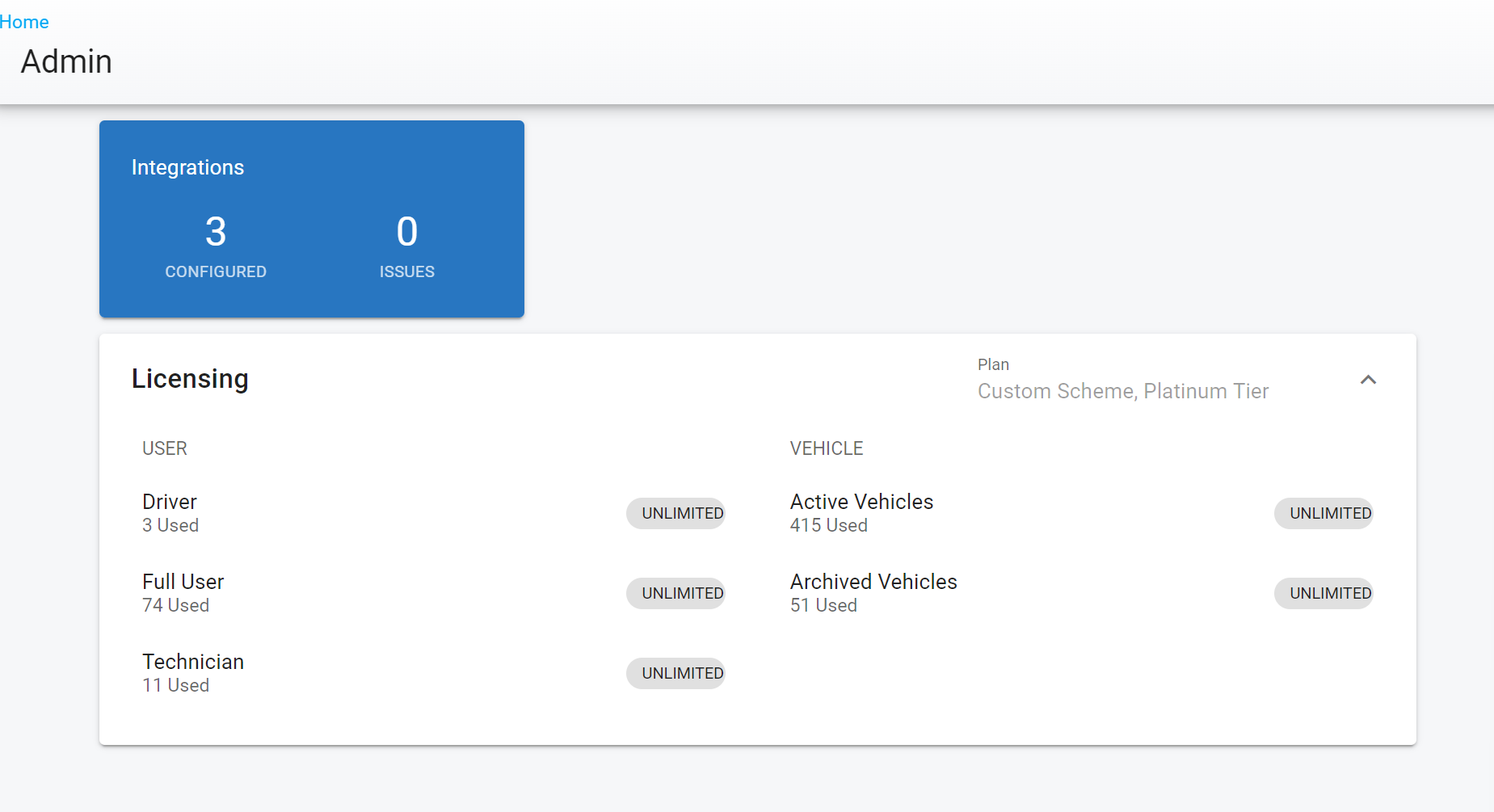
Clicking on the Admin Path in the main menu brings you to this page. Here you can see the following:
Integrations | Configured = How many integrations are currently set up with your software | Issues = Will display the number of those integrations currently experiencing an issue |
User Licenses | Displays the type of user licenses that are available with the software subscription and how many are currently in use | The second column will display the total number allotted and available |
Vehicle Licenses | Displays the count of active and archived vehicles/assets currently stored in the RTA software | The second column will display the total number allotted and available |
Auditing User License Usage
The counts above show licenses in use versus allotted. To see which users hold them, open Admin > Users: the user grid has License, Group, and Status columns, so you can sort or filter on License to list everyone on each license type or find users with no license assigned.
There is no last-login or login-frequency report. Fleet360 does not currently show a last sign-in date or login count on user records, screens, or reports, so an unused-license review is an audit of license assignment, not sign-in activity. If a login-activity report is important to your subscription review, contact RTA Support — do not assume a report exists that simply is not documented.
Before calling a user unused, check their setup: a user with no license assigned cannot sign in at all; a user with no Group has no permissions; and a technician with no facility-linked employee file will not appear in shop records or the User Analytics tab. A user who was never finished being set up can look inactive for reasons other than a spare license.
For license-count questions, reclaiming seats, or billing changes tied to inactive users, contact RTA Support. See also RTA User Licensing.