
Asset Location Tab
Assets>Select Asset>Location
Viewing Asset Location in Fleet360
The Location tab on the asset file shows the last known position of that one asset on a map, as reported by your telematics provider. It answers questions such as where a unit is right now, which unit is nearest to a job, and when the device last reported.
What location tracking is used for
Finding an asset. The map shows the last position reported for the asset, with the date and time of that report, so dispatch, security and recovery questions can be answered from the asset file
Automatic meter updates. The same telematics connection can also write odometer and engine hour readings back to the asset record, about every 30 minutes, which keeps PM schedules lined up with real usage instead of hand entered meters. This is the Is Telematics Enabled option on the integration
Driver reported defects. Where the provider and the hardware support it, driver vehicle inspection reports come into Fleet360 under Inspections > DVIRs, so defects can be turned into work orders. Refer to Geotab DVIR Integration
What it does not do
Location is per asset. There is no fleet wide live map in Fleet360, and no list or report of every asset’s position. Use your telematics provider’s own map for a fleet view
The map is not live. It shows the last position the provider reported, and it only updates when the tab is opened or Refresh is clicked
Fleet360 does not store location history, so there are no breadcrumb trails or past trips on this tab
Before you start
The Vehicle Location Tracking module has to be enabled for your company. It is a Platinum or add on item, so if it is not part of your subscription your Fleet Success Manager arranges it
A supported telematics integration has to be added and enabled under Admin > Integrations. The integrations that put the Location tab on the asset file are Geotab and GPS Insight
The user needs asset view rights, the same permission that lets them open the asset file
The asset has to be matched to a device. Fleet360 looks the asset up in the provider by VIN or serial number, so the serial number on the asset file must be the same as the VIN on the telematics device
How to View an Asset’s Location
1. Navigate to the Asset File
Search for and select the asset you want to track.
2. Access the Location Data
Within the asset file, locate the "Location" tab. The tab only appears when the Vehicle Location Tracking module is enabled and a supported telematics integration is enabled, as described under Before you start above.
Location Map:
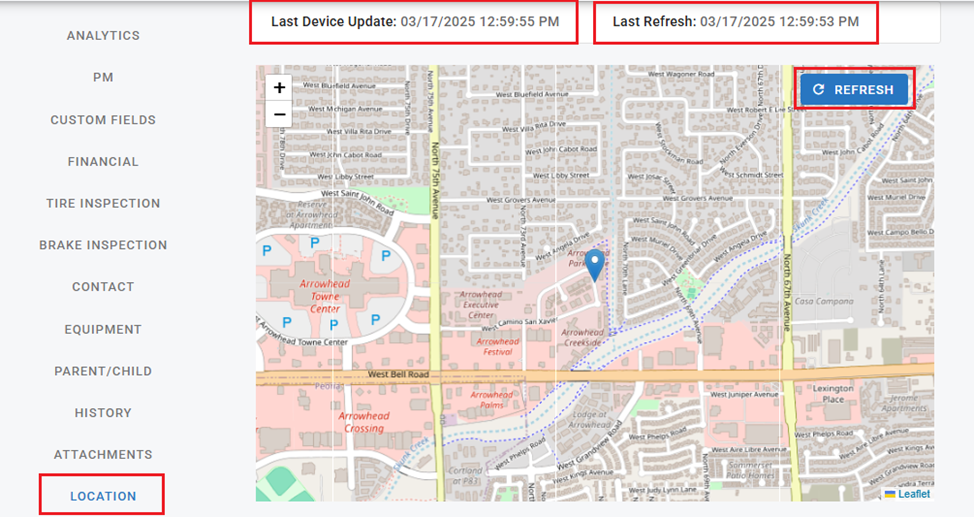
At the top of the Location Map, you'll find a Last Device Update section displaying the date and time of the most recent update from your GPS hardware. For example, GPS Insight typically provides updates every minute. Next to this is the Last Refresh from Fleet360, which shows the date and time when Fleet360 last pulled location data. To retrieve the latest information, simply click the Refresh button.
3. Refreshing the Location
When you open the "Location" tab, the system automatically retrieves the latest recorded location.
To manually update the location, click the "Refresh" button. This will request the most recent location data from the telematics provider.
Note: that Fleet360 does not update the map in real-time to maintain efficient system performance; manual refreshes are required to display the most current data.
4. Handling Location Issues
If the tab shows "Location Unknown" or "No device found for this asset", work through these in order:
Check the VIN or serial number first. The lookup is by VIN, so if the serial number on the asset file does not match the VIN on the device, no device is found for that asset. Compare the two and correct the asset file, or the record at the provider, so they match. The integration’s Issues screen lists these VIN mismatches with a probability score for likely matches, which is the quickest way to see them across the fleet
Check that the asset actually has a device. An asset with no telematics hardware, or one that was never added at the provider, has no location to show
Check the integration. Under Admin > Integrations, confirm the integration is enabled and not showing a failed state, and that the stored credentials still work
Check the provider. Open the provider’s own portal and confirm the device is reporting. A device that has not reported, or one that is powered down, leaves the last known position blank or stale
If the tab itself is missing, rather than empty, it is the module, the integration or the user’s asset permissions, not the device. Refer to Before you start above
If the asset was found but the position looks old, that is the device report time, not a Fleet360 delay. The Last Device Update value at the top of the map is the time the provider last heard from the device.
Benefits of Using Asset Location Tracking
Enhanced Fleet Visibility: Monitor asset locations for improved logistics and security.
Operational Efficiency: Quickly determine the nearest available asset for dispatch or maintenance.
Accurate Data: Keep track of asset locations without manual intervention.
By following this guide, Fleet360 users can efficiently monitor and manage their assets, ensuring smoother operations and improved decision-making.