
Time Blocking
Time Blocking in the Shop Scheduler gives you precise control over when work can and cannot be scheduled by defining available and unavailable time blocks for bays and technicians. This helps create structured appointment windows, prevent scheduling during downtime, and improve overall shop flow, predictability, and workload balance. When used with Service Requests, Time Blocking ensures customers can only request service during approved time slots, or select an “anytime” option when flexibility is needed.
To use time blocking in shop scheduler, the “Use Time Blocks for Service Requests” will need to be turned on in the Maint. & Repair Settings.
Add a Time Block in Shop Scheduler for Technicians
Open Shop Scheduler: Maint. & Repair → Shop → Shop Scheduler
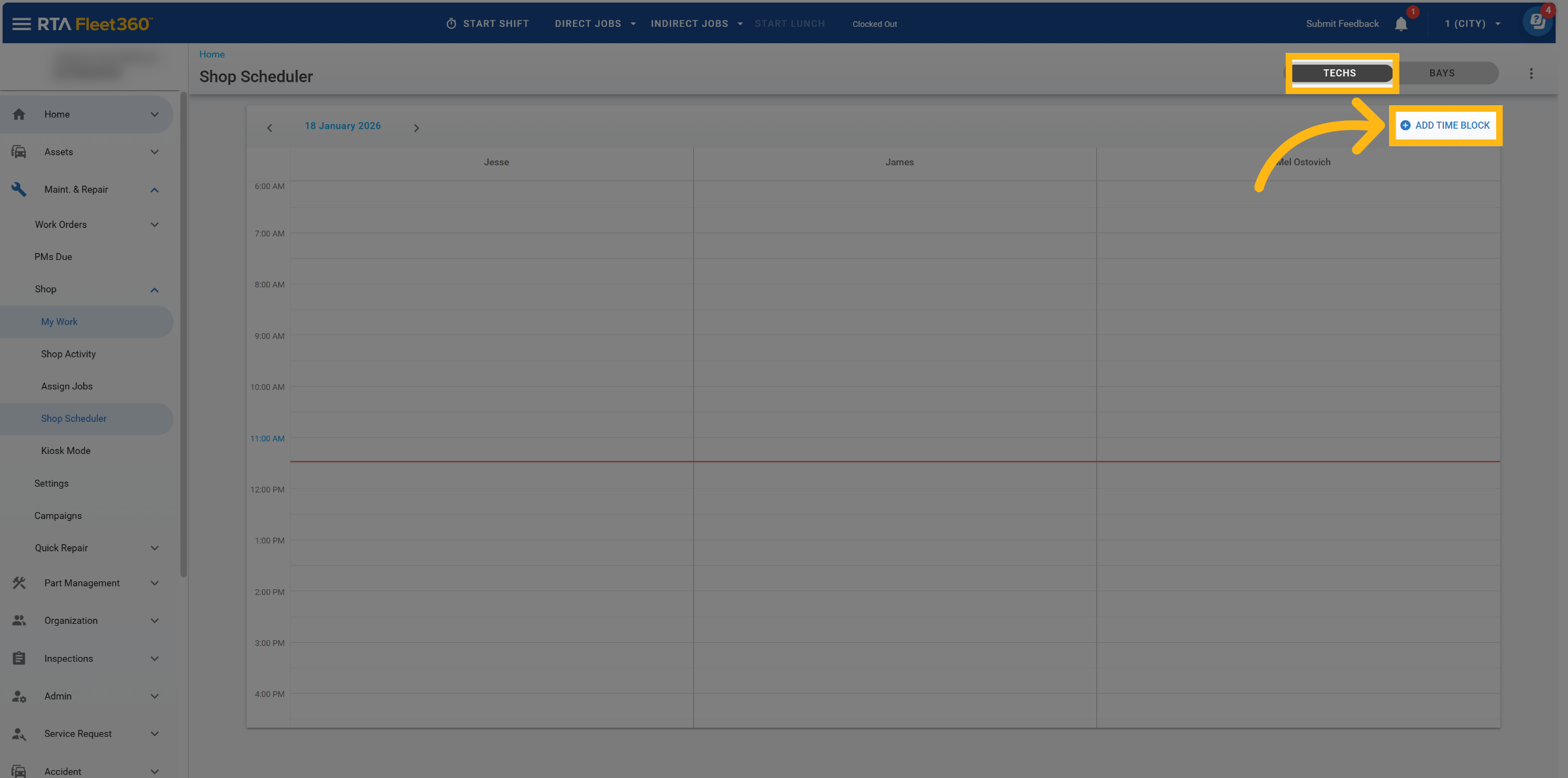
Click on “Add Time Block”
Make sure “Techs” is selected to create time blocks for Technicians
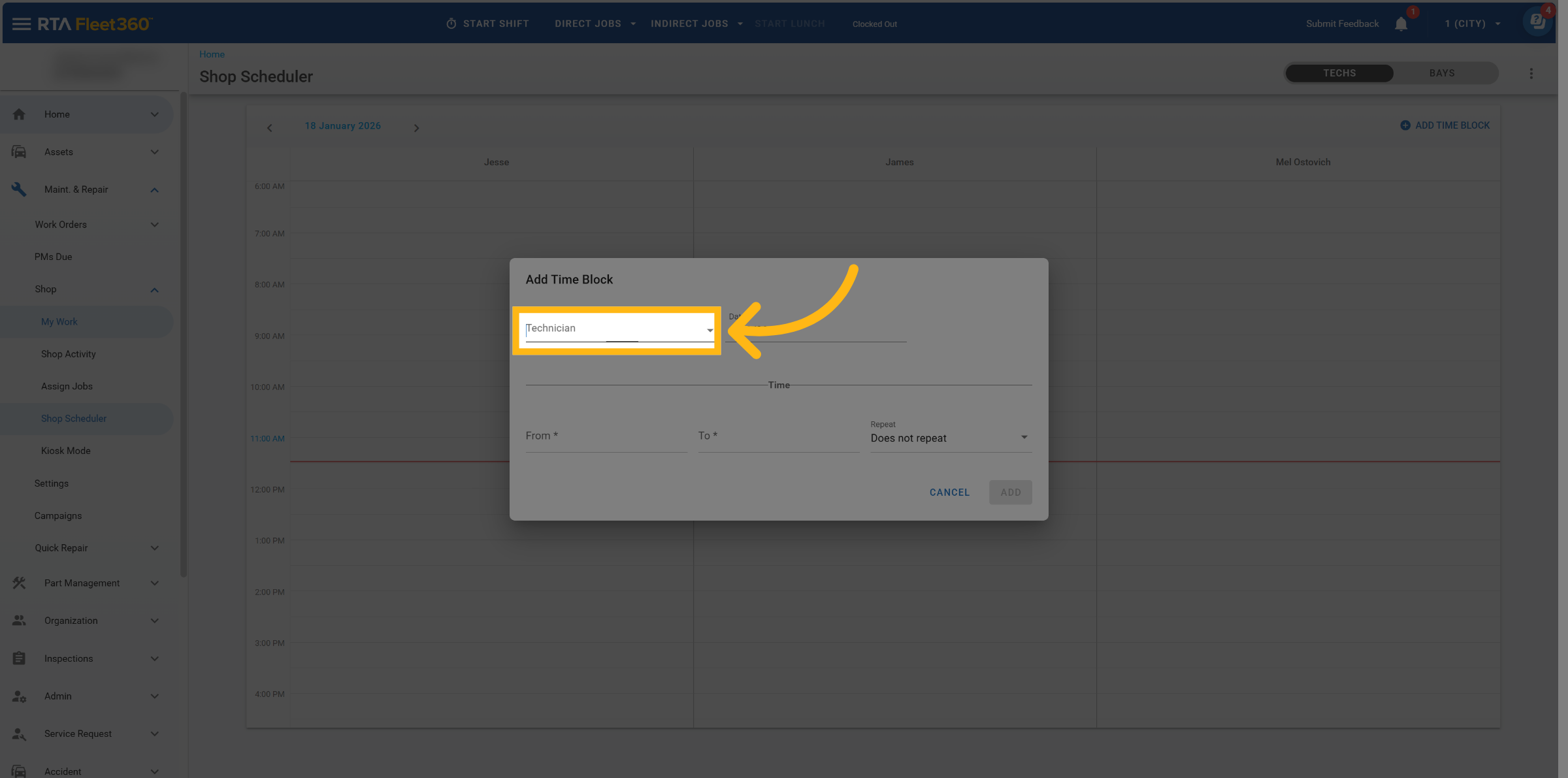
Select Technician to create a time block for
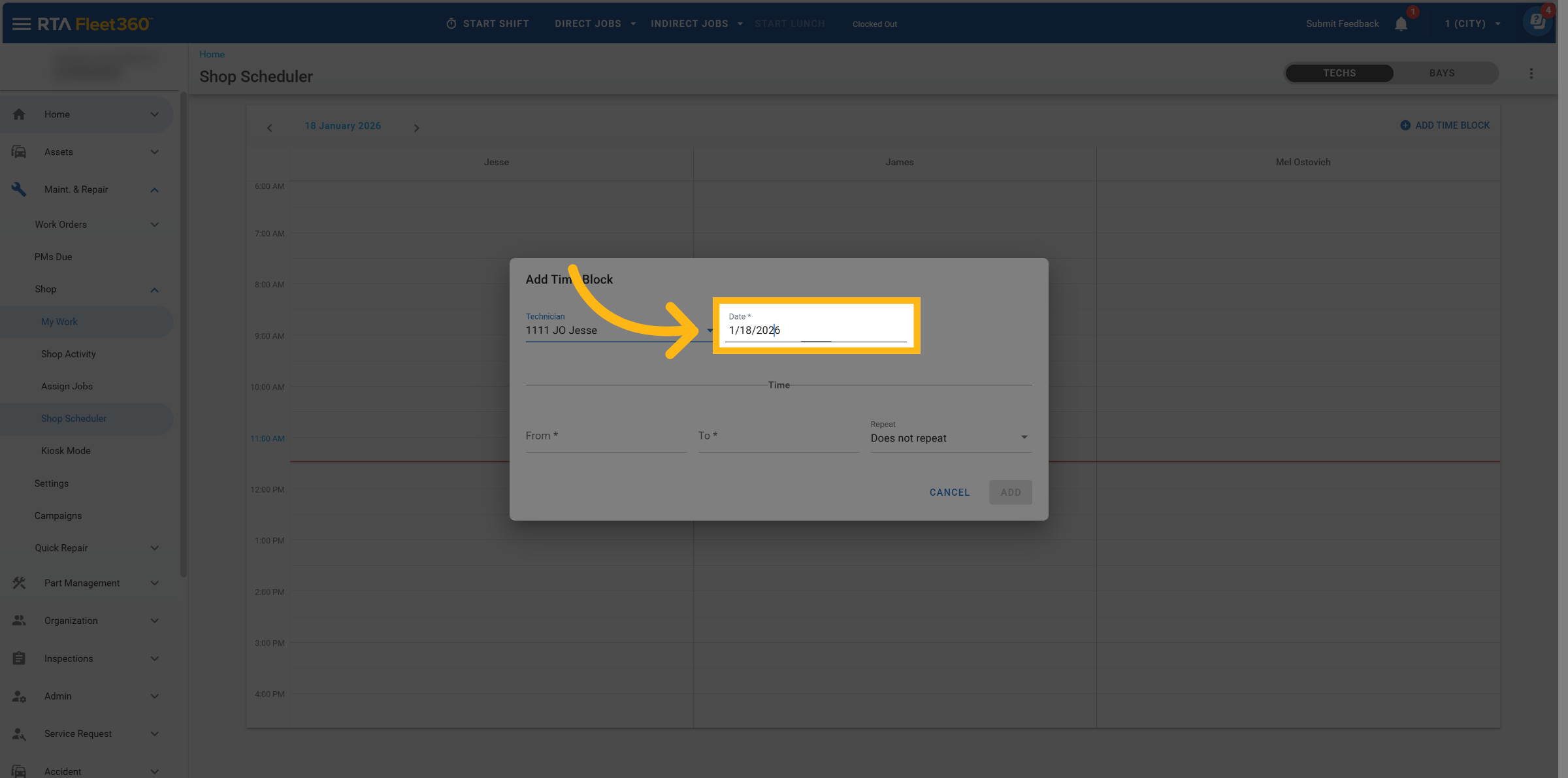
Select a start date
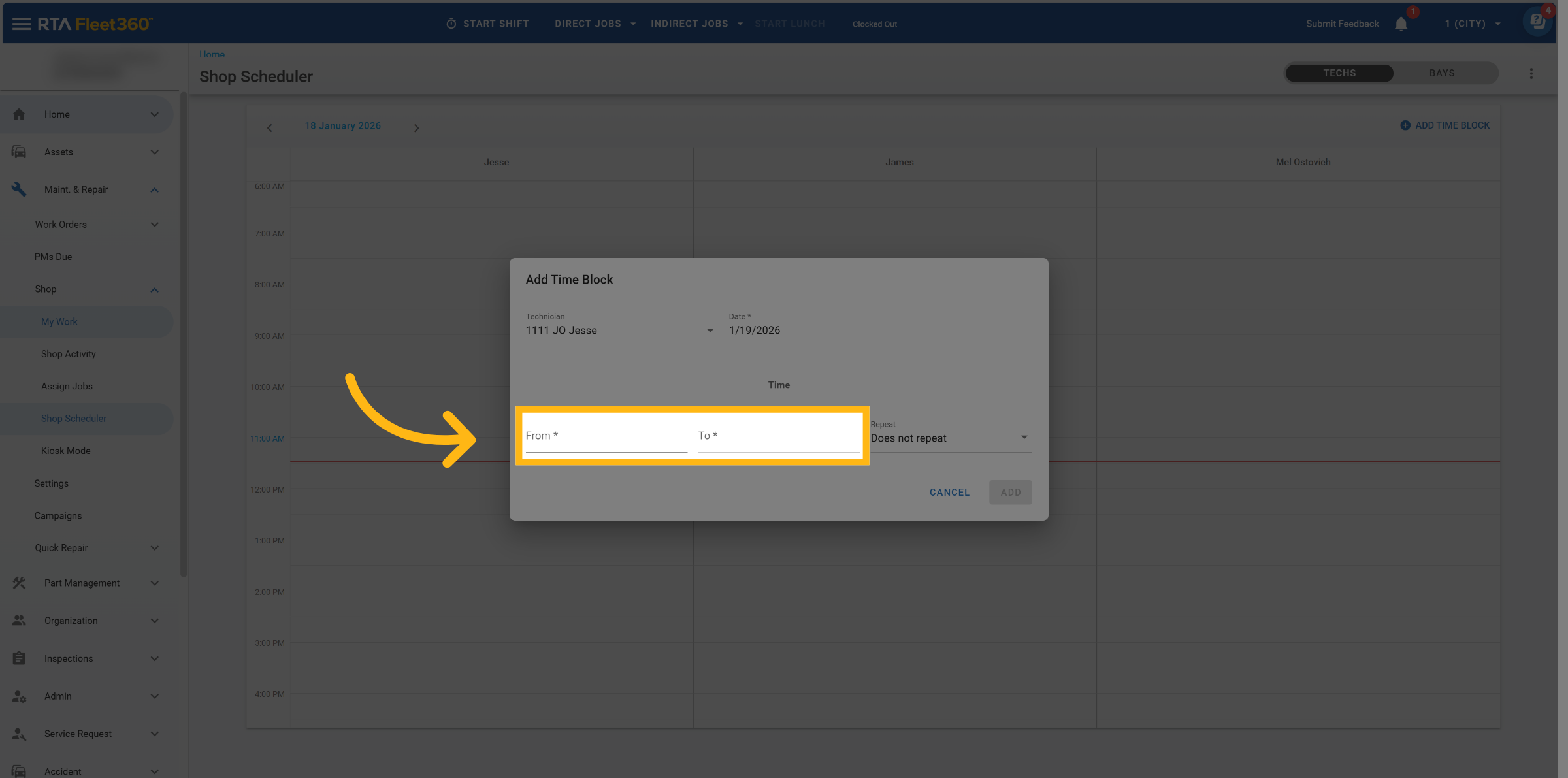
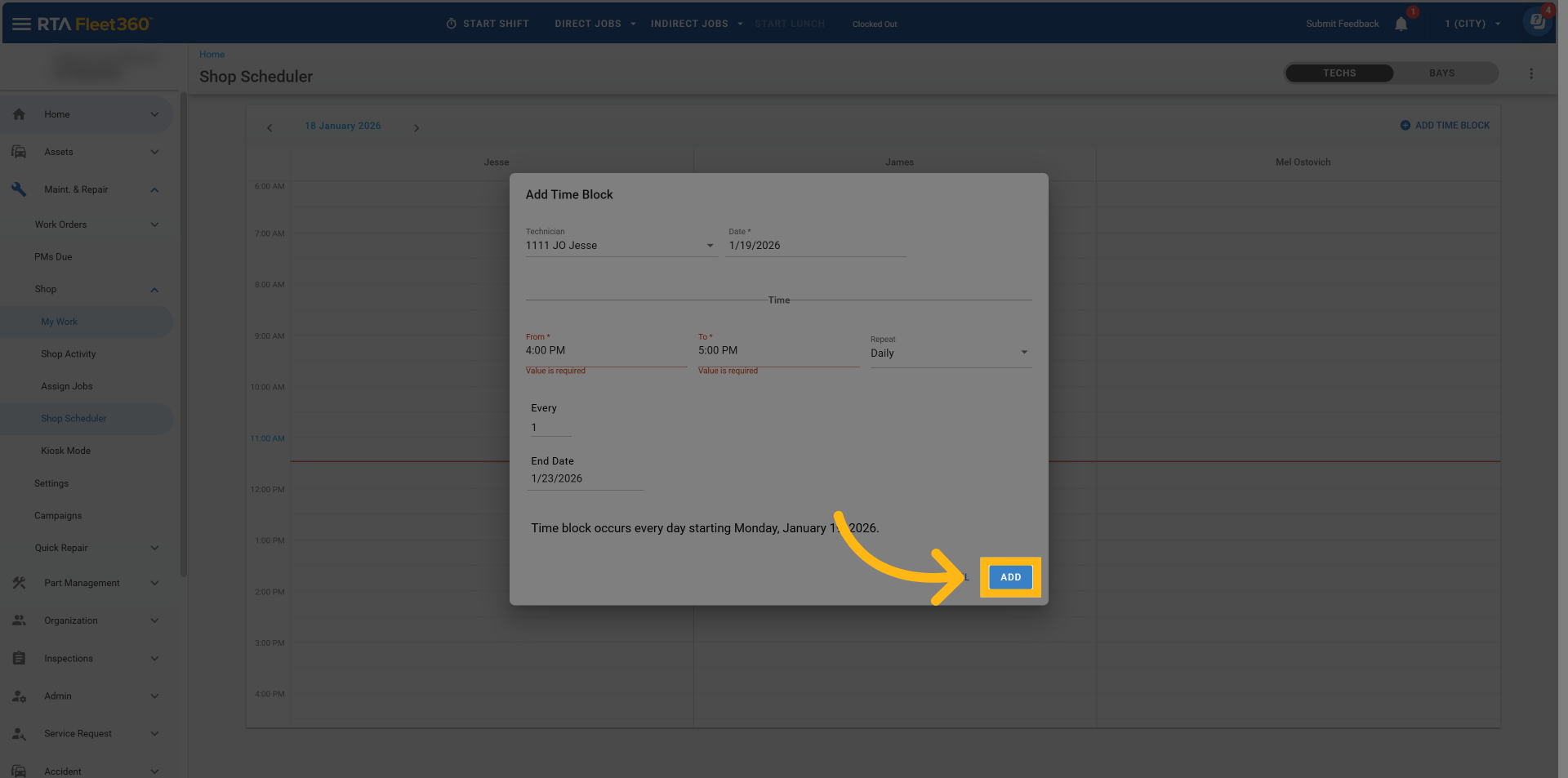
Select start and end times
Select duration
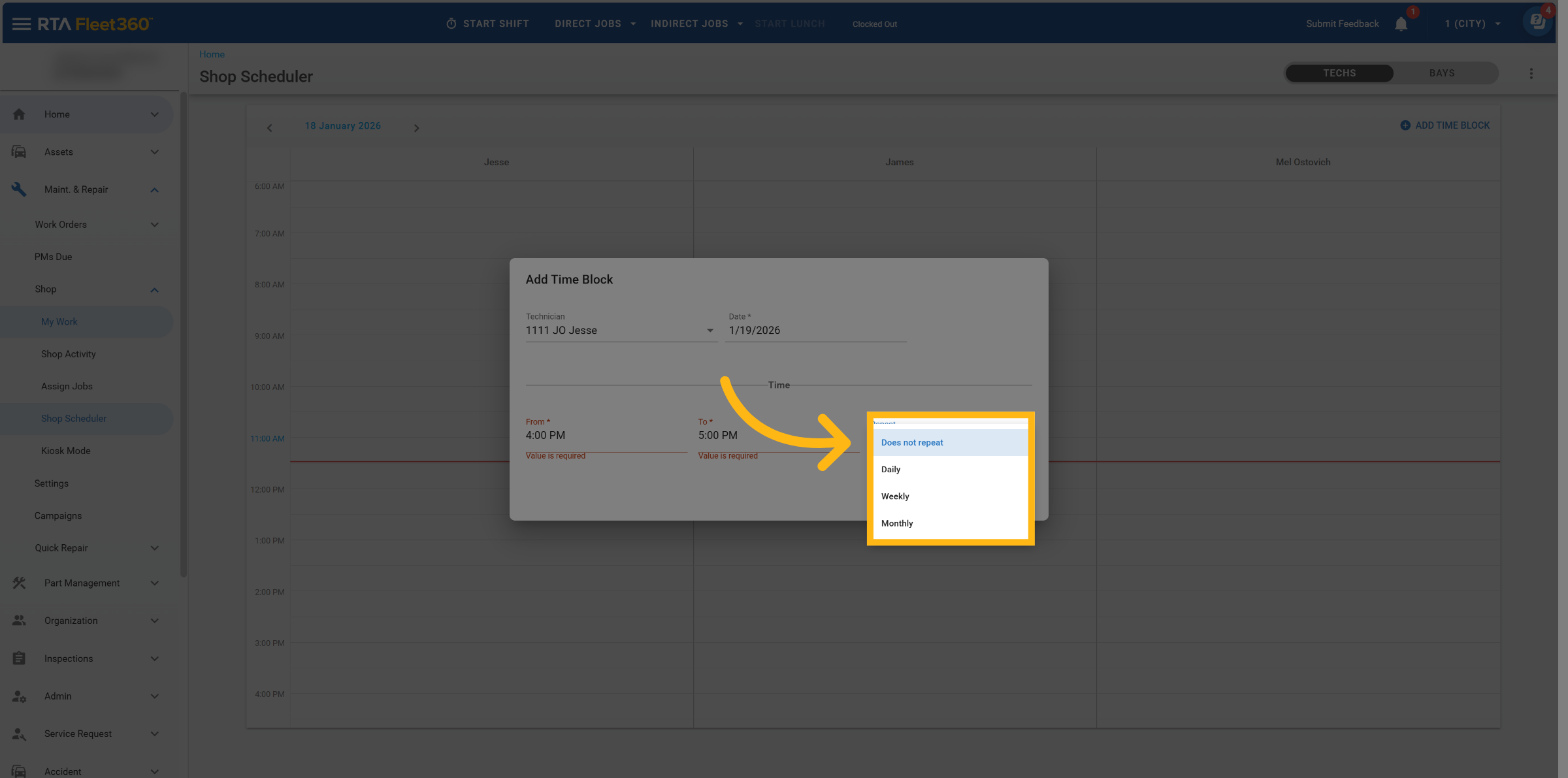
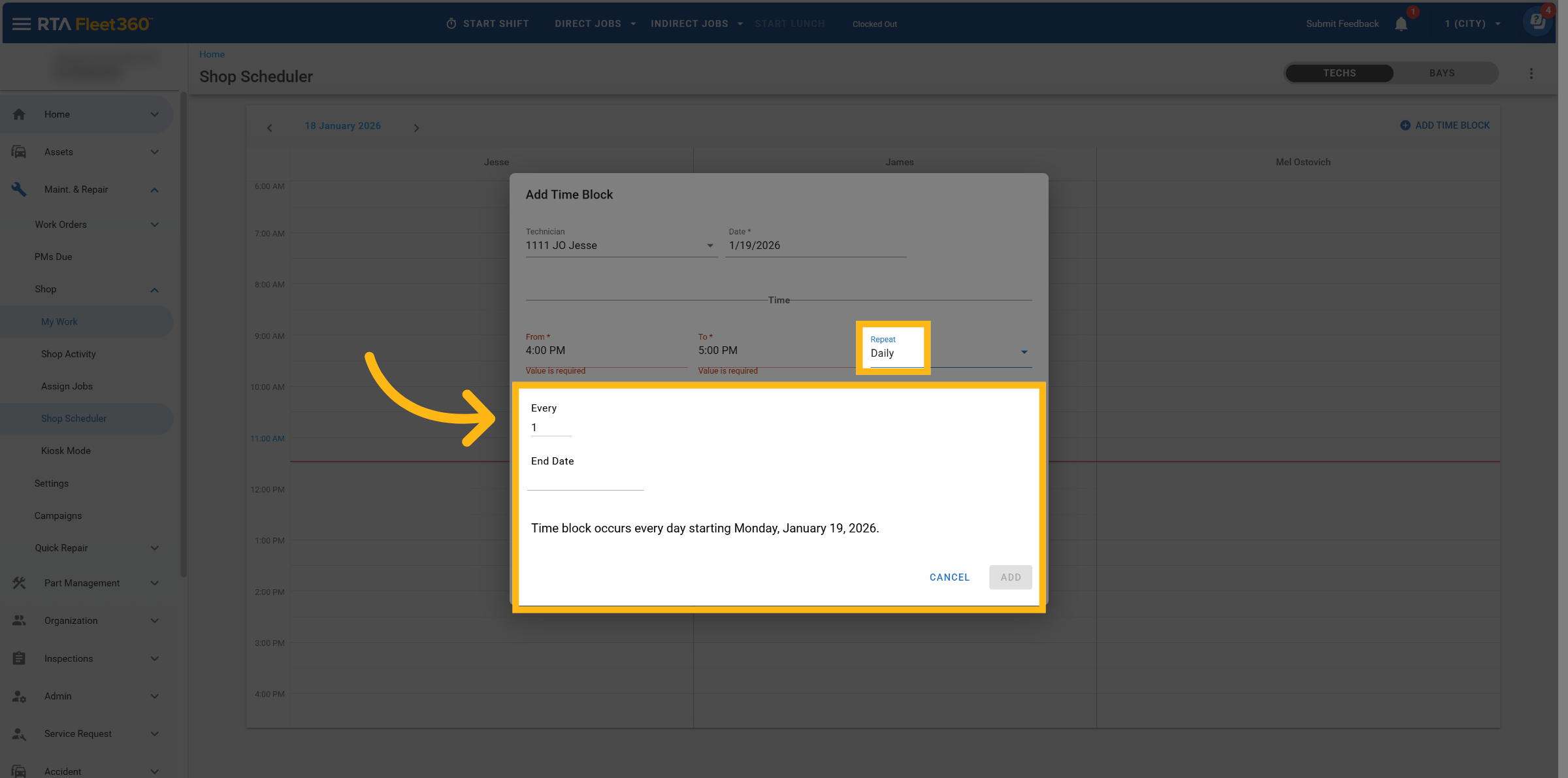
Daily
Daily reservations automatically repeat every day.
To select specific days of the week, switch to a Weekly recurrence.
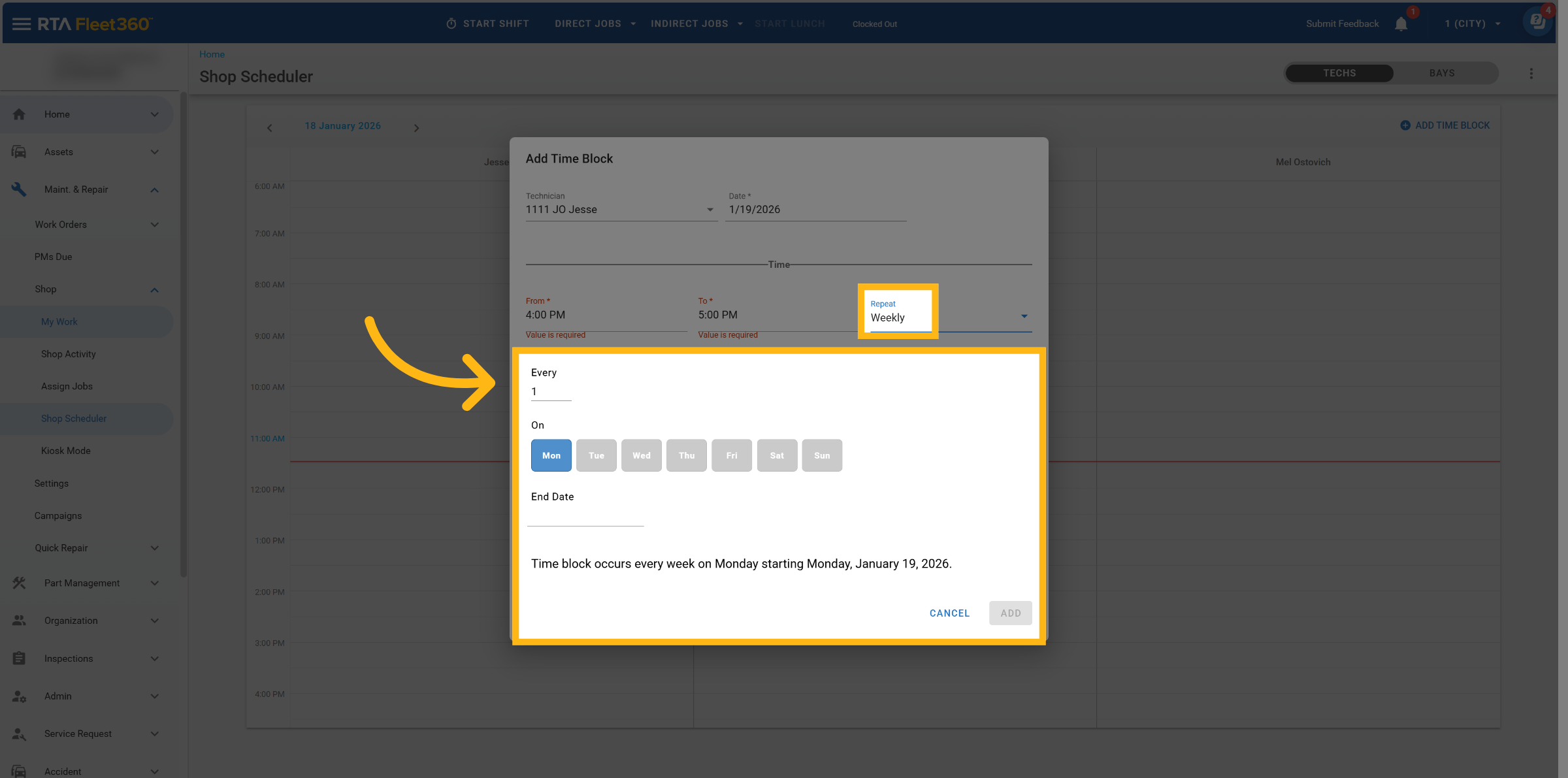
Weekly
Choose which days of the week the time blocks should repeat (Monday–Sunday).
Only the selected days will generate time blocks.
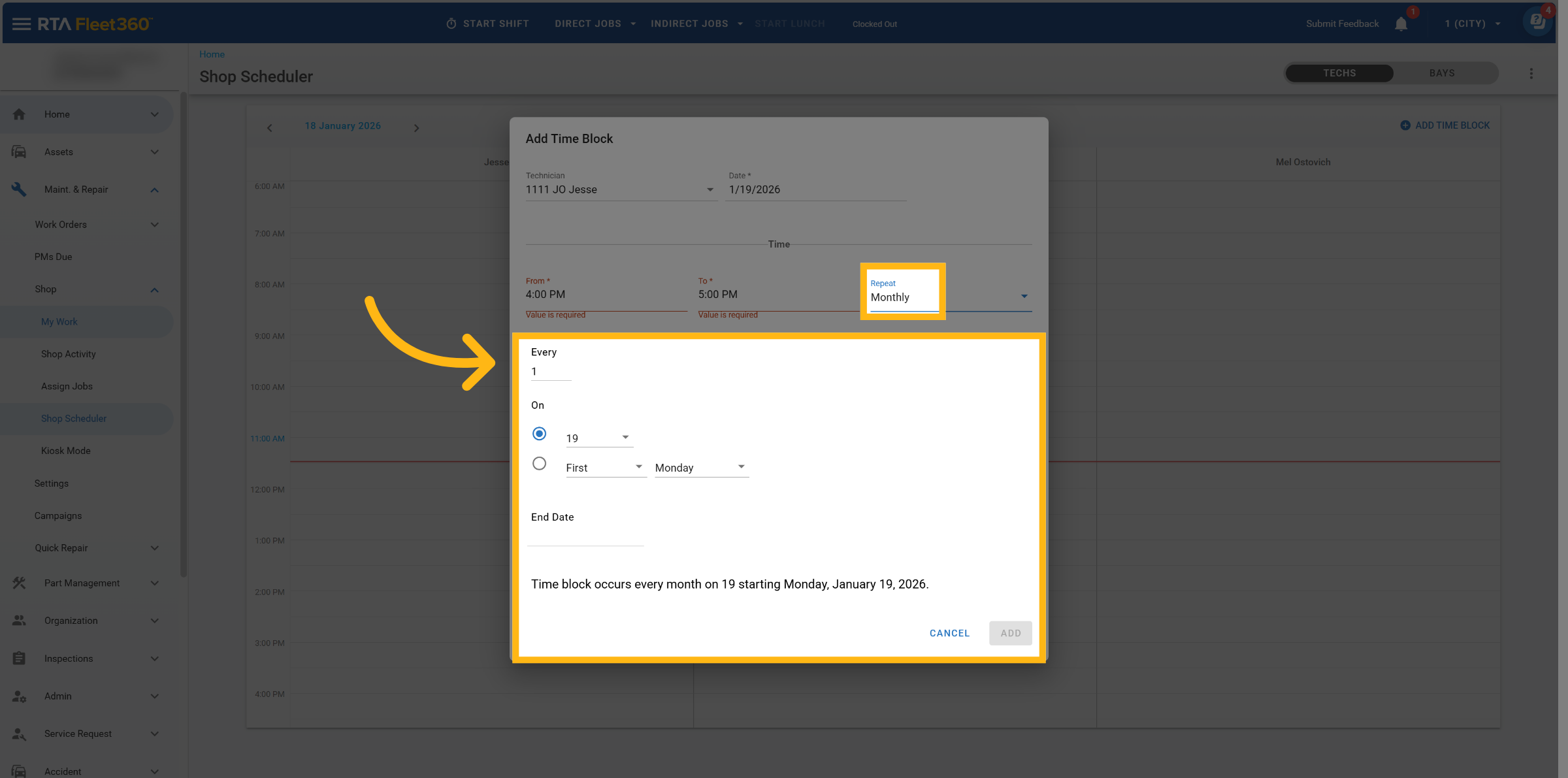
Monthly
When Monthly is selected, choose one of the following options:
Option 1: On a Specific Date
Example: “On the 5th”
The time block repeats on the same date each month.
Available options: days 1–31.
Option 2: On a Patterned Day
Example: “On the First Wednesday”
Based on the selected start date.
Options include:
First, Second, Third, Fourth, or Last
All days of the week
First day or last day of the month
Once durations are set up, click Save
Add a Time Block in Shop Scheduler for Bays
Adding a Time Block for Bays is configured similarly as Technicians.
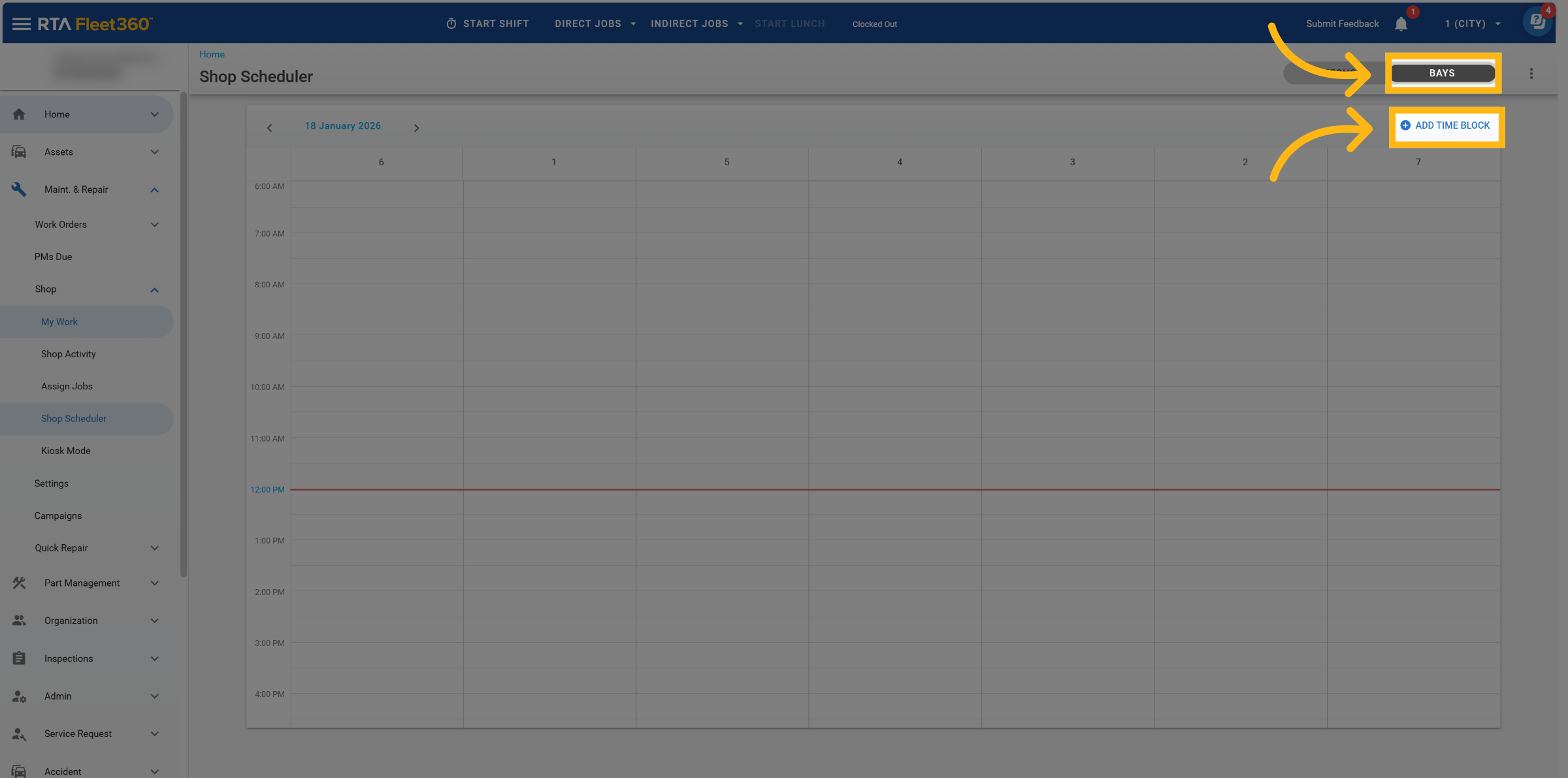
Select “Bays” in Scheduler
Select “Add Time Block”
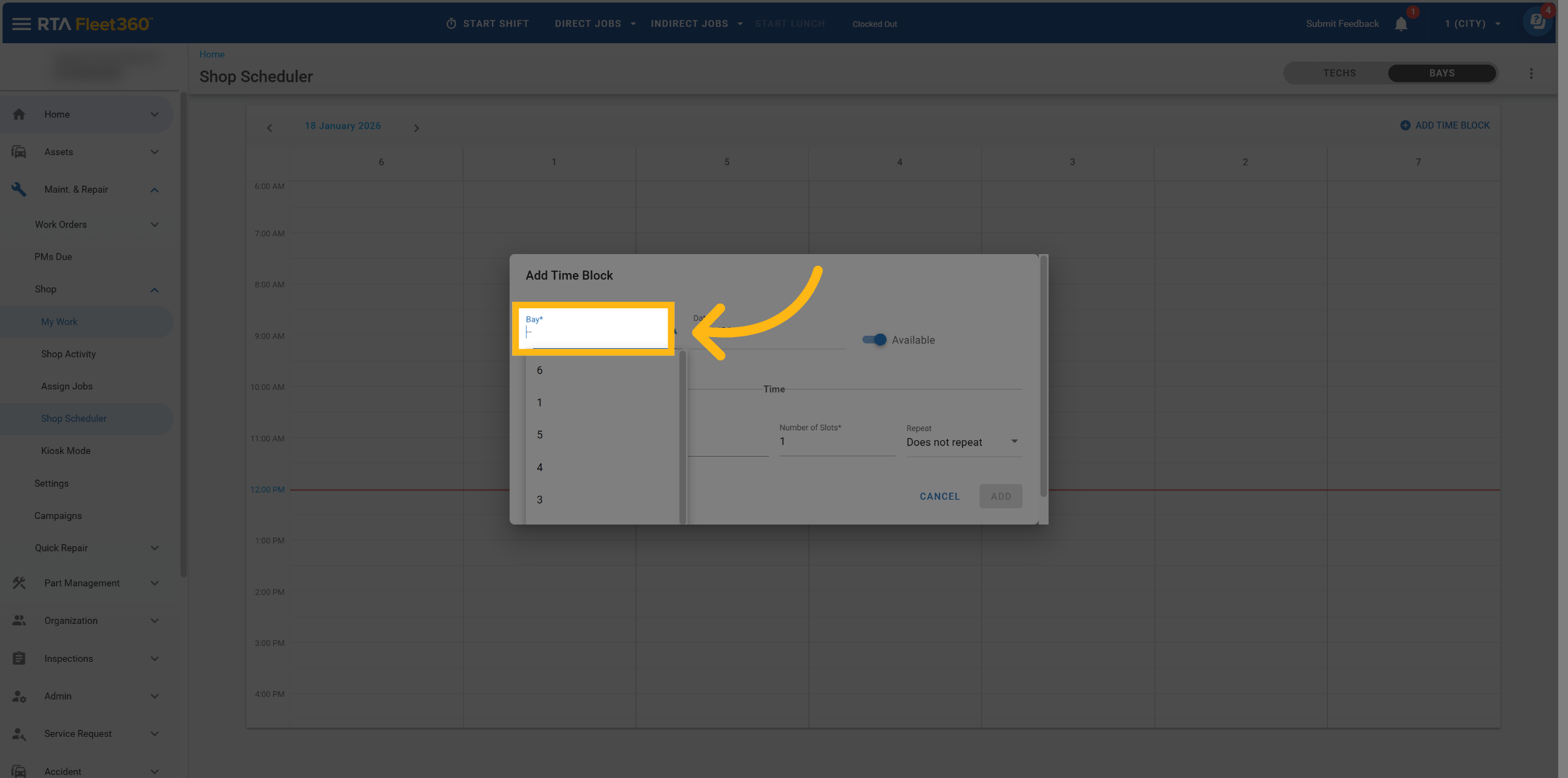
Select the Bay to create a time block for
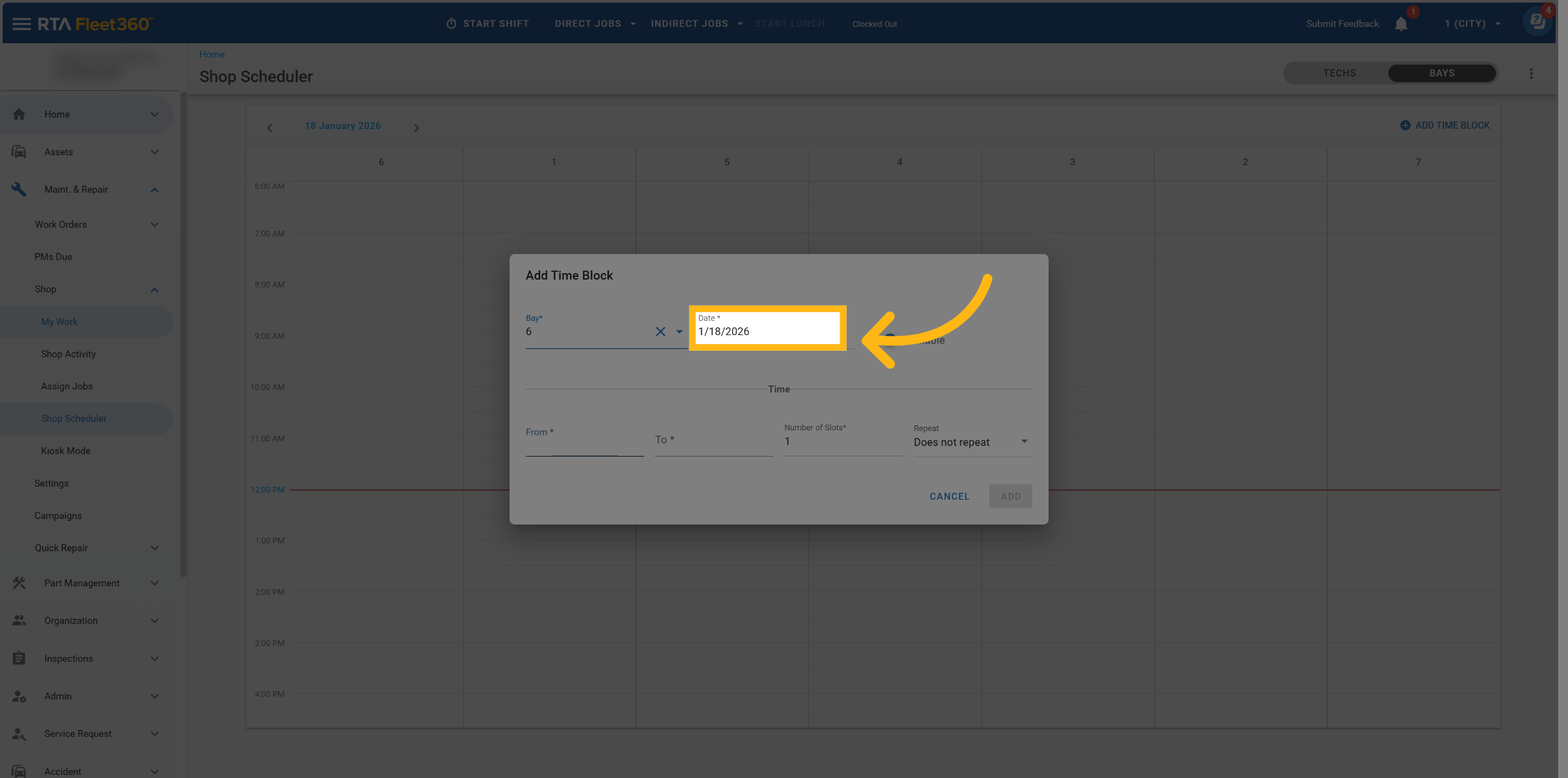
Select start date
Select times for “From” and “To”
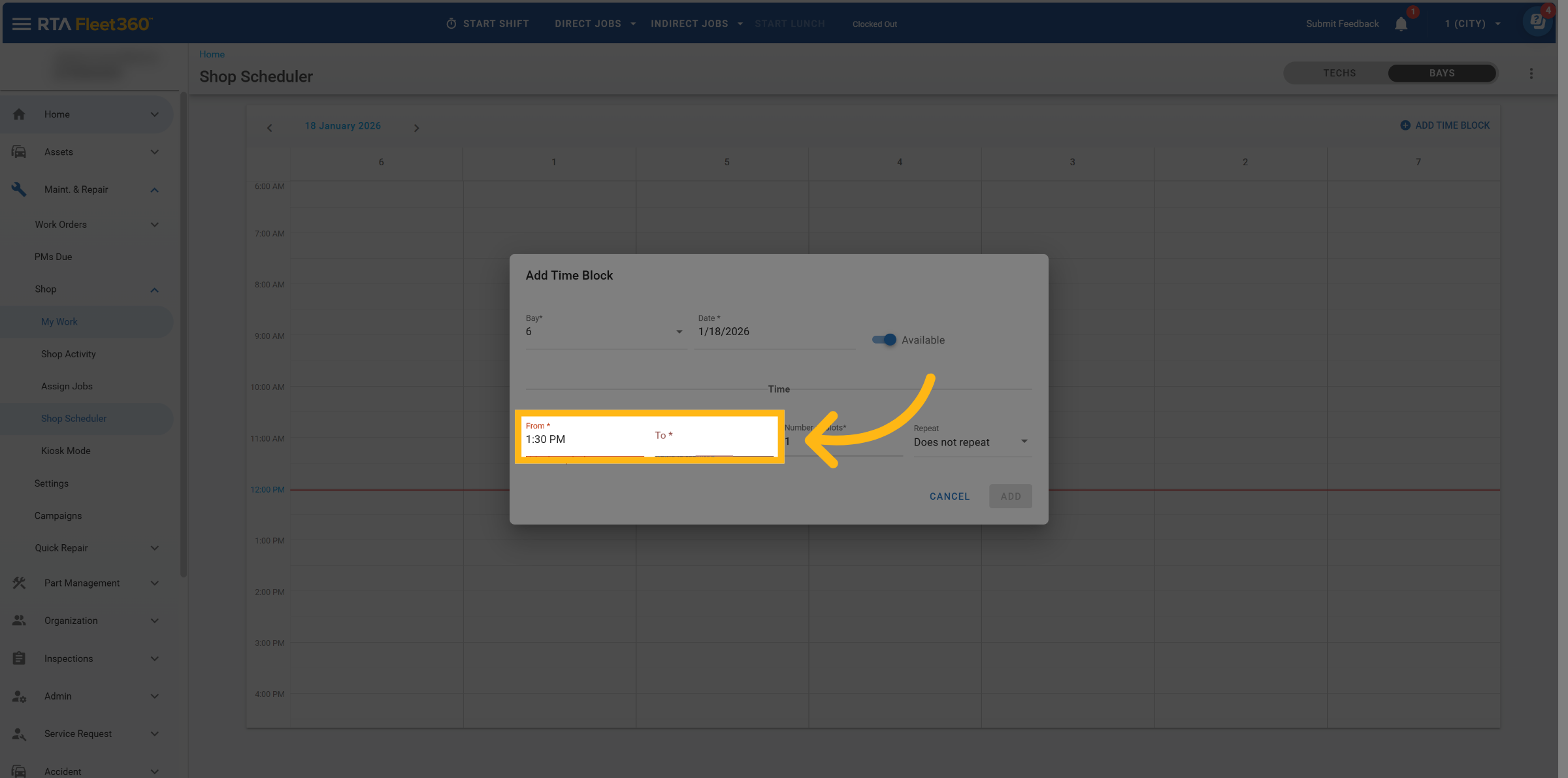
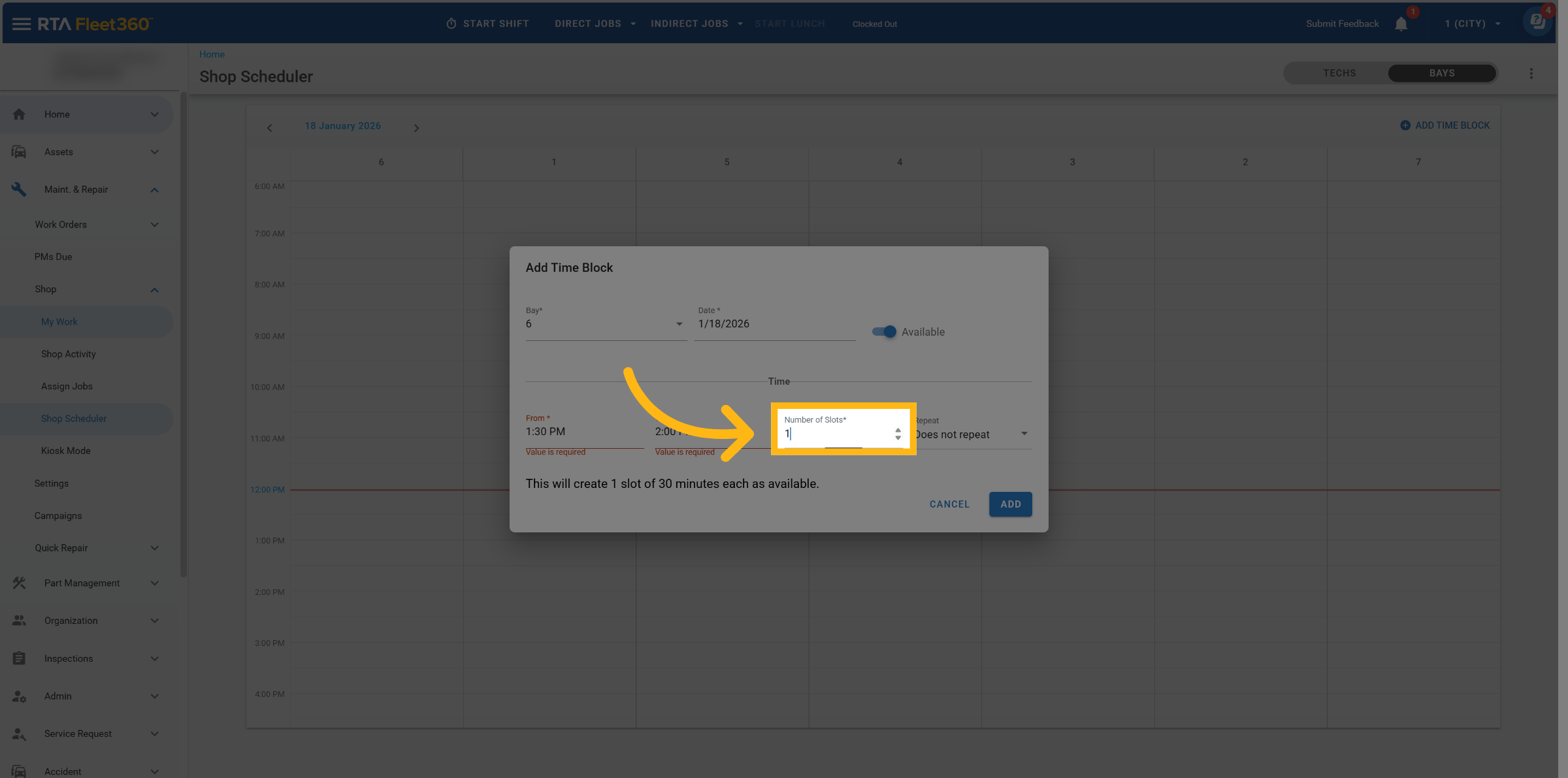
Select Number of Slots
Fleet360 will divide the total time evenly into appointment slots
A note displays the time length per slots
Example: 2-hour block with 4 slots = four 30-minute appointment windows
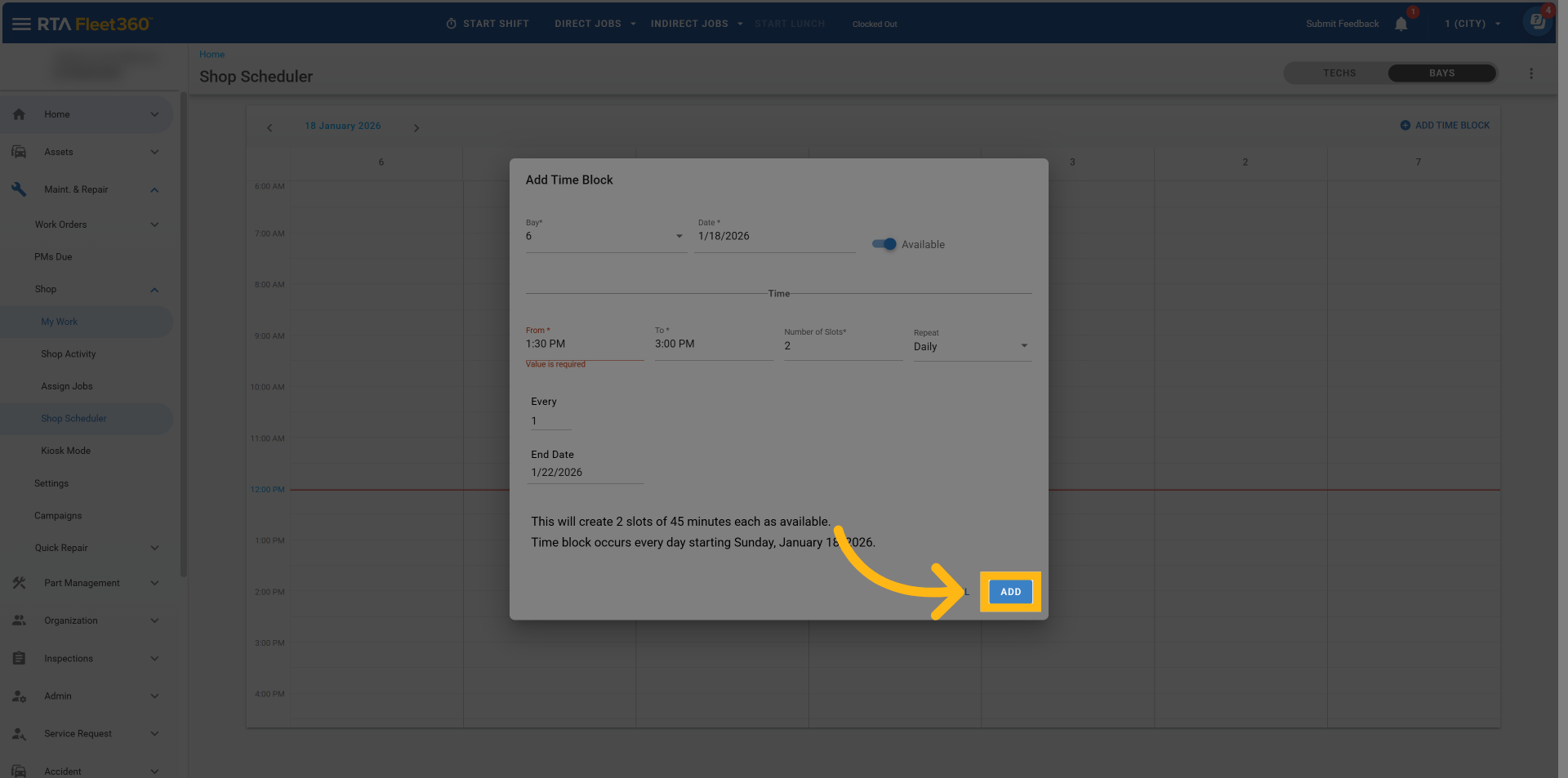
Select Duration
Daily
Daily reservations automatically repeat every day.
To select specific days of the week, switch to a Weekly recurrence.
Weekly
Choose which days of the week the time blocks should repeat (Monday–Sunday).
Only the selected days will generate time blocks.
Monthly
Option 1: On a Specific Date
Example: “On the 5th”
The time block repeats on the same date each month.
Available options: days 1–31.
Option 2: On a Patterned Day
Example: “On the First Wednesday”
Based on the selected start date.
Options include:
First, Second, Third, Fourth, or Last
All days of the week
First day or last day of the month
Click Save
How Service Requests Use Time Blocks
When Time Blocking is enabled:
Customers select a date, then choose from available time slots
Only one time appears even if multiple bays share that slot
Pending service requests temporarily reserve the slot
If a request is declined or closed, the slot becomes available again
The slot is officially filled only after the request is scheduled
If Anytime is selected:
The scheduler will default to “Request New Date”
No time slot is reserved