Parts Chargeout
Manual Parts Charge-Out Page
Overview
The Manual Parts Charge-Out page allows users to create and review manual part charge-outs efficiently. This page includes autofill and filtering features to streamline the charge-out process and maintain accurate records.
Creating a New Charge-Out
Step 1: Set the Date
The Date field defaults to today’s date.
Once you update the date, the system will remember your selection.
Step 2: Enter a Reference Number
Add a Reference Number for the charge-out to help with tracking and reporting.
Step 3: Add Request Details
Fill in the Requestor name.
Enter the Reason for the Request.
Step 4: Add Part Information
Enter the Part Number.
The Description will auto-fill based on the selected part.
Input the Quantity and Price.
The Total will auto-calculate based on:
The average selling price, or
The stack record if using FIFO.
Optionally, enter an Account Number for accounting purposes.
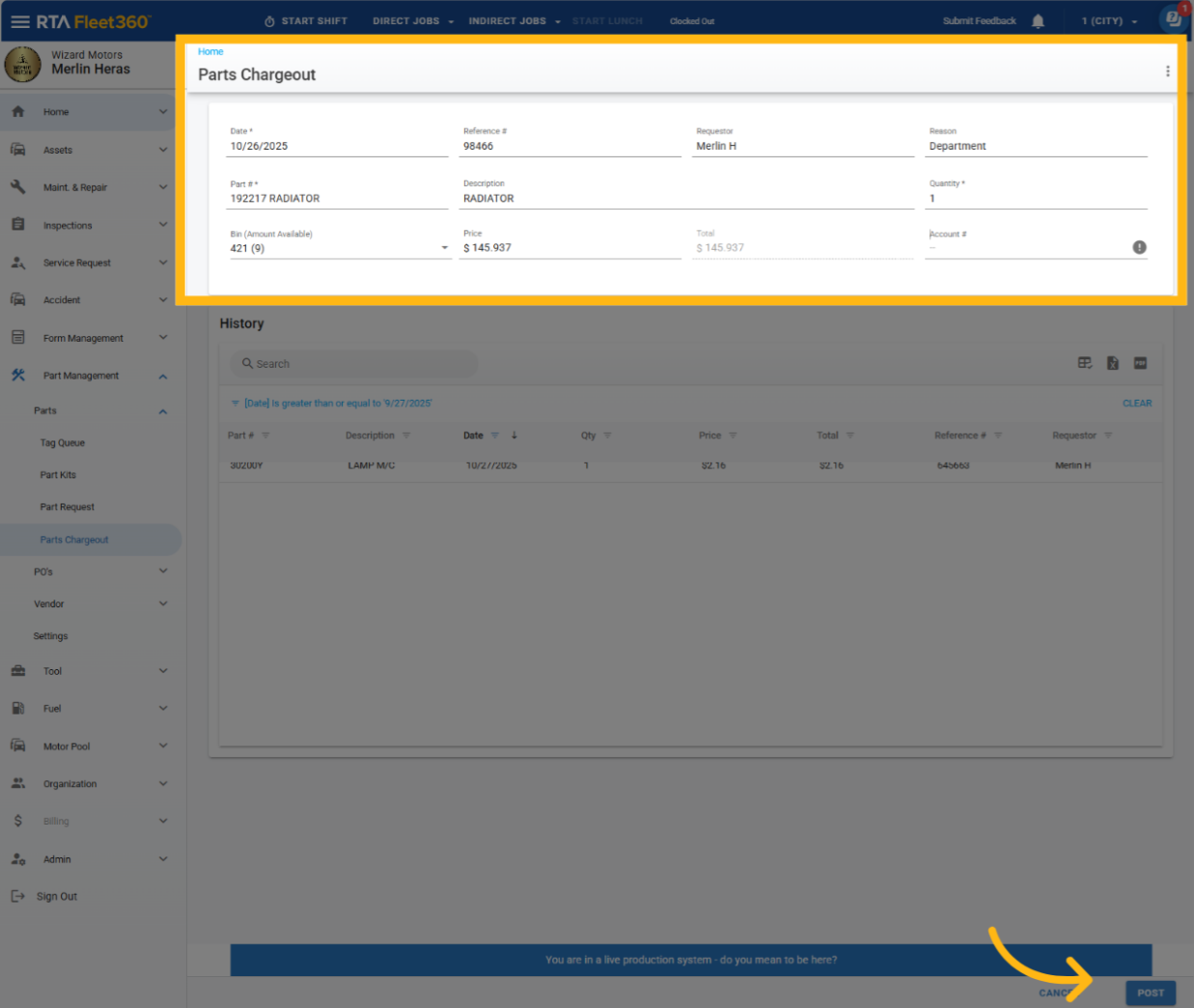
Charge-outs entered here are the records that feed the Manual Parts Charge Out report. That report covers manual charge-outs only, and it is filtered by date range and account number, so use this history grid to confirm what was entered before troubleshooting an empty report.
Manual Charge-Out History
Below the entry section, you’ll find the Manual Charge-Out History table. Rows in this table are display-only - they cannot be edited or deleted (see Correcting a Charge-Out Posted by Mistake below).
This table displays all manual parts charge-outs from the last 30 days (adjustable as needed).
The grid shows up to 10 rows by default and supports scrolling for additional records.
Columns & Features
Each column supports filtering and sorting.
Column | Description |
|---|---|
Part # | Includes an auto-complete option/button |
Description | Part description (auto-filled) |
Date | Defaults to sorting most recent to oldest |
Qty | Quantity charged out |
Price | Unit price of the part |
Total | Auto-calculated total (Qty × Price) |
Ref # | Reference number entered during charge-out |
Requester | Name of the person requesting the part |
Correcting a Charge-Out Posted by Mistake
A manual charge-out is final once you select Post. The History grid is for review only - there is no delete, void or reverse action for a posted charge-out, and the Quantity and Price fields do not accept negative values, so a charge-out cannot be offset by posting a second one. Manual charge-outs are account-based records and are separate from parts posted to a work order, which have their own reversal option (see Reverse a transaction).
If a charge-out was posted by mistake:
Correct the inventory. Posting a charge-out lowers the on-hand quantity in the bin you selected. To put the parts back, adjust the bin quantity on the part file - see Manual Part Inventory Count Adjustments. The adjustment is recorded on the part file; it does not remove or change the charge-out row in History or on the Manual Parts Charge Out report.
Note the correction. Keep the reference number, requestor and date of the mistaken charge-out with your accounting records so the account charge can be excluded when the report is reviewed.
Fleet360 does not currently offer a way to void or reverse a posted manual charge-out. No permission, setting or browser change unlocks one - the screen is working as designed. Removing the posted charge-out record itself is not possible from Fleet360; it requires a data correction by RTA, which is handled case by case and is not a routine fix. Have the facility, part number, charge-out date and reference number ready when raising it.
Permissions
Required Permission
Access Parts Charge-Out
Default User Groups with Access
Admin
Parts Manager
Shop Manager
Facility Admin