Custom Field Report Example
The purpose of this page is to provide detail on how report on Class and Vehicle Custom Fields that are linked to specific vehicles within Fleet360
To report on udf fields assigned to a vehicle within Fleet360, you will need the following Categories:
Vehicles > Vehicle
Global Data Fields > udfVehicle
Vehicle means Asset. The Vehicle categories and fields (Vehicles > Vehicle, udfVehicle) apply to all assets, not only vehicles - the report data names predate the Asset naming used in Fleet360. Likewise, “Vehicle custom fields” here are the Asset Custom Fields, and Category ‘V’ below means an asset-level custom field.
Refer to Advanced Report Wizard.
To demonstrate the process, let’s walk through a simple example using the car in the screenshot below:
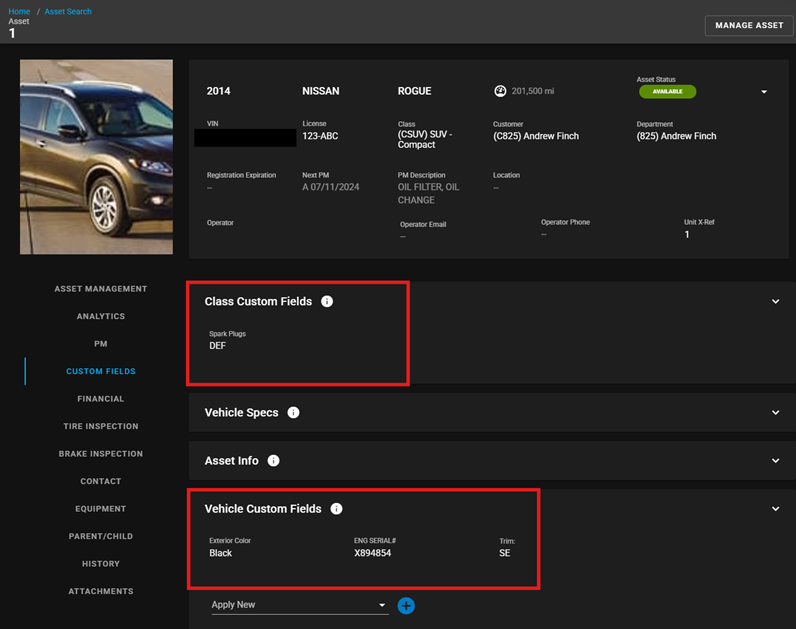
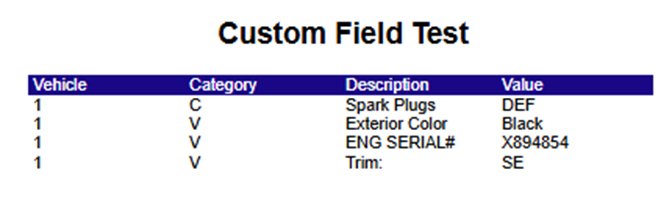
I have Spark Plugs as a class custom field and Exterior Color, ENG SERIAL #, and Trim in the Vehicle specific custom field. All the custom fields will be drawn from Vehicles > udfVehicle
I will set up an Advanced Report to demonstrate how to report on this data:
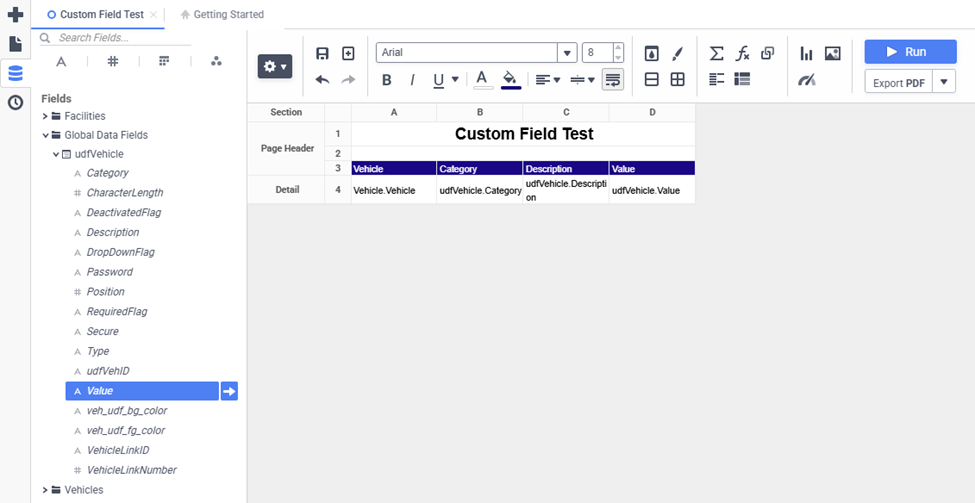
The following fields are included in the screenshot above:
Vehicle – This is the vehicle number
Category – This is character value that represents the category of custom field this originated from
‘C’ for Class
‘V’ for Vehicle
Description – This is the name of the custom field
Value – This is the chosen value for this field
After we run the report, we will get the following results: