Part Warranty
Summary/Use Case
Report Summary
The Part Warranty report provides a detailed overview of part installations, warranty-related details, and vehicle associations for a fleet. This report is especially useful for fleet managers to monitor warranty timelines, costs, and usage metrics, which helps ensure warranty claims can be tracked and recovered efficiently.
Use Case
Track warranty durations by mileage and time for installed parts
Identify parts that are out of warranty but recently failed
Monitor high-cost parts and ensure proper documentation of purchase and installation
Review warranty claims by vendor or part to identify reliability issues
Optimize parts procurement based on warranty duration and historical performance
Location: Where to Find It
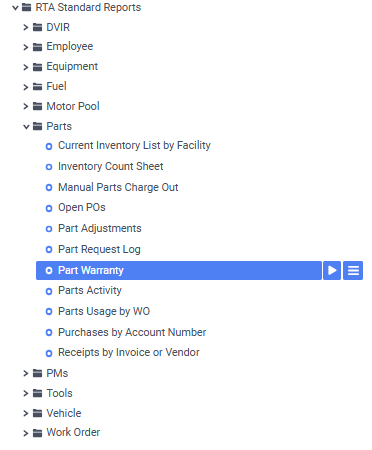
Reports > RTA Standard Reports > Parts > Part Warranty
Data Filter Prompts
You will be prompted for filtering of the Data to specify and narrow down the data that will be pulled. See Data Filter List Below for Options
Parameter List

Parameter Name | Value (Default) | Value (Notes) |
|---|---|---|
Please select Part or Vehicle for grouping | None | Options: None, Part, Vehicle |
Data Filter List
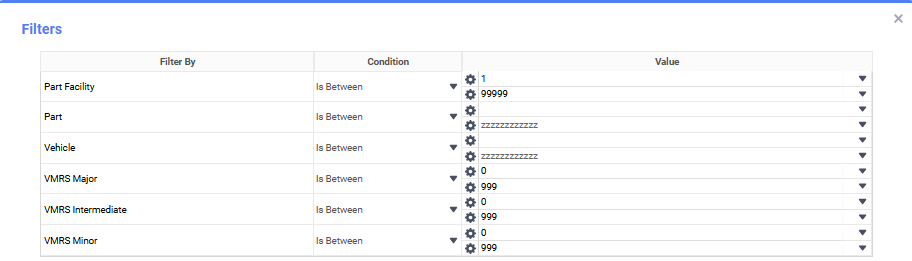
Filter Name | Recommended Filter Condition(s) | Value (Options) | Value (Default) | Value (Notes) |
|---|---|---|---|---|
Part Facility | Is Between | 1 to 99999 | 1 to 99999 | Covers all possible facility locations |
Part | Is Between | " " to zzzzzzzzzzz | " " to zzzzzzzzzzz | First to last possible part numbers |
Vehicle | Is Between | " " to zzzzzzzzzzz | " " to zzzzzzzzzzz | First to last possible vehicle numbers |
VMRS Major | Is Between | 0 to 999 | 0 to 999 | Covers all VMRS major codes |
VMRS Intermediate | Is Between | 0 to 999 | 0 to 999 | Covers all VMRS intermediate codes |
VMRS Minor | Is Between | 0 to 999 | 0 to 999 | Covers all VMRS minor codes |
Report Output and Data Elements
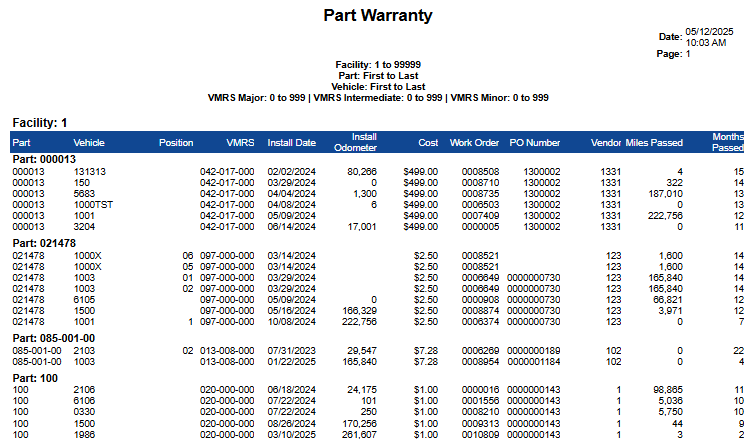
The Part Warranty report displays a detailed listing of installed parts by facility, grouped optionally by part or vehicle. It includes key warranty-related data such as install date, odometer readings, cost, and months passed since installation. This helps in evaluating warranty coverage and tracking usage for potential claims. Totals are not explicitly listed, but each part entry provides cost and mileage details, which allow for manual aggregation.
Report Output
Report Data Elements
Column Number | Column Title | Data Notes |
|---|---|---|
1 | Part | Unique identifier of the part installed |
2 | Vehicle | Vehicle number where the part is installed |
3 | Position | Position code/location where the part was installed |
4 | VMRS | VMRS code categorizing the type of part/service |
5 | Install Date | Date the part was installed |
6 | Install Odometer | Odometer reading at the time of installation |
7 | Cost | Cost of the part at installation |
8 | Work Order | Reference number for the work order used to install the part |
9 | PO Number | Purchase order associated with the part |
10 | Vendor | Vendor number who supplied the part |
11 | Miles Passed | Mileage the vehicle has covered since the part was installed |
12 | Months Passed | Time (in months) that has passed since the part was installed |
What Makes a Part Appear on This Report
This report lists tracked warranty installations, not every part that has ever been posted. Fleet360 only records a warranty installation when a part is posted to a Work Order job and all of the following are true at the time of posting:
The part file has Warranty turned on (Part file > Details > Warranty card) with the covered Miles and/or Months entered.
The part file has a Part VMRS code other than 000-000-000. Parts with no Part VMRS code are skipped even if Warranty is on.
The part is posted as a Part transaction to a Work Order job for an asset that is still on file. Labor, sublet and non-file lines do not create installations.
Each row is the current (most recent) installation of that part on that asset and position. When the same part is posted to the same asset again, the existing row is updated to the new install date and odometer rather than a new row being added, so this report does not show the history of earlier installations.
Warranty tracking starts from the day it is set up. Parts posted before Warranty was turned on, or before the part had a Part VMRS code, are not added to this report retroactively.
Why the Report Returns "No Data Qualified"
The default filter ranges (facility 1 to 99999, blank to zzzzzzzzzzz, VMRS 0 to 999) include everything, so leaving them unchanged does not cause an empty result. If the report returns No Data Qualified, check the following in order:
Open the part file and confirm Warranty is turned on and a Miles and/or Months value is entered.
Confirm the part file has a Part VMRS code assigned (not 000-000-000).
Confirm the part has been posted to a Work Order job since those two settings were in place. If the only postings are older, there is nothing for the report to show yet.
If you narrowed the Part filter, make sure the part number range includes the part exactly as it appears in the part file (the Part Facility range must also include the facility that owns the part).
If the part can be installed in several positions on one asset, confirm the Part VMRS code has Tracking Location checked and Part Position Codes exist, otherwise only one installation per asset is kept.
Refer to Parts VMRS Codes For Warranty Tracking.
Refer to Part Warranties.
Refer to Warranty Part Installs.
Finding How Long a Part Lasts Between Replacements
There is no standard report that calculates the average miles or months a part lasts before it is replaced. The Part Warranty report shows how far each current installation has run so far (Miles Passed, Months Passed), not the life of the parts that were replaced. The following give you the data to work it out:
Warranty Part Installs (Part Management > Vendor > Warranty Part Installs): search the part number to see every tracked installation with its Life (miles/months since install) and Remaining columns. Requires the same warranty setup as this report.
Parts Usage report (Reports > RTA Standard Reports > Parts > Parts Usage (New)): filter to the part number and a wide date range and group by Part. Every posting of that part is listed with its date, Work Order and asset, so you can see how often it was replaced on each asset. This report works for any part, with or without warranty setup, but it does not include odometer readings.
To turn replacement dates into miles, compare the asset’s meter readings on the Work Orders where the part was posted (Work Order header meter, or the Asset meter history).
Setting up Warranty on the part file now (even with an estimated Miles/Months value) means every future installation is tracked, so the Part Warranty report and Warranty Part Installs will start to build the replacement history you need.
Refer to Parts Usage.