
Reason Codes
The Reason Code defines why a repair was requested. You can add up to 99 reason codes.
Before you begin: the switch and the codes are two separate things
The Reason field on a work order only appears when the Use Reason Codes switch is ON under Admin > System Switches > Work Orders (see Work Order System Switches). Turning the switch on does not create any codes. The Reason list on the work order shows only the codes added on this screen, so if the list is empty, no Reason Codes exist yet — add them here. Turning the switch off and on again does not change what is in the list.
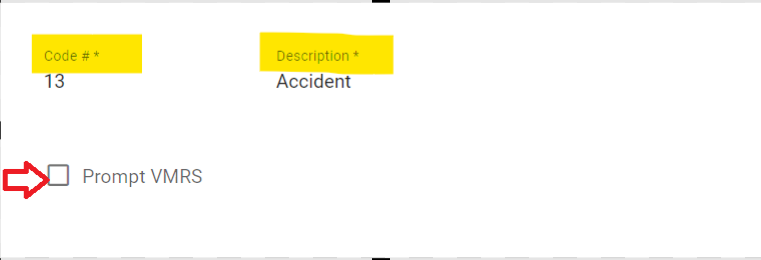
The Prompt VMRS checkbox on a code asks for a VMRS code when that reason is selected on a work order.
Adding a new reason code
From the main menu, select Maint. & Repair> Settings> Reason
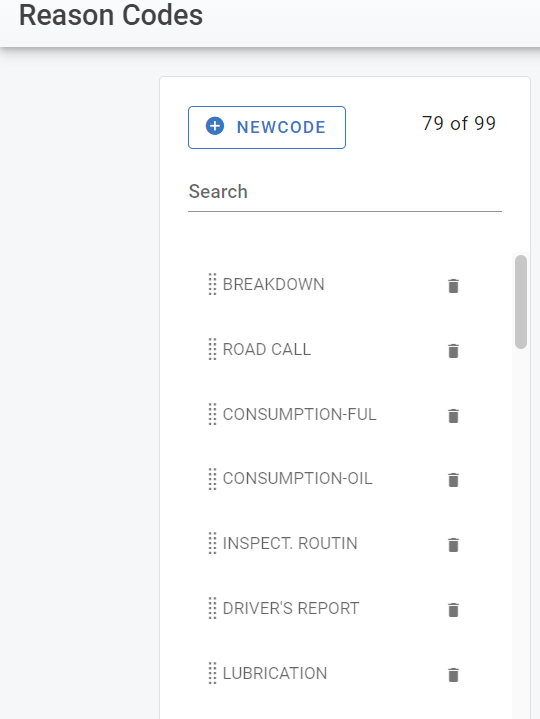
Click New Code at the top of the code list. The button is unavailable if your user group does not have permission to add codes — ask your administrator.
Add a code number and a description for the code, you also have option to check the Prompt VMRS code.
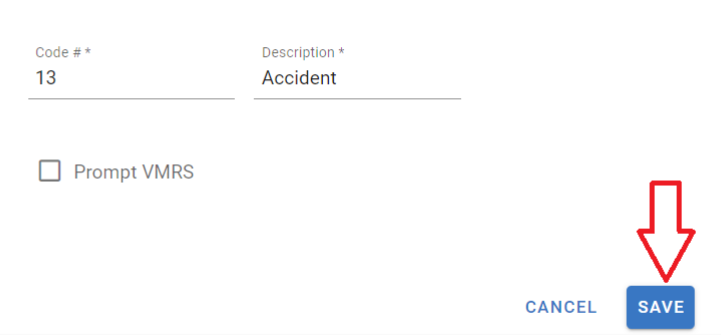
Click Save and the new reason code should display in your code list.
Editing a reason code
Select the reason code you wish to edit by clicking on it from the list.
Click in the code # and description box, and you will be allowed to enter the new information.
Click the check mark to confirm.
Deleting a reason code
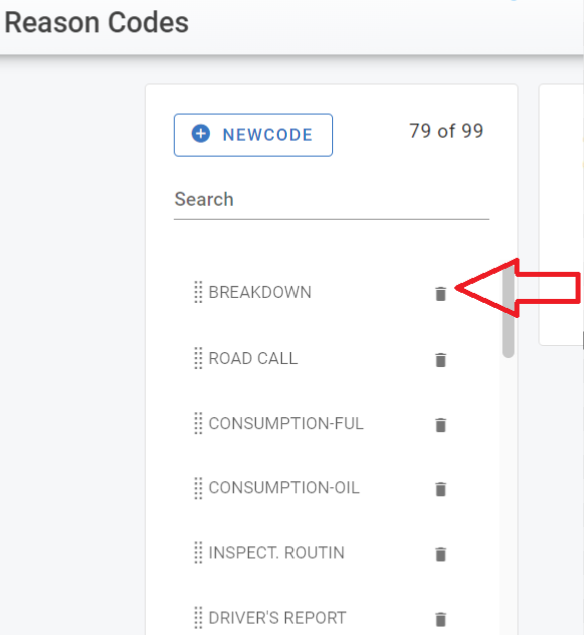
Click on the trashcan next to the code you wish to delete.
Click delete when the confirmation box pops up.
The Reason list on the work order is empty
Confirm Use Reason Codes is ON (Admin > System Switches > Work Orders). If it was just turned on, refresh the browser once.
Open Maint. & Repair > Settings > Reason. If no codes are listed, the work order list is empty because there is nothing to show — add at least one code as described above.
Return to the work order and refresh; the codes appear in the Reason list.
Adding the very first code and the Code # / Description fields do not appear? When the Reason list is completely empty, the New Code form can open without its fields, so nothing can be entered or saved (this happens in every browser). Do not keep switching Use Reason Codes off and on — it does not affect this. Contact Support to have the first code added; once one code exists, New Code works normally for the rest.