Sublet Estimate Capture
Sublet Estimate Capture Overview
The AI Estimate Review & Estimate Work Order Mapping tool in Fleet360 (Sublet Estimate Capture) streamlines how external vendor estimate are added to your Estimate Work Orders. Instead of manually retyping estimate details, the system uses AI to extract line items and presents them in a guided review screen where you can quickly validate and finalize the data before saving.
Within this interface, users can review estimate details side-by-side with the original document, edit line items, assign VMRS and Cause Codes, adjust quantities and costs, and organize entries into Labor, Parts, or Misc. categories. Built-in validation highlights missing or incorrect information, helping ensure everything is complete and accurate before posting.
This tool improves efficiency, reduces data entry errors, and ensures consistency across your fleet data, giving you greater confidence in your reporting, cost’s, and maintenance records. See below to learn how to use this tool.
How To Access Sublet Estimate Capture
Click on Maint. & Repair
Click on Sublet Estimate Capture
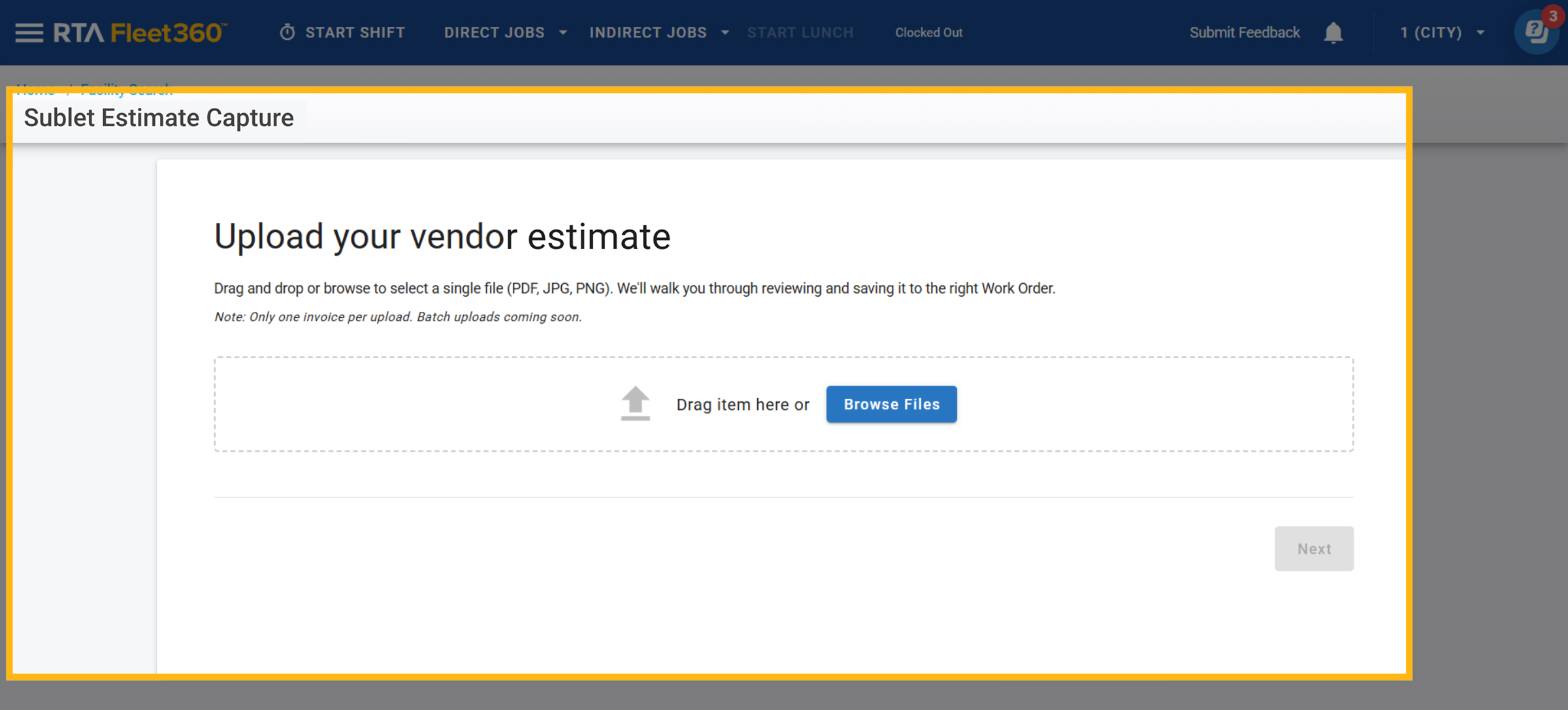
This is where you will be able to upload estimate
Access and Availability
Sublet Estimate Capture is an add-on module. It is not included in every Fleet360 account, and it has to be enabled for your organization before anyone can use it. Two things have to line up, and Fleet360 checks them in this order:
Module availability - whether the add-on is included for your account. If it is not, the menu item is visible but greyed out with a padlock icon beside it, selecting it does nothing, and opening the screen by its address sends you to the unauthorized page. This applies to every user, including administrators.
User group permission - once the module is available, a user also needs the Import Sublet Invoices permission in their user group. Without it the menu item is greyed out without a padlock. Your Fleet360 administrator sets this in User Group Maintenance.
Sublet Estimate Capture and Sublet Invoice Capture are enabled together as one add-on and share the same permission, so if one is locked the other is too.
A padlock means the module is not enabled for your account. No setting inside Fleet360, no user group change and no browser or cache fix will unlock it. Enabling the add-on is handled by your Fleet Success Manager, or by emailing addons@rtafleet.com, who can go over pricing and turn it on for your organization; the menu item unlocks automatically once it is enabled. See also Why Custom Dashboard Is Locked or Unavailable, which explains the padlock icon.
Adding an Estimate
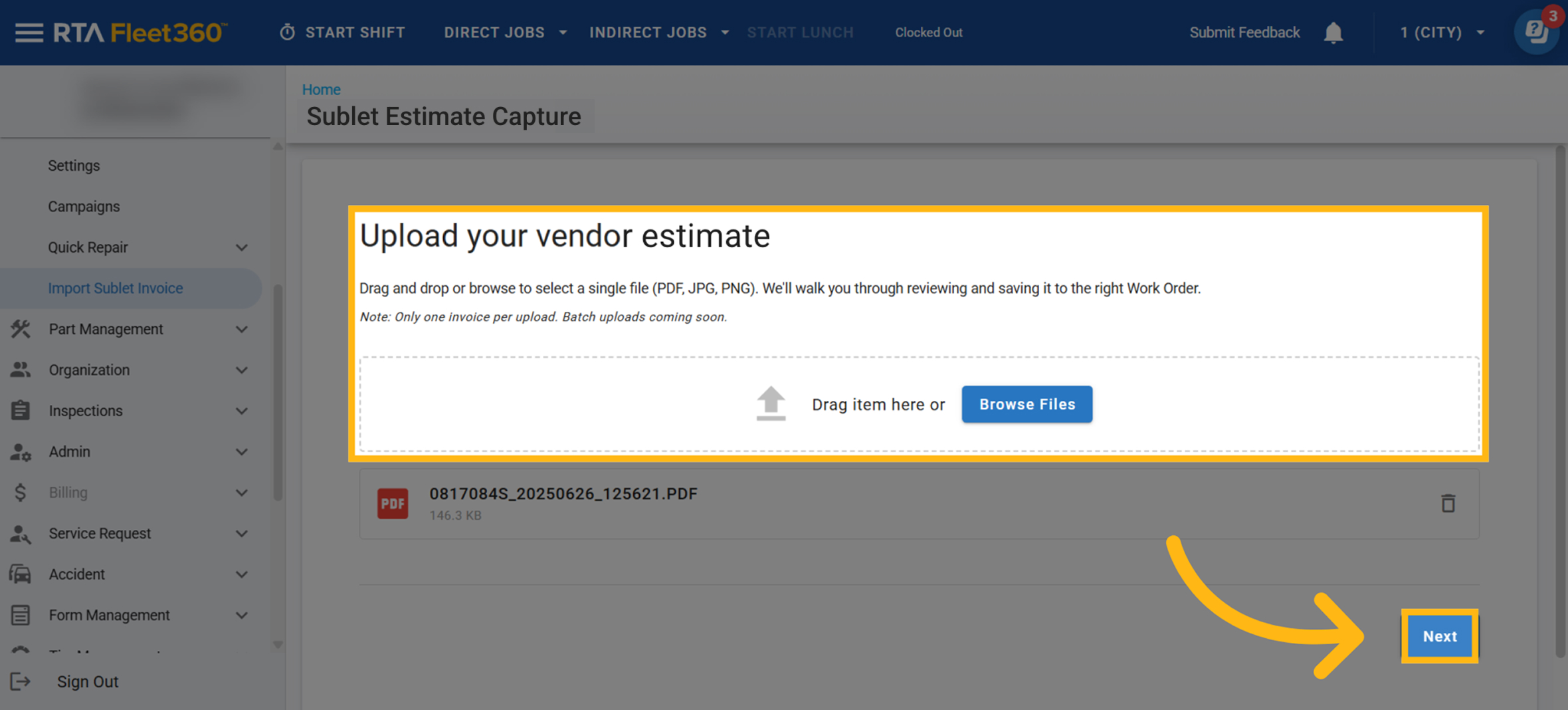
Drag and drop or browse your files to select a single file to upload
Click Next
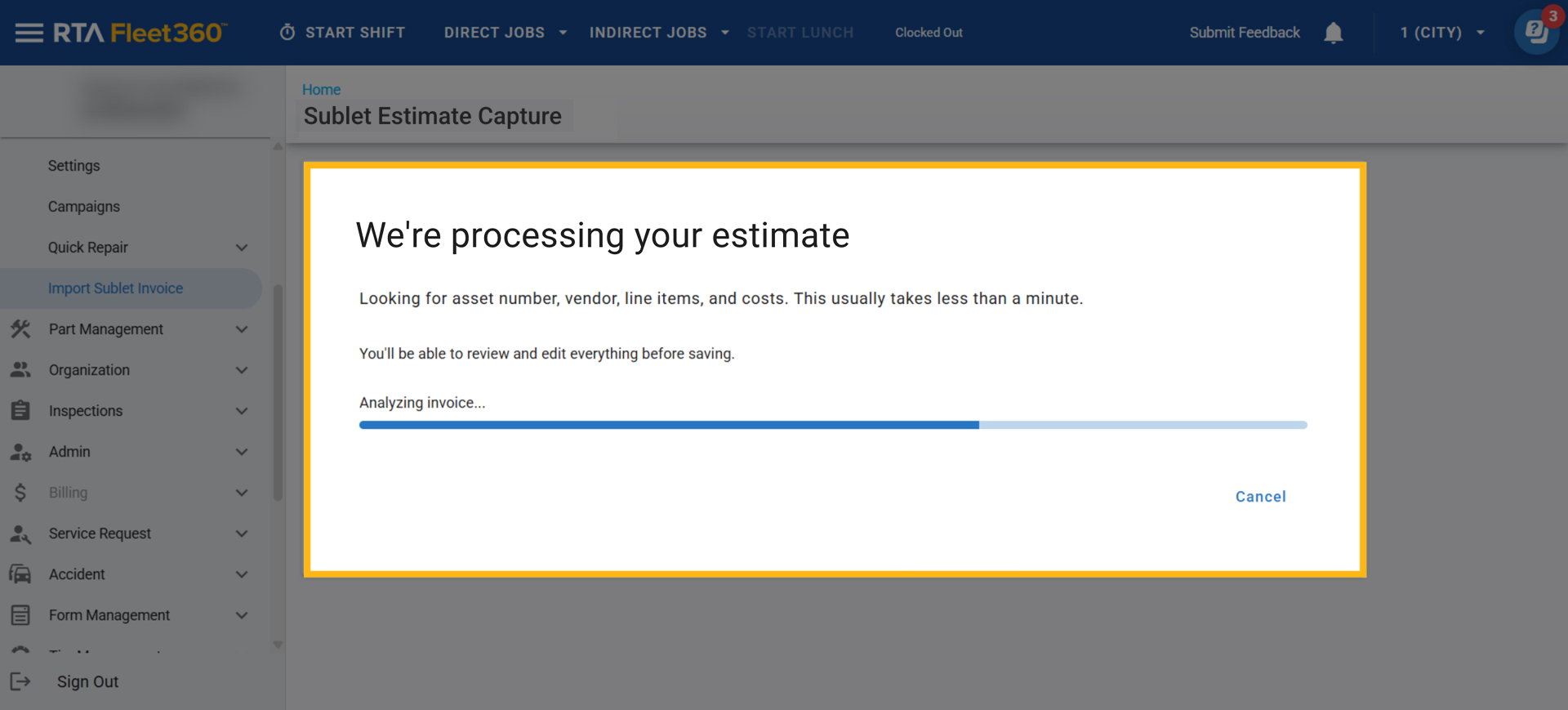
After Next is clicked, there may be a small waiting period while the utility is reviewing the estimate
Attaching an Asset
Once the estimate review is completed you will see asset information and a copy of the estimate
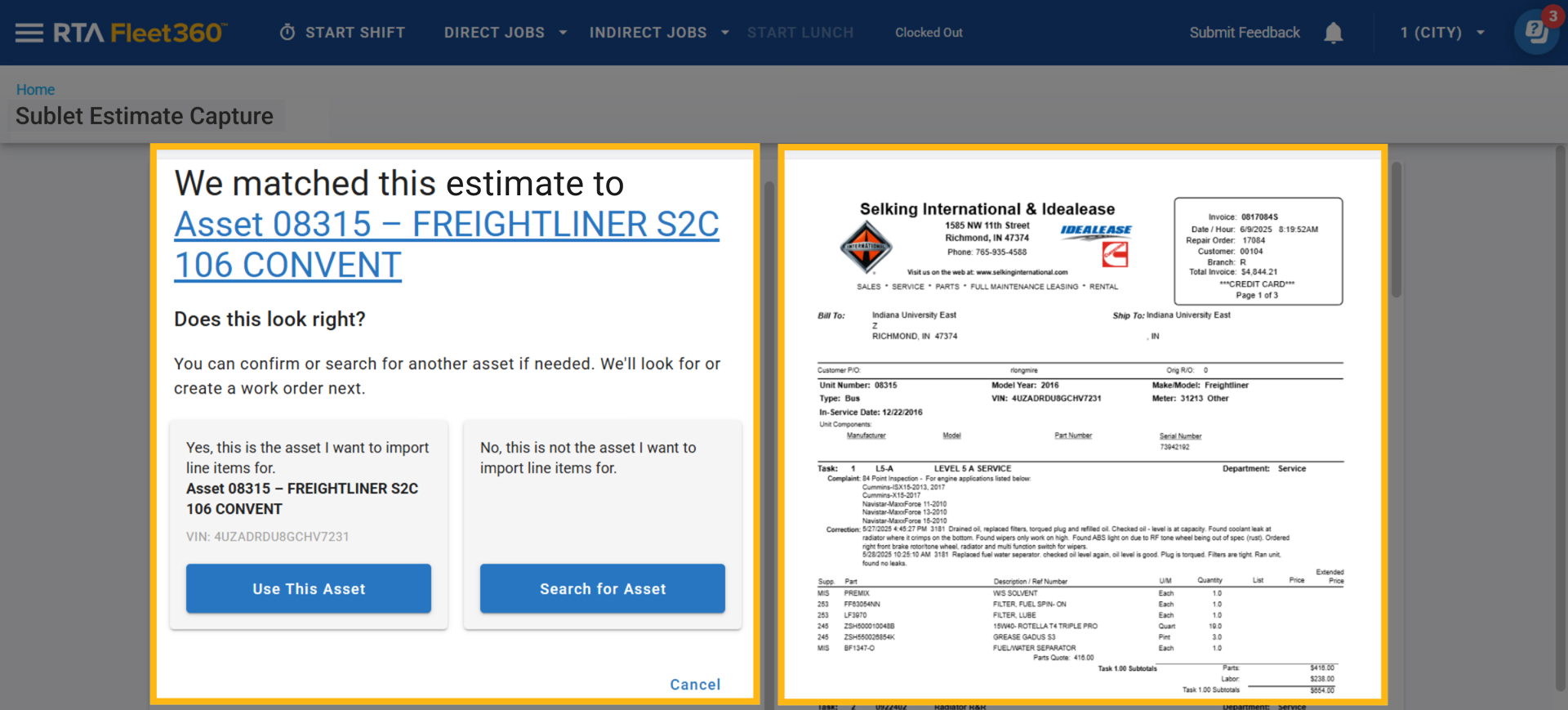
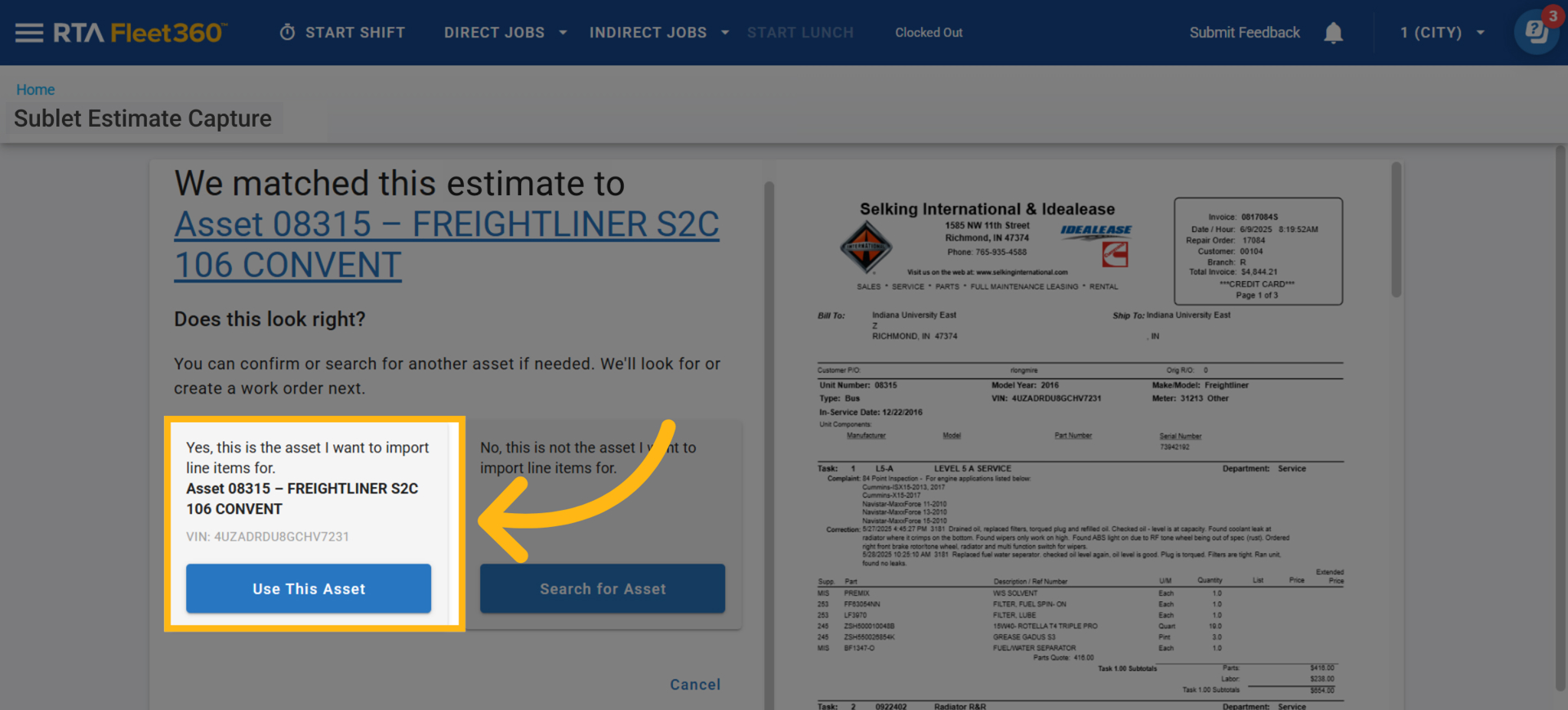
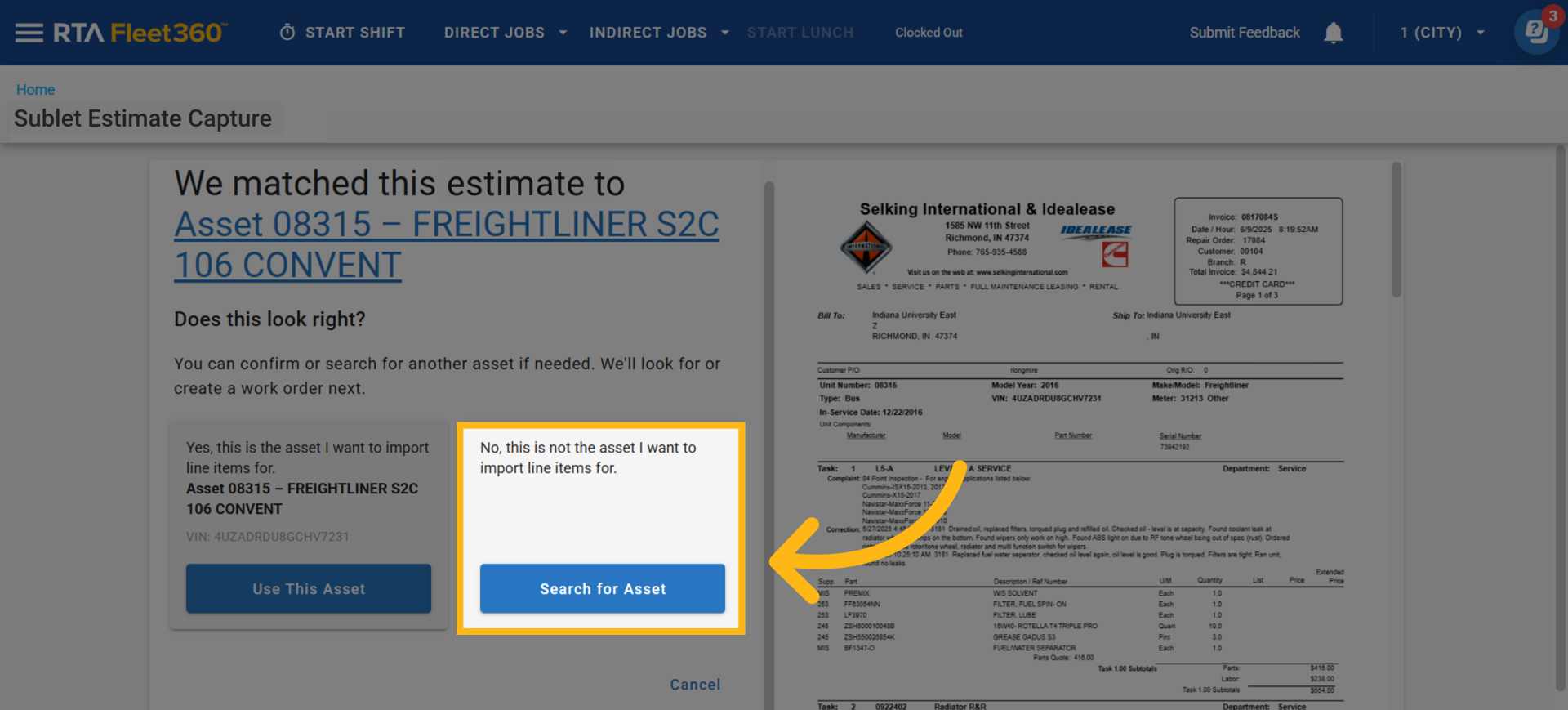
If there is a matching asset click on “Use This Asset”, if you would like to search for the asset click on “Search for Asset” and use the grid to find the asset to use
Creating/Preparing Estimate Work Order
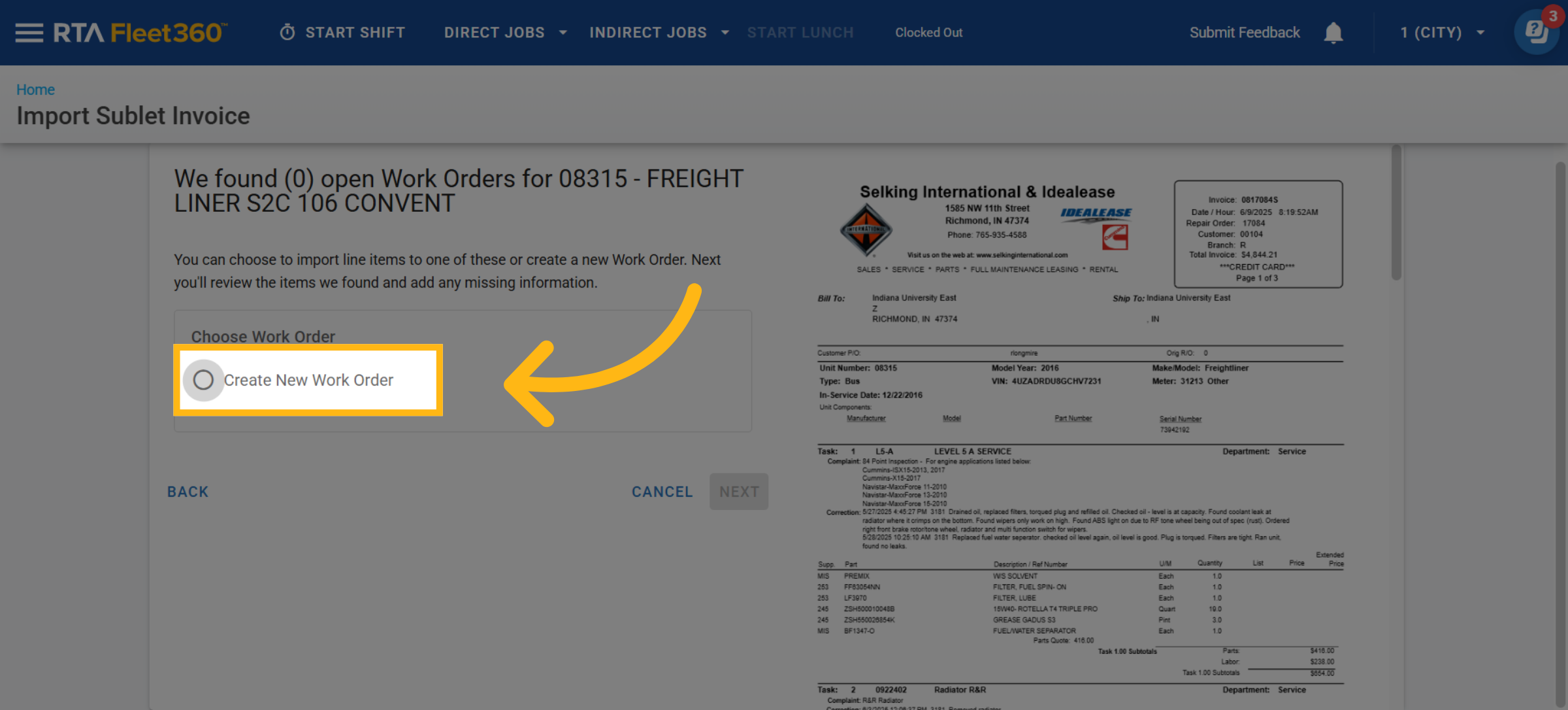
Once the asset is chosen, the option to create an estimate work order is now available
If there are existing estimate work orders open on the asset, you have the ability to add the lines from the estimate to the existing estimate work orders
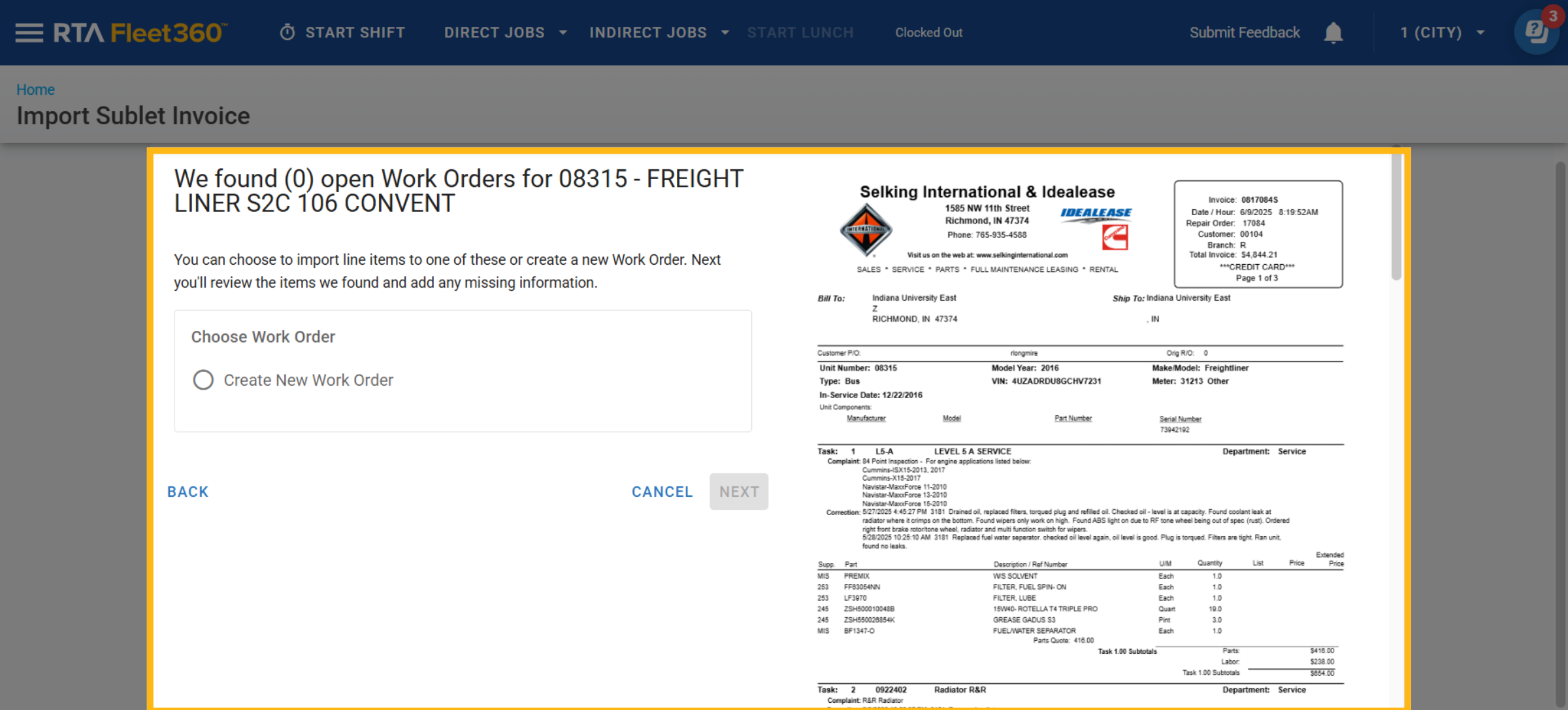
Click Create New Estimate Work Order
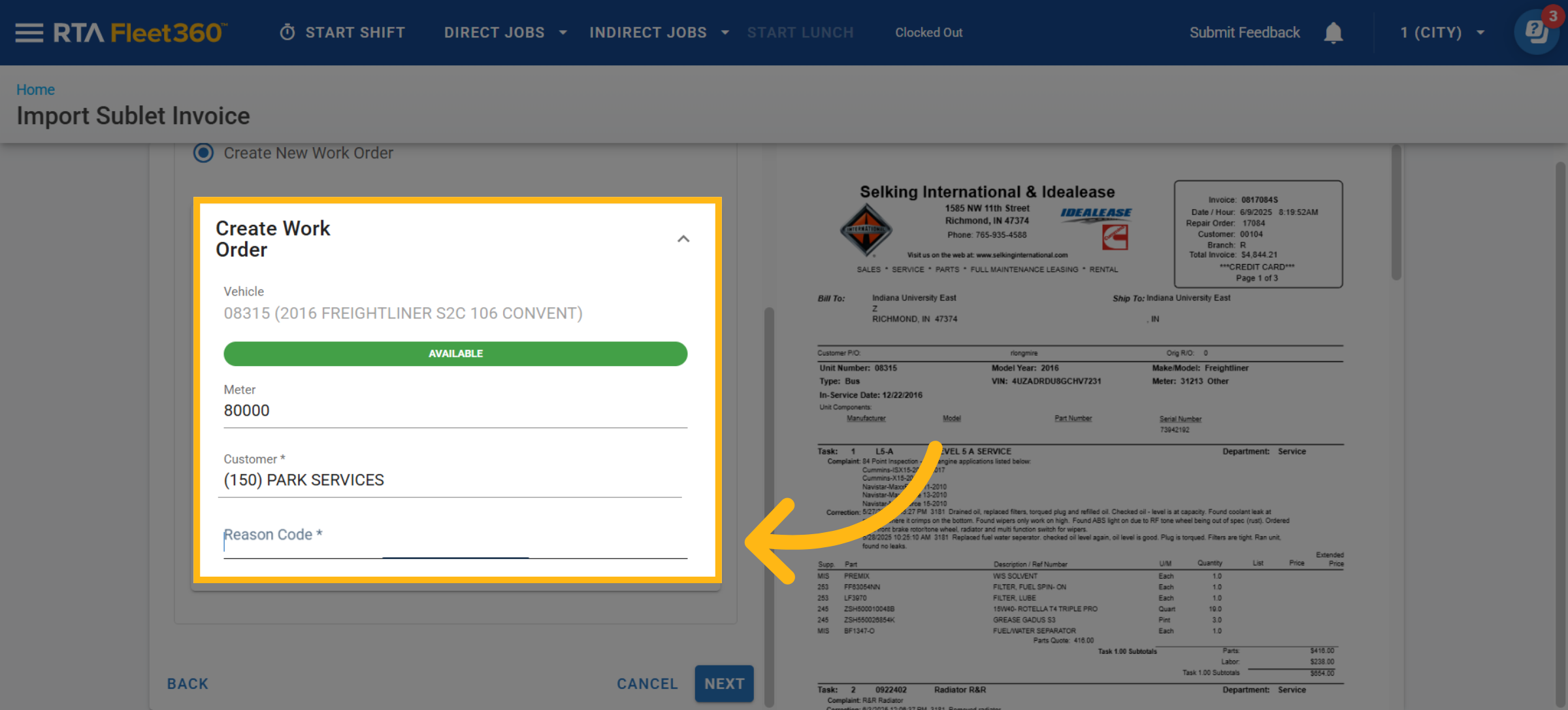
Select the proper Reason Code
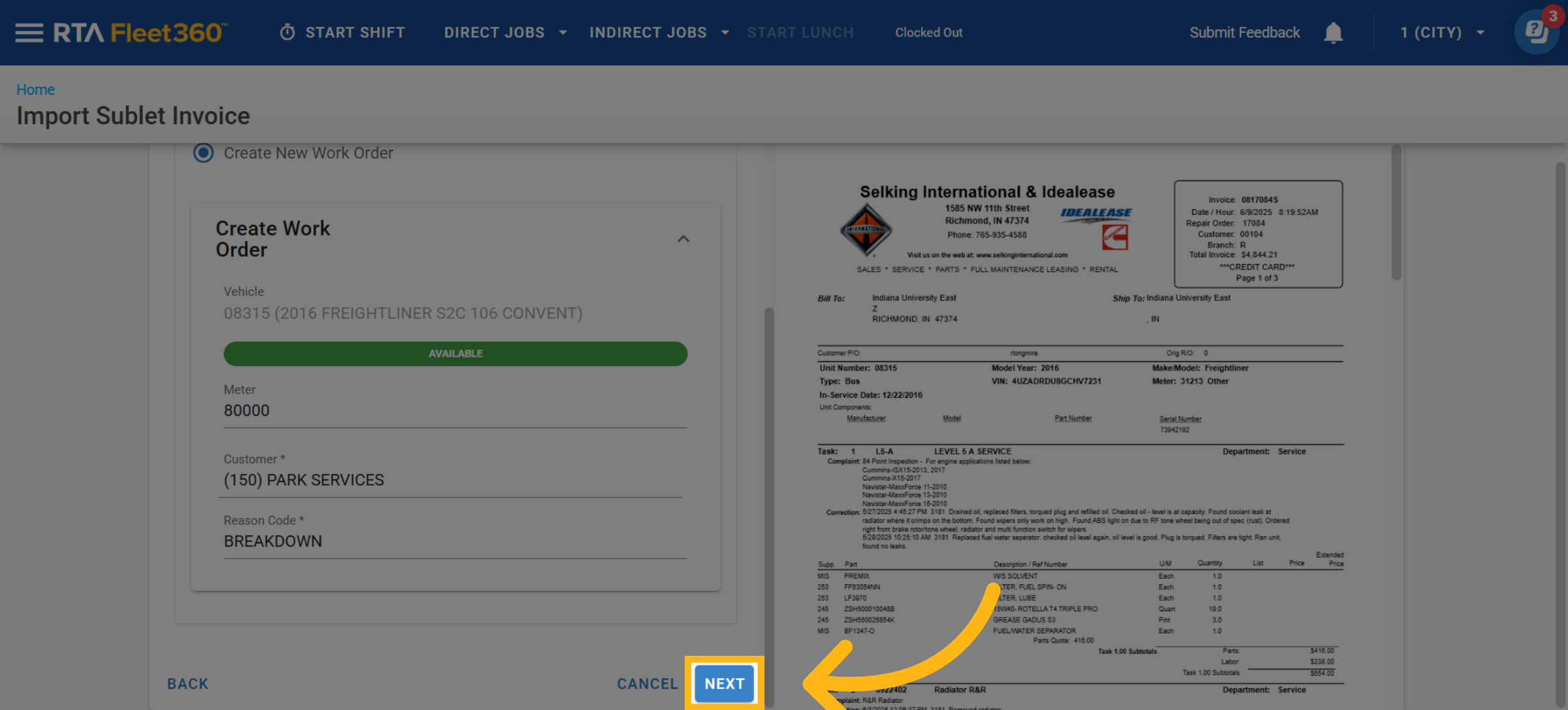
Click Next
Editing Estimate Work Order Lines
Estimate Work order lines will populate based off the information from the imported estimate. You will have the ability to edit Customer information, Reason Codes, Estimate Work Order VMRS Codes, Dates, Vendors, NOTES and more. This may all be done while maintaining a view of the estimate to ensure the proper data and costs are being captured. To learn more how to edit these lines to your preference, please see below.
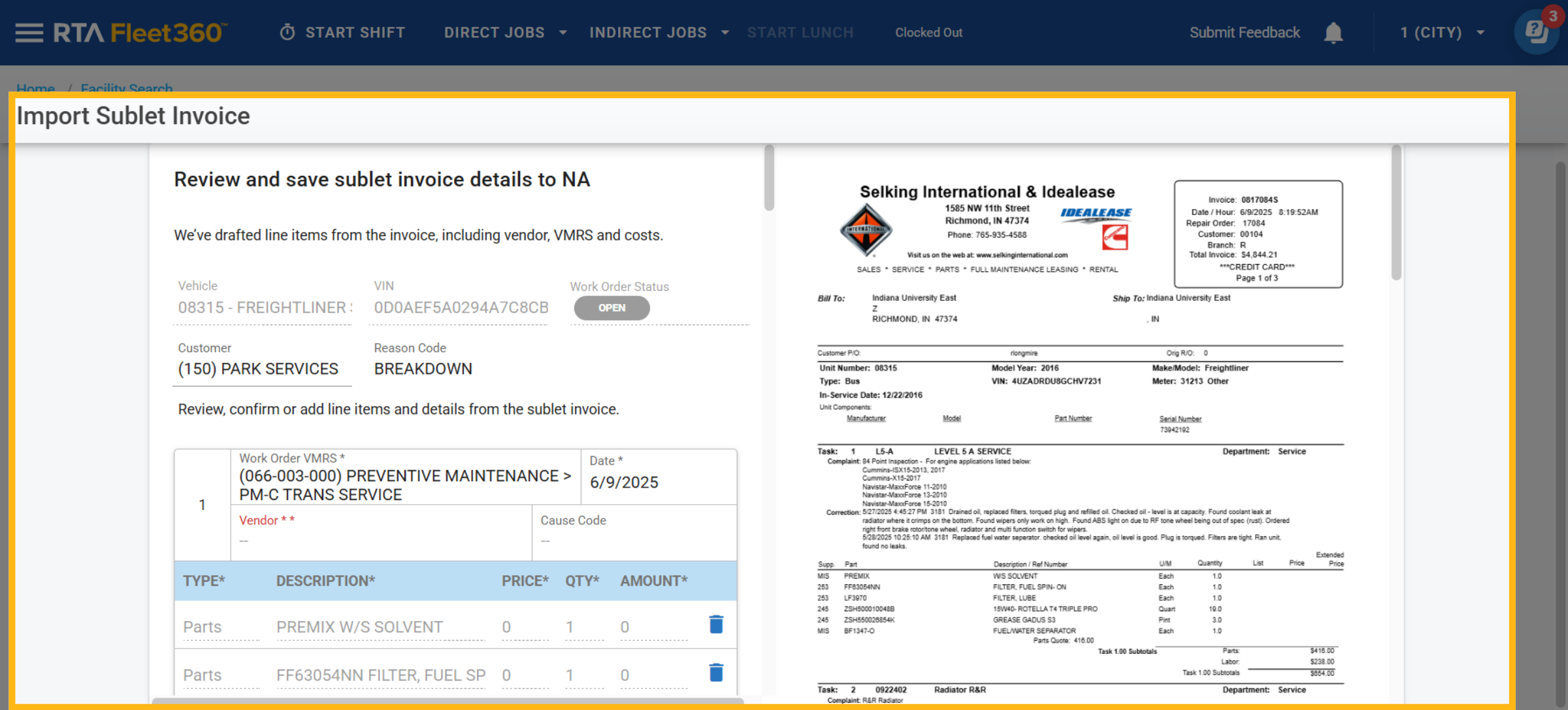
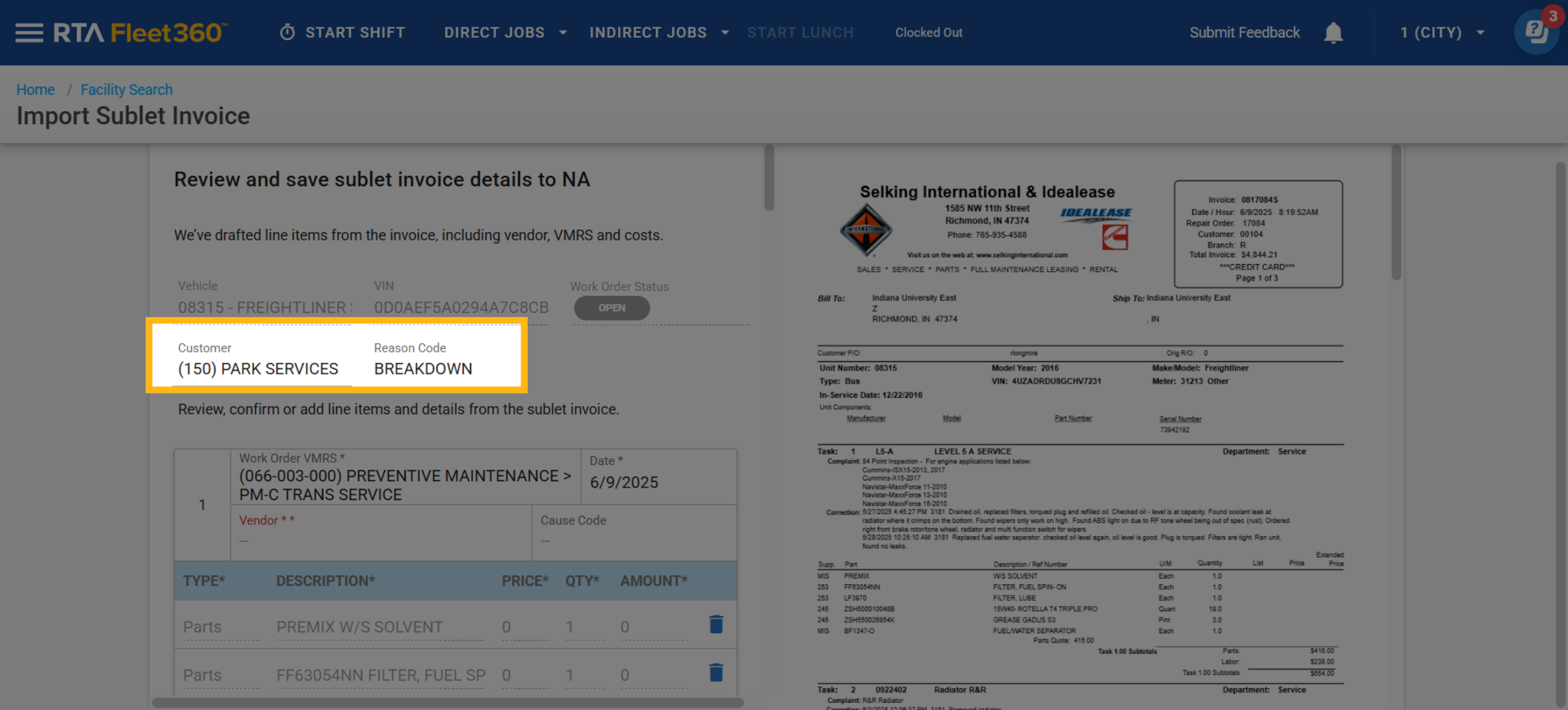
To edit the Customer or Reason Code, simply click on them to change to the appropriate choice
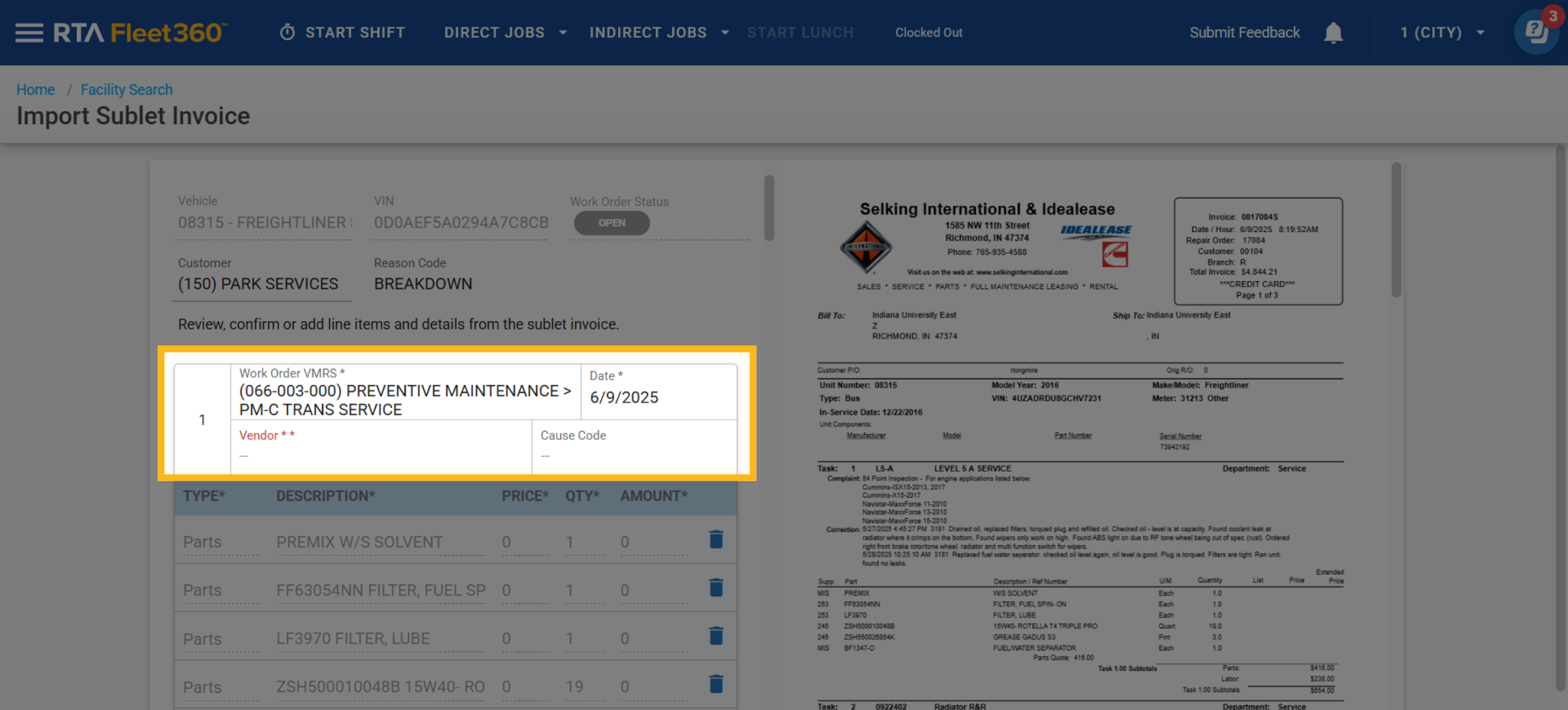
To edit the Estimate Work Order VMRS, Date, add Vendor and Cause code, simply click on their associated boxes to select the proper codes
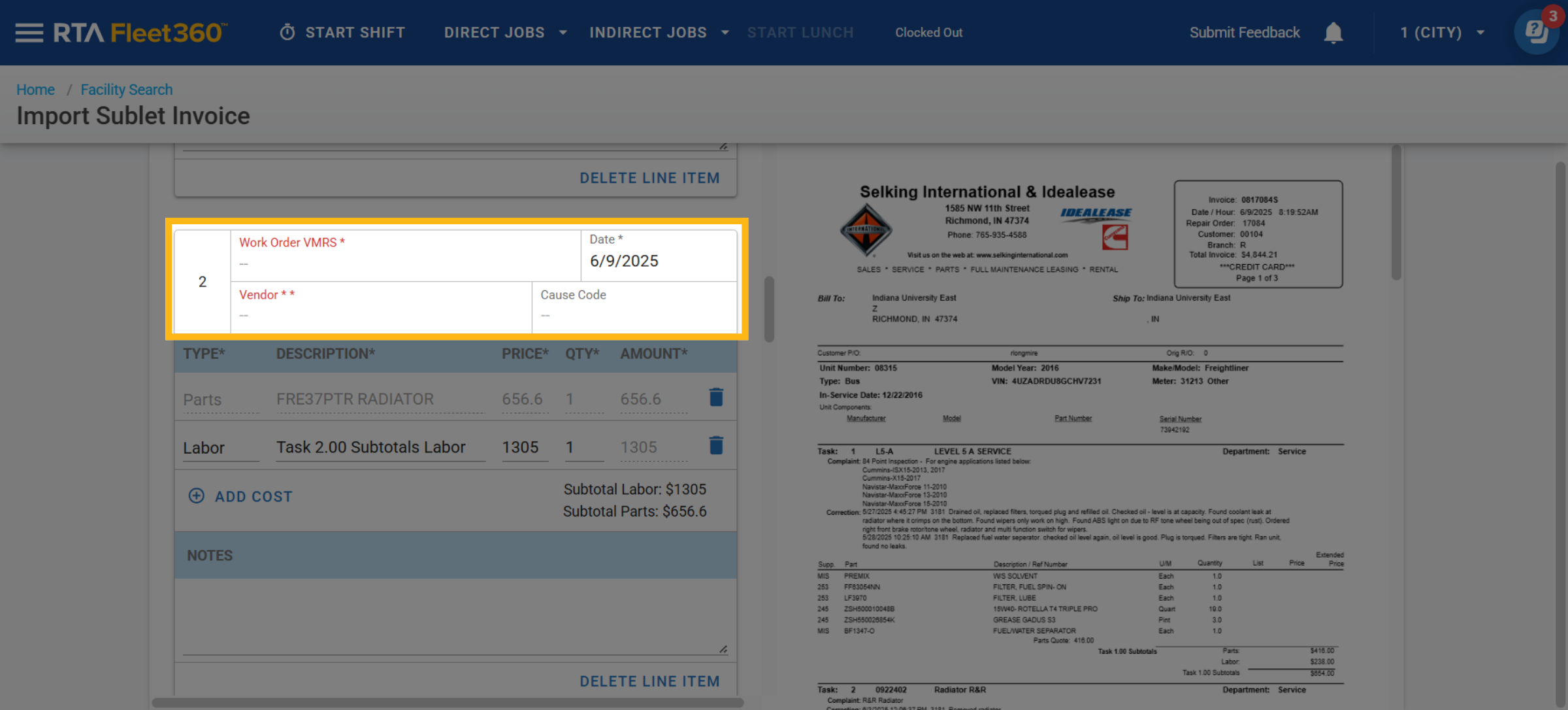
When reviewing Estimate Work Order Lines you may notice that a VMRS Codes may not always populate. This may happen because the utility could not exactly provide the best choice as seen in picture below.
Review posted items with in the Estimate Work Order Lines
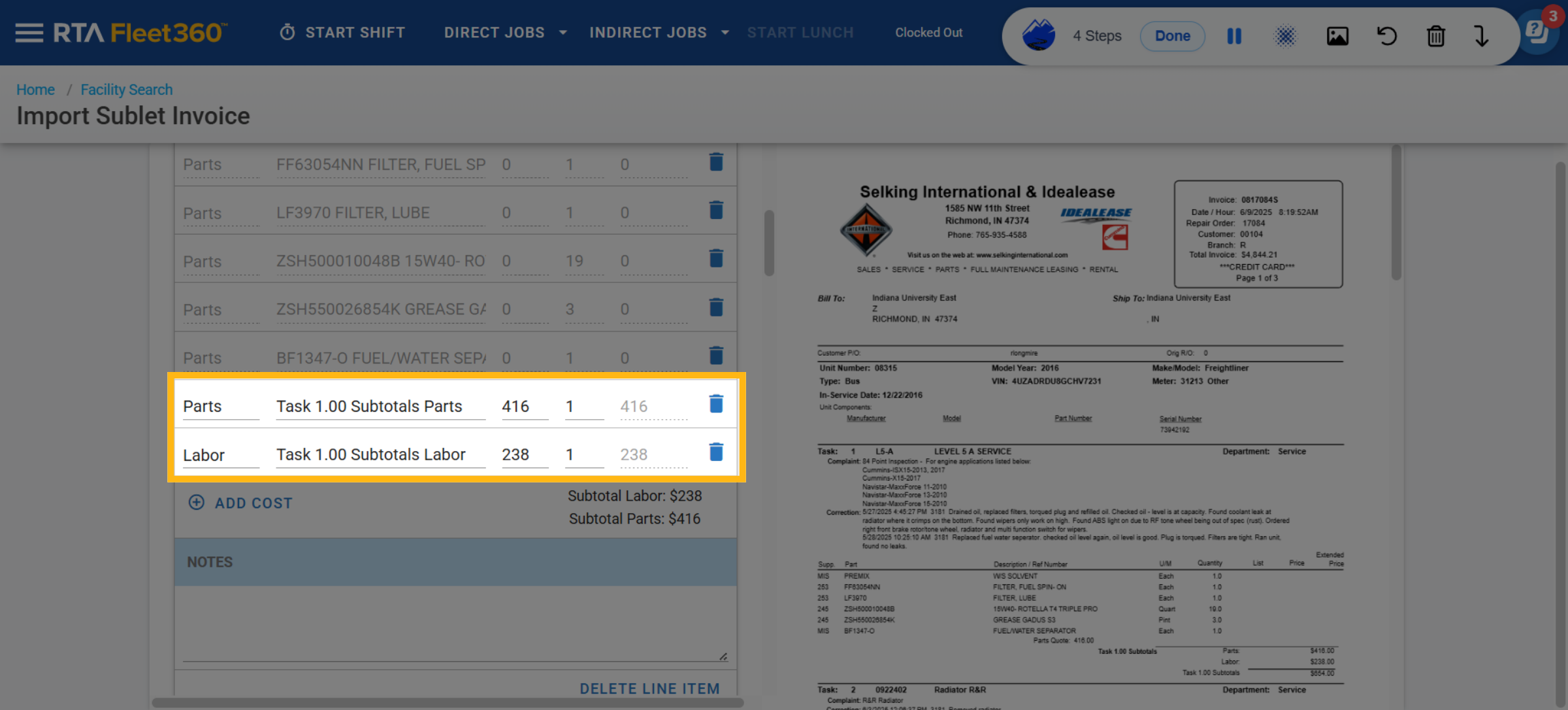
To delete certain parts you click on the trashcan icon
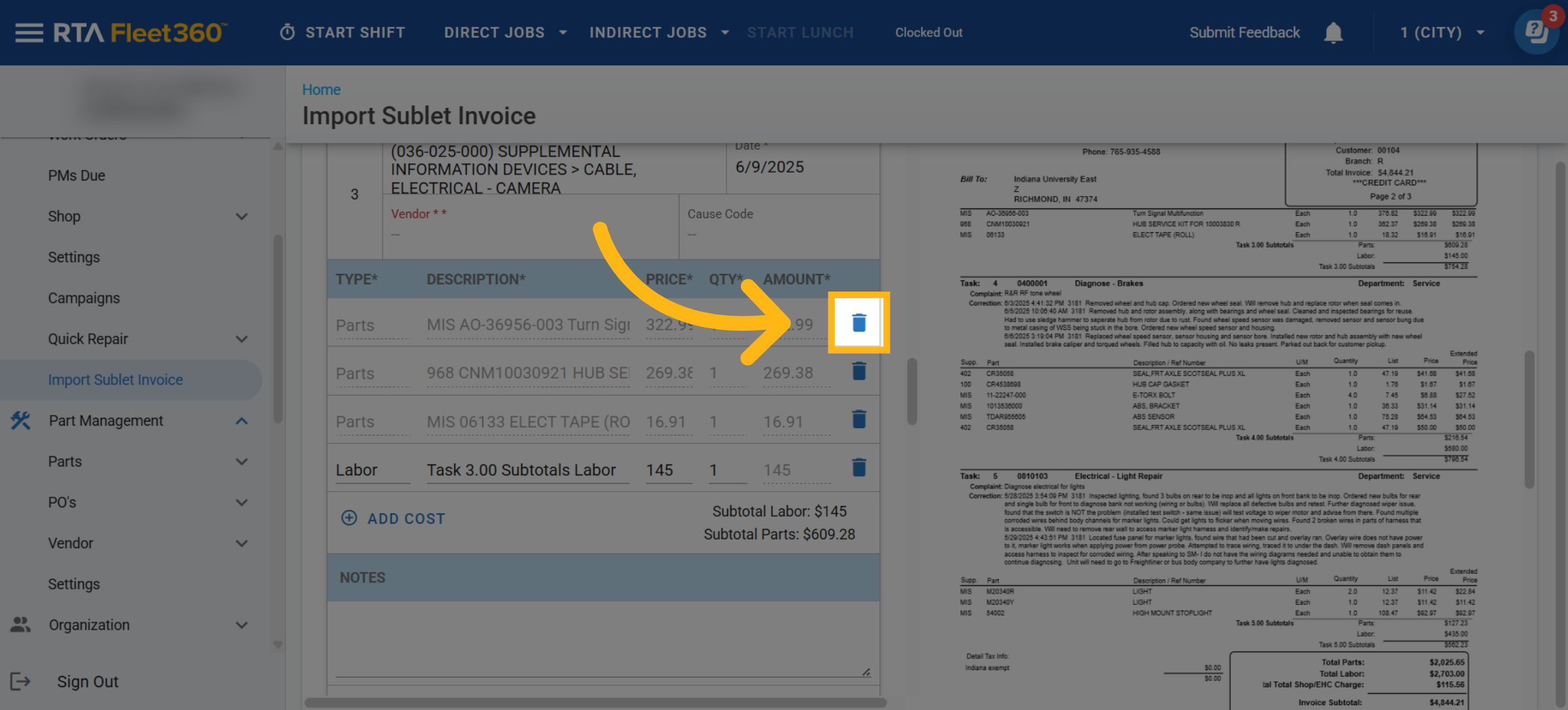
To edit the parts total or labor totals, click on the price and/or quantity to adjust
To delete, click on the trashcan icon
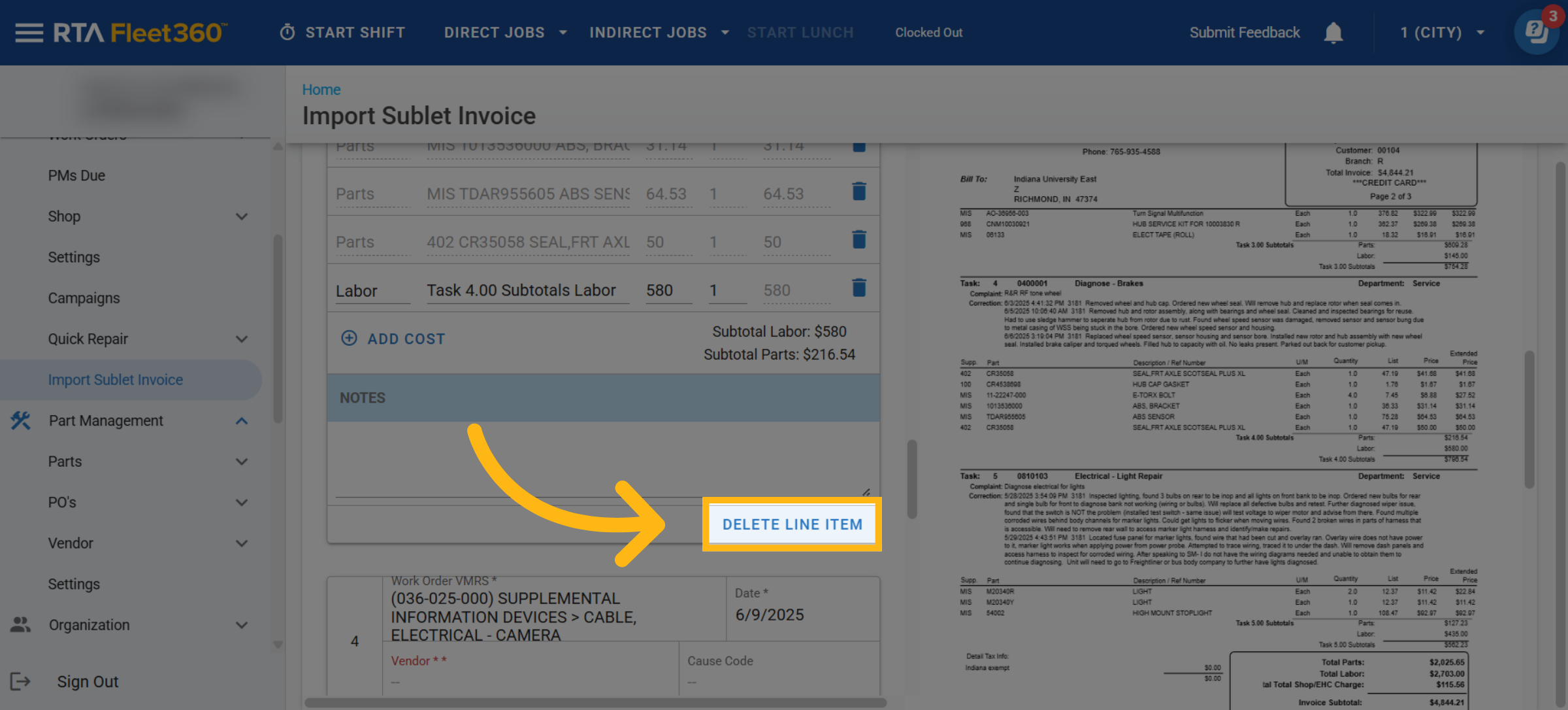
To remove a whole Estimate Work Order Line, simply click on the “Delete Line Item”
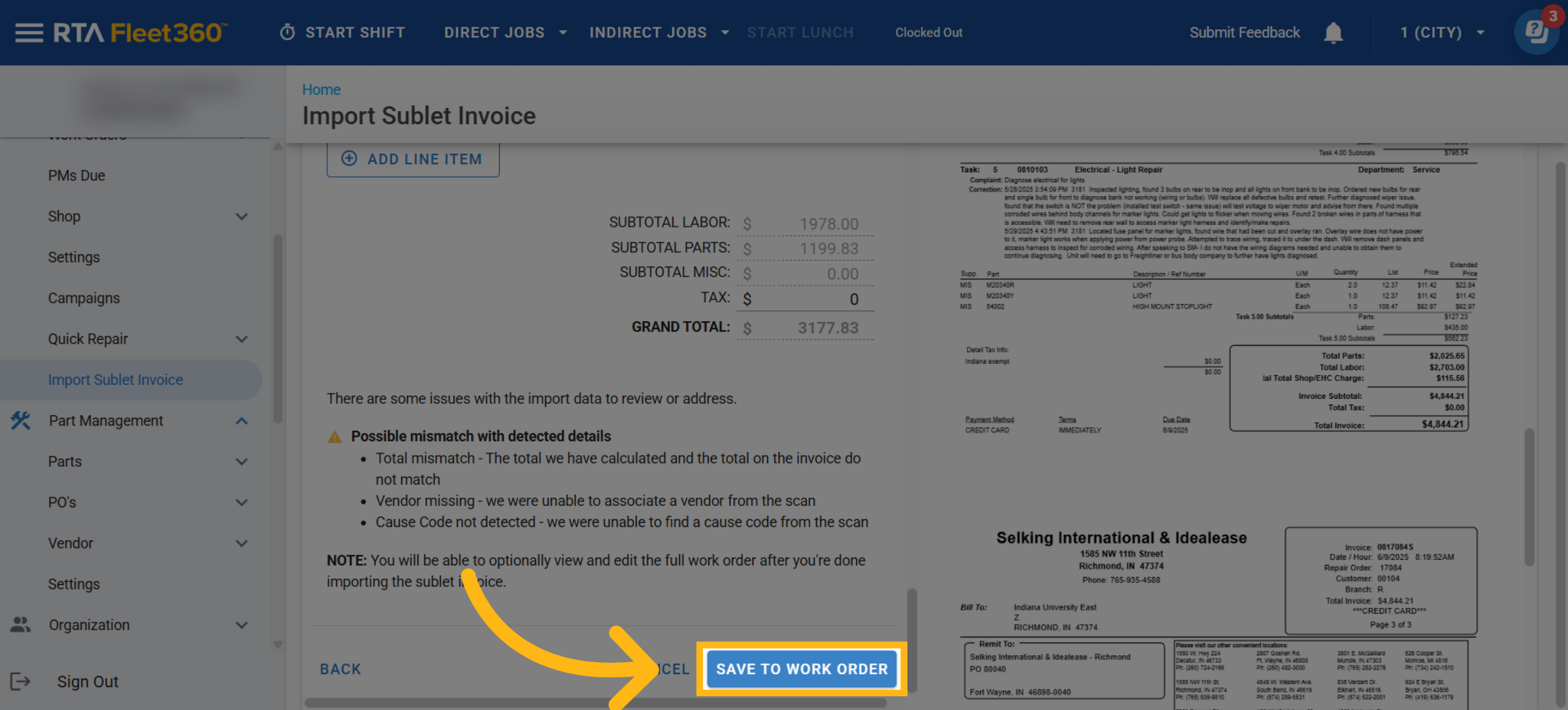
Once everything is reviewed and edits are made, you can then “Save To Estimate Work Order”
An estimate work order will then be created and you will be asked if you would like to view the estimate work order or if you have more sublet estimate to import