Imports - Part Post to Work Orders
Imports – Part Post to Work Order
The Part Post to Work Order import allows your team to post parts transactions from a third-party vendor directly to work orders in Fleet360 without manual data entry. The import reads a structured file provided by an external parts supplier, matches each row to the specified work order and line, applies your existing pricing and markup rules, and posts the parts as if they had been entered directly in Fleet360.
Overview
Service teams often receive files from external parts vendors listing parts used on work orders. Entering these manually is slow and error-prone. This import automates that process.
This import is available to all Fleet360 product tiers and uses your existing import permissions. Contact your system administrator if you do not see the import option.
Before You Begin
Confirm the following before running the import:
Your file is saved as .csv, .txt, .xls, or .xlsx and is laid out as a table: one header row of column names, then one row per part posting, with one column per field. The file extension alone is not enough — a .txt file is only accepted if it is a delimited text file (comma- or tab-separated) with that layout. Fixed-width printouts, statements or reports saved as .txt cannot be read, even though the extension is allowed.
You have compared the file against the Fleet360 template (see Start from the template below). Vendor files rarely arrive in the required layout; copying the vendor data under the template headers is the fastest way to a clean import.
Each row includes all required columns: Facility Number, WO Number, WO Line Number, Part Number, Quantity, and Post Date.
Work orders referenced in the file are either open, or were closed within the last 14 calendar days of the import run date.
The facility number in your file matches the numeric facility ID shown in Fleet360 (not the facility name).
The part and work order are in the same facility.
Start from the template
Fleet360 provides a template with the exact column headers this import expects. Use it as the base for every Part Post to WO file, including files that come from a parts supplier.
Go to Admin > Imports.
Find Part Post to WO in the list and hover over the three dots (⋮) at the end of the row.
Select Download Template. A file named part_post_to_wo_template.csv downloads.
Open the template. It contains a single header row with the twelve column names from the Supported File Columns table below (Facility Number, WO Number, WO Line Number, Part Number, Quantity, Post Date, Unit Price, Total, Invoice, Part Description, Core Price, Unit Number). There are no sample rows.
Copy your vendor’s data under the matching headers, one part posting per row. Every row needs a value in the six required columns; leave optional columns blank if the vendor does not supply them. Delete nothing from the header row.
Save the file (.csv is recommended) and upload it as described under How to Run the Import.
If you do not see Download Template in the menu, ask your administrator — the option requires the Imports permission and may not be enabled for every company. You can also build the file by hand using the column names in the table below; the names must match exactly for automatic mapping.
Supported File Columns
Your import file may include any of the columns below. Required columns must be present in every row. Optional columns are used when available and ignored when absent.
Column | Required? | Description |
Facility Number | Required | The numeric facility ID as shown in Fleet360. Must match the facility of both the part and the work order. |
WO Number | Required | The work order number to post the part to. |
WO Line Number | Required | The specific line on the work order to receive the transaction. |
Part Number | Required | The part number as it appears in Fleet360, or as supplied by the vendor for non-inventory parts. |
Quantity | Required | Number of units to post. Negative values are accepted to reverse or credit a previous posting. |
Post Date | Required | The date to record for the parts transaction. |
Unit Price | Optional | Unit price from the vendor file. If both Unit Price and Total are provided, Total takes precedence. If neither is provided, Fleet360 uses the system’s calculated price (mean cost + markup). |
Total | Optional | Total line amount. If provided alongside Unit Price, Total takes precedence. Fleet360 calculates unit price by dividing total by quantity. |
Unit Number | Optional | The vehicle (asset) number associated with the work order. If provided, it must match the vehicle on the work order or the row will be rejected. |
Invoice | Optional | Vendor invoice number. Written to the work order’s invoice number field if that field is currently blank. Skipped if the work order already has an invoice number. |
Part Description | Optional | Description of the part. Ignored when the part exists in Fleet360 inventory. Used as the description for non-inventory part postings. |
Core Price | Optional | When present, triggers a second core part transaction. See Core Part Posting below for full behavior. |
ℹ️ Tip: If your vendor file uses different column headers (for example, a North Port file uses headers like npt-part-num and npt-wo), use the column mapping screen during import to match each file column to the corresponding Fleet360 field. |
⚠️ Note: Fleet360 accepts either Unit Price or Total — not both. If both are present in your file but the values do not match, Fleet360 will use the Total. |
How to Run the Import
Navigation: Admin > Imports > Part Post to WO
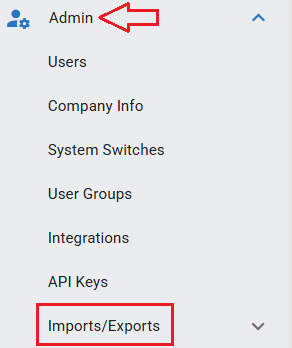

Step 1 – Navigate to the Import
From the main menu, go to Admin > Imports.
Select Part Post to WO from the list of available imports.
⚠️ Note: If you do not have a file to upload, use the template provided in the system. 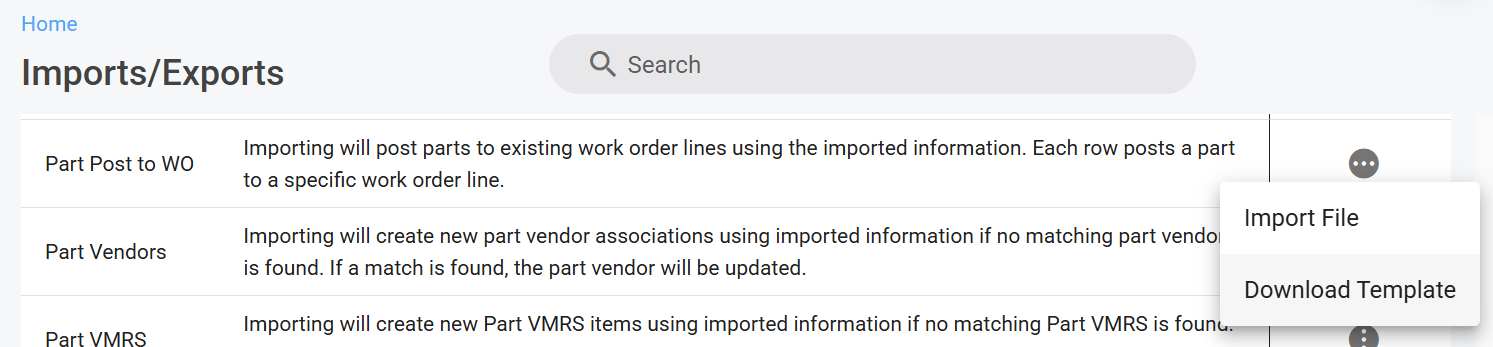 |
Step 2 – Upload Your File
Drag and drop your file into the upload area, or click Browse to select it from your computer.
Accepted file types: .csv, .txt, .xls, .xlsx.
Fleet360 validates the file format and checks that all required columns are present before proceeding.
⚠️ Note: If the file format is not recognized, Fleet360 rejects the file at this step and displays an error before the column mapping screen opens. If the file is readable but required columns are missing, you reach the mapping screen (Step 3) and are stopped there until each required field is matched to a column. No rows are posted until the file passes both checks. |
Upload rejected? Layout problem, not file-type problem
The most common reason a vendor file fails is not its extension but its layout. Use where the error appears to tell the two apart:
What you see | What it means | What to do |
Error immediately after dropping or browsing to the file; the mapping screen never opens. | Fleet360 could not read the file as rows and columns. Typical causes: a .txt file that is fixed-width or uses an unusual separator, a report or statement saved as text, several tables on one sheet, or a file with no header row. | Do not try to map columns — you cannot reach that step yet. Download the template, paste the vendor data under its headers, save as .csv and upload again. |
The mapping screen opens, but Next stays disabled or a required field is flagged. | The file was read, but one of the six required columns is missing or has a header Fleet360 did not recognize. | Match each required Fleet360 field to the correct file column. If the vendor file has no column for a required field (for example WO Line Number), add it to the file first. |
The preview grid opens and individual rows are red. | The file and its columns are fine; those rows failed a data check (work order not found, closed more than 14 days, non-inventory part with no price, and so on). | Correct the values in the grid or remove the rows, then Submit. See Error Handling below. |
Ask your supplier to send the file in the template layout going forward. Once the vendor file uses the Fleet360 column names, the mapping step is skipped automatically. For the general import steps (header row, mapping, verification) see Imports - How to Import Files.
Step 3 – Map Columns (if needed)
If your file uses different column headers than the Fleet360 standard names, use the column mapping screen to match each file column to the corresponding Fleet360 field.
Once all required columns are mapped, click Next.
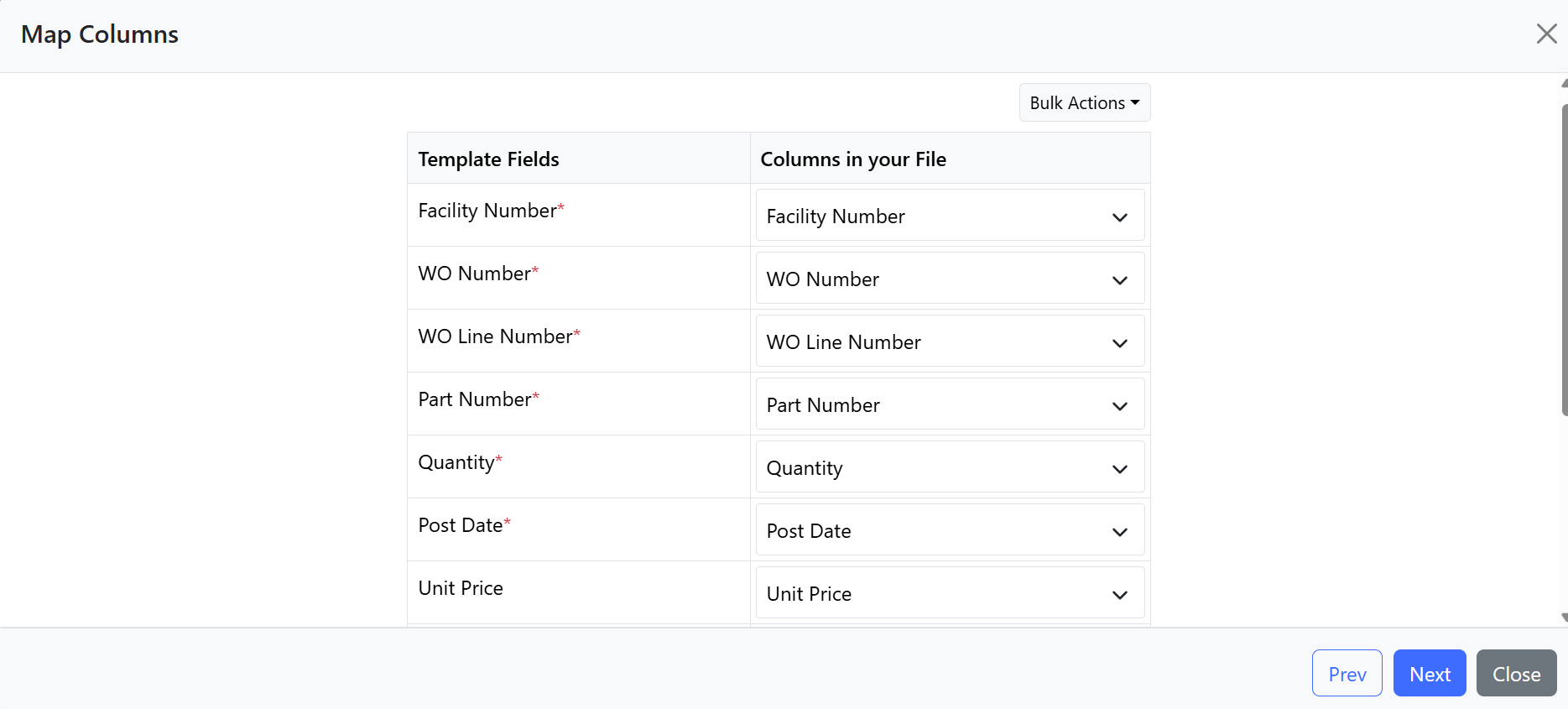
ℹ️ Tip: Files that already use standard Fleet360 column names do not require manual mapping. The system maps them automatically. |
Step 4 – Review and Correct Data
Fleet360 displays a preview of all rows before posting. Review the data for accuracy.
Rows with errors are highlighted in red with a plain-language description of the issue.
Correct errors directly in the preview grid, or remove problem rows before submitting.
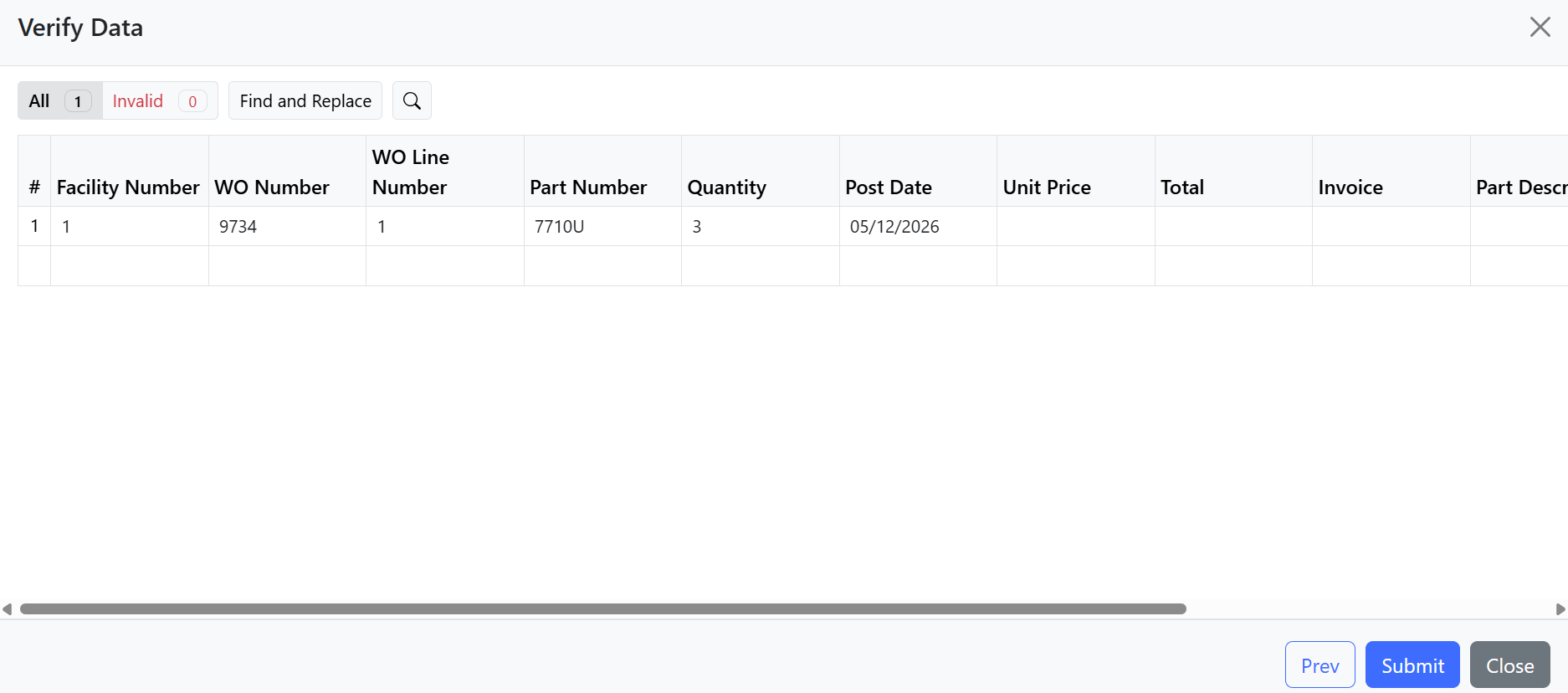
⚠️ Note: Errors on individual rows do not block valid rows from posting. Fleet360 processes all valid rows and reports only the rows that failed, so you can correct and re-import them separately. |
Step 5 – Submit
When the data looks correct, click Submit.
Fleet360 processes each row, applies pricing and markup logic, and posts the parts to the specified work order and line.
A results summary displays showing rows created, rows skipped, and any row-level errors.
⚠️ Note: Posting parts through this import does not reopen a closed work order line. If the work order line is already closed, the part is posted to it without changing the line’s status. |
Pricing Logic
Fleet360 determines the posting price for each row using the following logic:
# | Condition | How Price Is Determined |
1 | Part exists in Fleet360 inventory | Fleet360 uses the posting price from the part record, adjusted for the imported quantity, then applies any configured markup or pricing rules. |
2 | Part not found in Fleet360 inventory | Fleet360 uses the price supplied in the file as the base price, then applies any configured markup or pricing rules. The row is posted as a non-inventory part. |
3 | File provides Total instead of Unit Price | Fleet360 calculates unit price = Total ÷ Quantity, then proceeds with rule 1 or 2. |
4 | Neither Unit Price nor Total provided | Fleet360 uses the system’s calculated price (mean cost + markup) for inventory parts. Rows for non-inventory parts with no price provided are rejected. |
5 | Both Unit Price and Total provided | Total takes precedence. Unit Price is ignored. |
Non-Inventory Part Postings
If a part number in your file does not exist in Fleet360’s parts inventory, the row is posted as a non-inventory part rather than rejected. Fleet360 uses the price and description from the file to record the transaction.
The Part Description column is used as the description for non-inventory postings.
Standard markup and pricing rules are still applied to the file-supplied base price.
A price must be provided in the file (Unit Price or Total) for non-inventory parts. If neither is present, the row is rejected.
Core Part Posting
When the import file includes a Core Price value for a row, Fleet360 automatically posts two transactions for that row:
Line 1: Standard part — posted using the standard part number and calculated price.
Line 2: Core part — posted using the core part price as a negative transaction (credit back to the WO), with a part number derived as CORE-{PartNumber} and a quantity equal to the main line quantity.
When no Core Price is present in the file, Fleet360 posts only the single standard part line.
⚠️ Note: If a Core Price is provided but the part does not have a core part linked in Fleet360, the core line is posted as a non-inventory part using the file-supplied core price and description. |
Work Order Eligibility
Fleet360 applies the following rules to determine whether a part can be posted to a referenced work order:
Work Order Status | Behavior |
Open | Parts post normally. |
Closed within the last 14 days | Parts post normally. The work order line status is not changed. |
Closed more than 14 days ago | Row is rejected. Fleet360 logs an error identifying the work order and the reason. |
Work order not found | Row is rejected with an error indicating the WO number was not recognized. |
⚠️ Note: The 14-day window is calculated from the date the import is run, not the Post Date in the file. |
Error Handling
Fleet360 processes each row independently. If one row fails, valid rows continue to post without interruption. After the import completes, a row-level error report identifies:
The row number in the file where the error occurred.
The work order number and line referenced on that row.
A plain-language description of why the row failed.
Common reasons a row may be rejected:
Condition | Result |
WO closed more than 14 days ago | Row rejected. |
WO or WO line not found | Row rejected. |
Unit Number provided does not match the vehicle on the WO | Row rejected. |
Non-inventory part with no price in file | Row rejected. |
Part and WO are in different facilities | Row rejected. |
Required column missing or empty | Row rejected. |
Use the error report to correct problem rows and re-import them in a follow-up file.
Audit Trail and Import History
Every run of the Part Post to WO import is logged in Fleet360. To review import history:
Go to Admin > Imports .
Use the available filters to locate a specific import by date, import type, or user.
Click the import record to view the full summary, including file name, run time, initiating user, rows created, rows updated, and any rows that failed.
Parts posted through this import are recorded on the work order and in audit logs with a reference to the Part Post to WO source, so accounting and operations teams can distinguish imported transactions from manually entered ones.
Behavior Summary
Behavior | How Fleet360 Handles It |
Part exists in inventory | Uses inventory posting price; applies configured markups. |
Part not in inventory | Posts as a non-inventory part using the file’s price and description; applies configured markups. |
File provides Total, not Unit Price | Calculates unit price = Total ÷ Quantity. |
Both Unit Price and Total provided | Total takes precedence. |
Neither price provided — inventory part | Uses system mean cost + markup. |
Neither price provided — non-inventory part | Row rejected. |
Core Price present in file | Posts two lines: standard part + core credit (negative quantity) as CORE-{PartNumber}. |
Core Price present, no core part linked in system | Core line posted as a non-inventory part using the file’s core price. |
No Core Price in file | Posts one standard part line only. |
Unit Number provided and matches WO vehicle | Accepted; proceeds normally. |
Unit Number provided but does not match WO vehicle | Row rejected. |
Invoice provided, WO invoice field is blank | Written to the WO’s invoice number field. |
Invoice provided, WO already has an invoice number | Skipped; existing invoice number is not overwritten. |
Open work order | Posts normally. |
WO closed ≤ 14 days ago | Posts normally. WO line status is not changed. |
WO closed > 14 days ago | Row rejected; error logged; other rows continue. |
Negative quantity | Accepted; reverses or credits a previous posting. |
Part and WO in different facilities | Row rejected. |
Import completed | Full audit record created in Import History. |