
Asset Class Asset Spec Tab
Assets>Class>Click into Class Line>Asset Spec
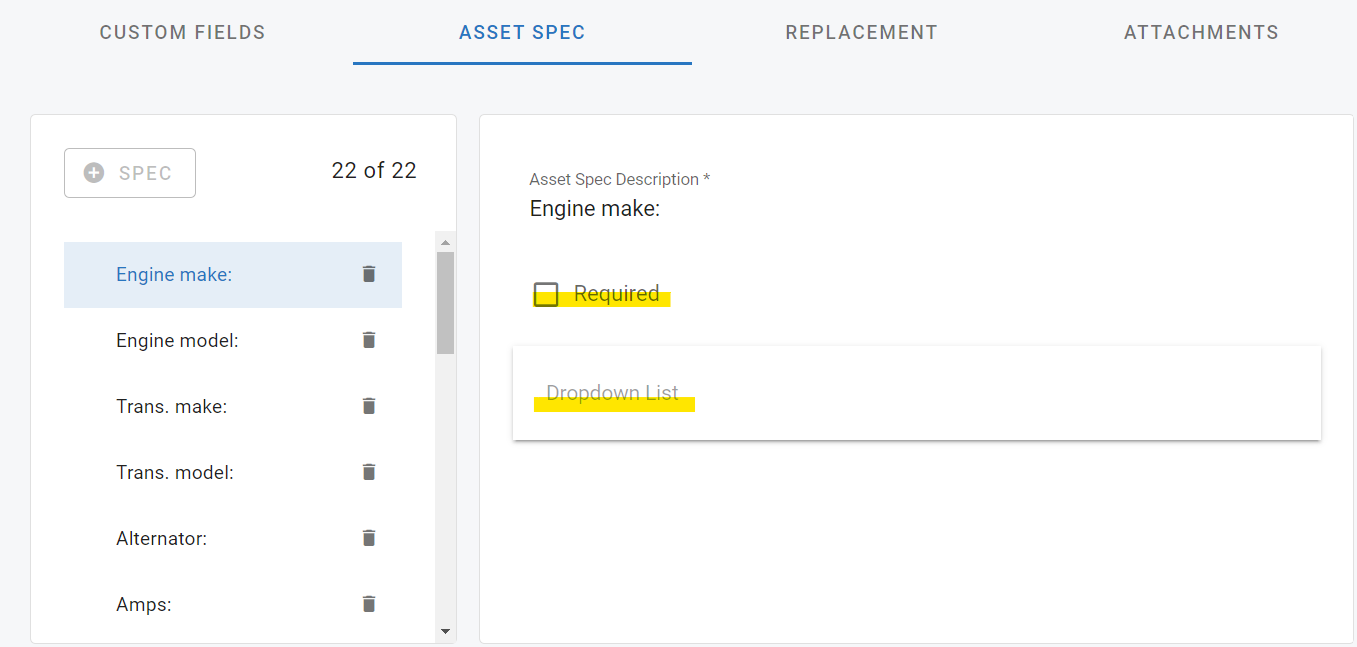
Once the custom fields tab has been defined, users can further control the data that is input into those description fields by utilizing the Asset Spec Tab.
This tab displays the 22 custom fields selected in the custom fields tab and allows the user to mark them as required/restricted and compile a list of acceptable inputs for those fields using the dropdown list.
When users edit assets, they will only be able to choose from this list of choices, since the field is now restricted.
Where Vehicle Specs come from. The Asset Spec tab is where the Vehicle Specs field labels and dropdown options are defined for a class. It is not where per-asset values are entered. Enter each asset’s values on the asset file, on the Custom Fields tab, in the Asset Specs panel (see Asset Custom Fields Tab). Departments do not configure Vehicle Specs. If an asset shows no spec fields, confirm the asset is assigned to this class and that the class has its Asset Specs configured here.