
Archive or Disable Facility
Facility records cannot be deleted from the system. If a shop or location is closed, the facility status can be changed from ACTIVE to INACTIVE. The option to disable or archive the facility exists.
In the event the data is later needed, the facility status can be changed back to an ACTIVE status.
Archiving a Facility
The Archive asset option gives the ability to move an asset to a “Archive Facility”. Once moved, the asset is no longer counted against the current active vehicles. This will reduce the fleet size in RTA. SaaS customers will have an Unlimited Archived asset license and the licenses for the archived assets are tracked separately from the active assets. SaaS customers whose fees are based on the number of vehicles will benefit from this option.
The following applies when an asset is archived:
The asset is placed in a “read only” status. No edits to the asset file can happen.
The current records are scanned to determine if there is any open work or fuel records that should be completed before the asset is archived.
If there is any open work, results of the scan can be viewed and printed.
The archive process is stopped if the asset does not pass the rule check.
If there is no open work or fuel the asset is moved to the archive facility.
There can be no more work or edits done to the asset once it is archived.
Because the asset is still in RTA, all asset and history reports are available.
The asset can be un-archived at any time.
The asset can be archived only Once per Year. The counter starts from the time the asset is un-archived.
An asset cannot be un-archived if there are not enough active asset licenses.
Anywhere in RTA that an asset can be renumbered/moved to a different facility will allow you to move the asset to an archived facility.
To archive a facility:
Open the desired facility file via the master list through the facility menu under organization
Click on Manage Facility
Select the option to archive the facility

Click Save
Confirm the popup
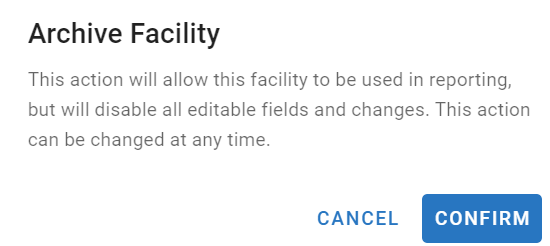
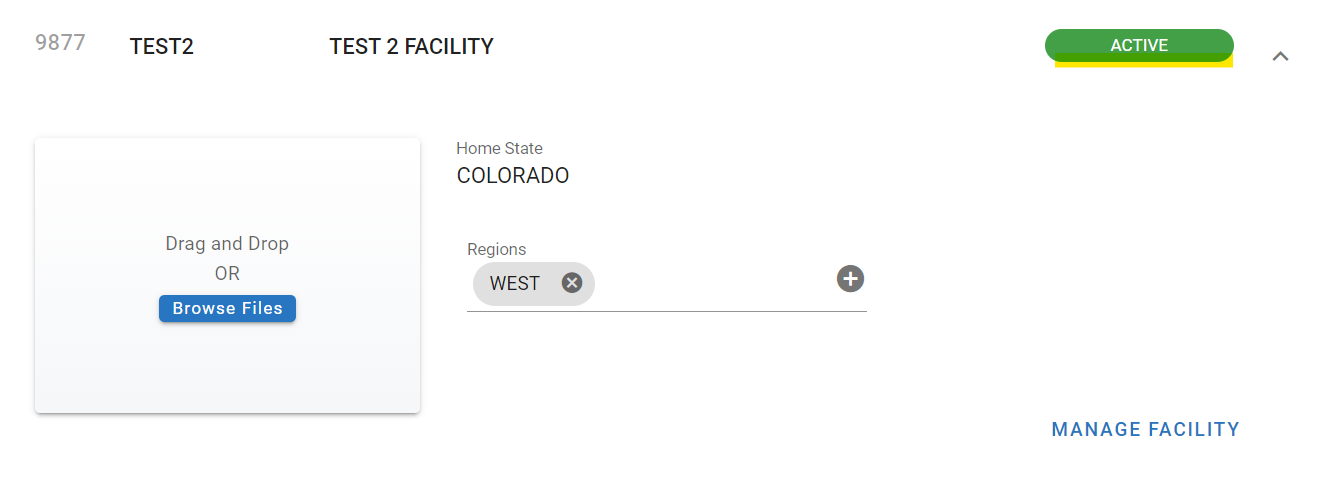
The facility will display the status as archived-active

Facility archive exceptions grid
A facility can only be archived once every asset in it passes the archive checks. When you open Manage Facility and select Archive, Fleet360 checks each asset in the facility:
If nothing is blocking the archive, the screen shows Facility is ready for archive.
If something is blocking it, the assets that failed a check are listed in a grid with one column per check. A green check mark means that asset passes that check. A red alert icon, which looks like a red circle with an exclamation mark, means that check is blocking the archive.
The checks are independent of each other, so read the column that holds the red icon rather than assuming it is open work:
Column | A red icon means | What to do |
|---|---|---|
Asset | This column is not a check. It shows the asset number that is blocking the archive. | Use it to locate the asset. |
WO | The asset has open work orders. | Complete or close the work orders for that asset. |
Fuel | The asset has open fuel records. | Post or close the open fuel transactions. |
Date | The asset was archived within the past year, so it is not eligible to be archived again yet. This has nothing to do with open work orders or fuel records, and closing those will not clear it. | Wait until the asset is eligible again, which is one year from the date it was last archived, or move that asset to a different facility so it is no longer part of this facility’s archive. |
Motor Pool | The asset has open motor pool reservations or transactions. | Close out the motor pool activity. |
Accident | The asset has open accident records. | Close out the accident records. |
Work through the flagged assets until every row shows a green check in all columns, then archive the facility. Assets can be archived only once per year, so if the Date column is the only thing left, moving the asset to another facility is usually the faster path.
The same once per year rule applies when you archive a single asset from the asset file. See Archive Asset in Facility.
Restoring the Facility
The archive action can be reverted by performing the restore action. This will place the facility back into full active status.
Open the facility file by navigating to it via the master list from the facility menu option under organization
Click on Manage Facility
Select the option to restore
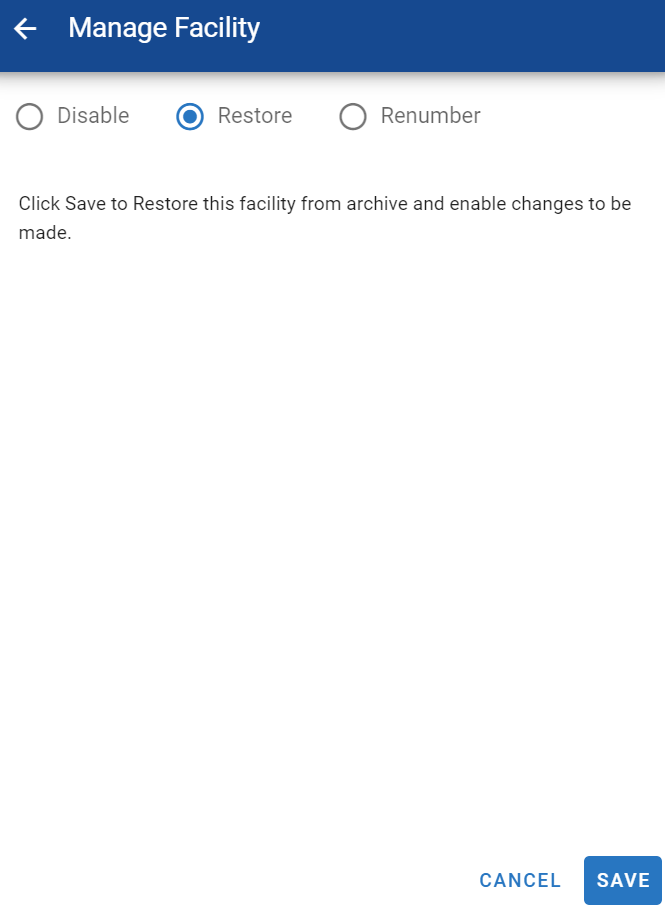
Click Save
The status of the facility will now display as active
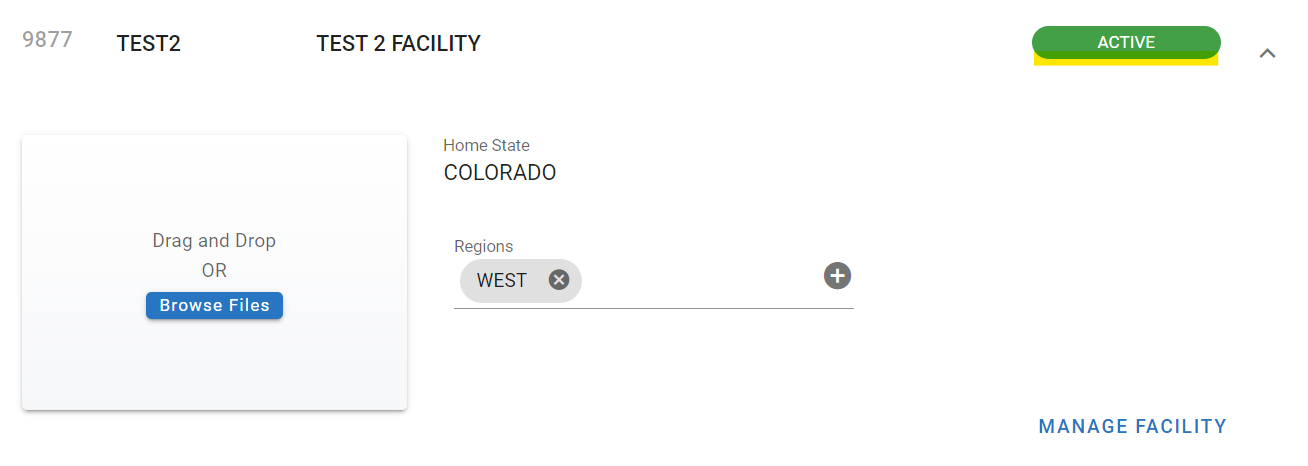
Disabling a Facility
Disabling a facility causes the facility record and data (work orders, parts, fuel transactions, etc.) to be inaccessible.
To disable a facility:
Open the desired facility file via the master list through the facility menu under organization
Click on Manage Facility
Select the option to disable the facility
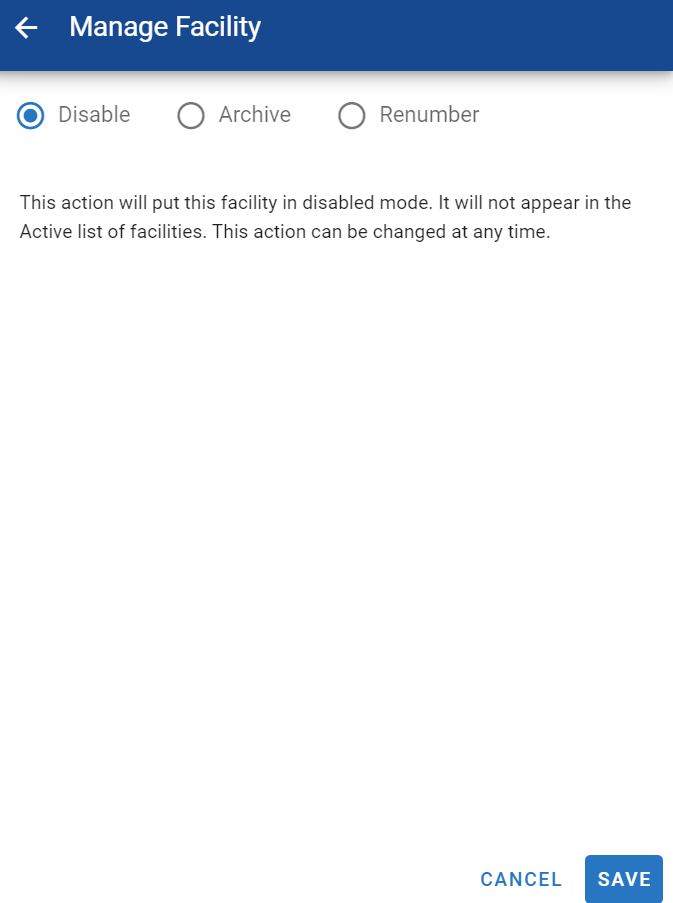
Click Save
The facility status will now display as inactive

Enable Facility
The disabled action can be reverted by performing the enable action. This will place the facility back into full active status.
Open the facility file by navigating to it via the master list from the facility menu option under organization
Click on Manage Facility
Select the option to enable

Click Save
The facility will now be listed as active
Inactive, archived, and licenses — how they differ
Facility status and asset archive status are separate things. Disabling a facility makes the facility record and its data inactive — it does not archive the assets inside it. Archiving is what moves an asset out of the active count.
Situation | What it means | License effect |
An asset is archived | Read-only - no edits or status changes until it is restored | Does not count against active vehicles; tracked as archived |
Assets are moved into an archive facility | Each asset is archived when its archive checks pass; failed rows show the blocking check (open WO, fuel, accident, motor pool, or the once-per-year date rule) | Moves each asset from the active count to the archived count |
A facility is disabled (inactive), not archived | Facility record and data are inactive; the assets inside keep their own status | Assets that were never archived still count as active vehicles |
Adding an asset shows a license limit error | Active assets count against the licensed vehicle count | Archive assets to free licenses, or ask about adding licenses - see System Admin and Licensing Information |
Assets sit in an archive facility but still act/count as active | The facility move did not complete the archive for them - a data state for RTA to review | Do not unarchive and re-archive each asset; have the facility number and affected asset count ready for review |
Facility archive is blocked by a record you cannot reach | Some blocking records (for example, open accident records created in an older system) cannot be edited from Fleet360 | The check is cleared by RTA - have the facility number and the failing check column ready |
To archive many assets at once, use Assets > Actions > Move Assets and choose the archive facility as the destination - each asset that passes its checks is archived in the same move. See Renumber Asset or Change Asset Facility.