Availability by Department and Class
Summary/Use Case
Report Summary
The Availability by Department and Class Report provides a breakdown of vehicle availability by facility, department, vehicle class, and individual vehicle details. This report is essential for fleet managers who need to analyze vehicle usage patterns and availability within specific departments, allowing for better resource allocation and fleet optimization.
Use Case
Analyze vehicle availability trends within departments to manage fleet resources effectively.
Identify departments with higher vehicle downtime and investigate potential causes.
Evaluate class-specific performance and availability in various departments.
Support budget planning and resource allocation based on department-level vehicle utilization.
Generate detailed departmental reports for audit or internal review purposes.
Location: Where to Find It
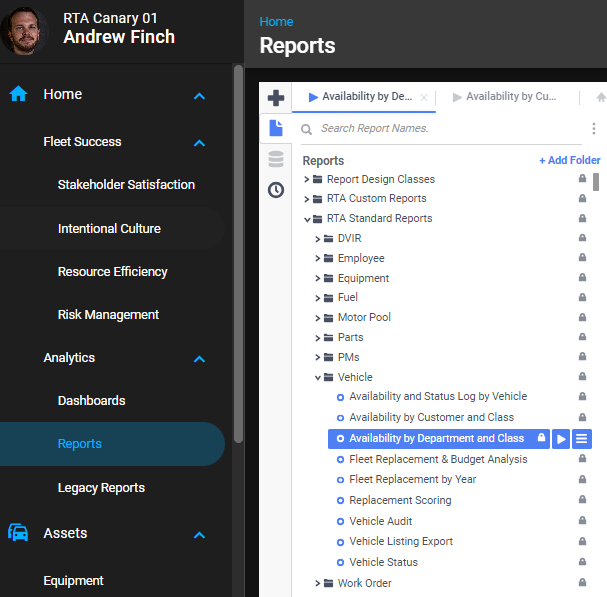
Reports > RTA Standard Reports > Vehicle > Availability by Department and Class
Data Filter Prompts
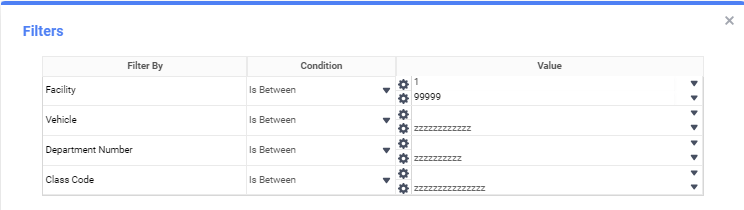
You will be prompted for filtering of the Data to specify and narrow down the data that will be pulled. See Data Filter List Below for Options.
Parameter List

Parameter Name | Value (Default) |
|---|---|
Please enter an availability start date | Defaulted to start of the previous month |
Please enter an availability end date | Defaulted to end of the previous month |
Data Filter List
Filter Name | Recommended Filter Condition(s) | Value (Options) | Value (Default) |
|---|---|---|---|
Facility | Is Between | 1 - 99999 | 1 - 99999 |
Vehicle | Is Between | blank - zzzzzzzzzz | blank - zzzzzzzzzz |
Department Number | Is Between | blank - zzzzzzzzzz | blank - zzzzzzzzzz |
Class Code | Is Between | blank - zzzzzzzzzz | blank - zzzzzzzzzz |
Report Output and Data Elements
Report Output
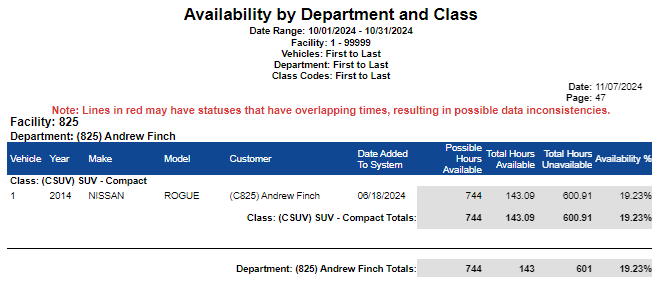
The Availability by Department and Class Report provides a detailed view of vehicle availability across various departments, sorted by facility, department, class, and specific vehicle details. The report includes metrics such as vehicle ID, year, make, model, customer, first status start date, total hours available, total hours unavailable, and availability percentage. Totals are provided at both the department and class levels, which aids in evaluating departmental fleet efficiency and identifying any areas that may need attention regarding vehicle availability.
Report Data Elements
About First Status Start Date. Availability is calculated from the vehicle’s status history. The First Status Start Date column shows when that history begins — the start of the first status record on the vehicle — so a vehicle that has been on file for years but only started tracking status recently shows the more recent date. This is expected; it does not mean the report dates are wrong. To review the underlying status changes, run Availability and Status Log by Vehicle.
Column Number | Column Title | Data Notes |
|---|---|---|
1a | Facility | The facility to which the vehicle is assigned |
1b | Department | The department that the vehicle is associated with |
1c | Vehicle ID | Unique identifier for the vehicle |
1d | Class | Class code and description to which the vehicle is assigned to |
2 | Year | Manufacture year of the vehicle |
3 | Make | Vehicle manufacturer |
4 | Model | Model of the vehicle |
5 | Customer | Customer ssociated with the vehicle |
6 | First Status Start Date | The start date of the earliest status record Fleet360 has for the vehicle — the point from which availability is tracked. This is not the date the vehicle record was created, and not the Purchase Date, In-Service Date or first work order date. Older printouts label this column Date Added to System. |
7 | Possible Hours Available | Total possible hours within the date range |
8 | Total Hours Available | Hours the vehicle was available |
9 | Total Hours Unavailable | Hours the vehicle was unavailable |
10 | Availability % | Percentage of total hours the vehicle was available |