Managing Parts in Main Facility
When utilizing the centralized parts inventory feature, the master facility won't see much of a difference other than when operating in individual facility mode. The master facility should have the correct descriptions, VMRS codes, etc. When renumbering a part, the same part will be renumbered in all sub facilities.
When opening a part file from the main facility you will have the visibilty of all facility locations with the part
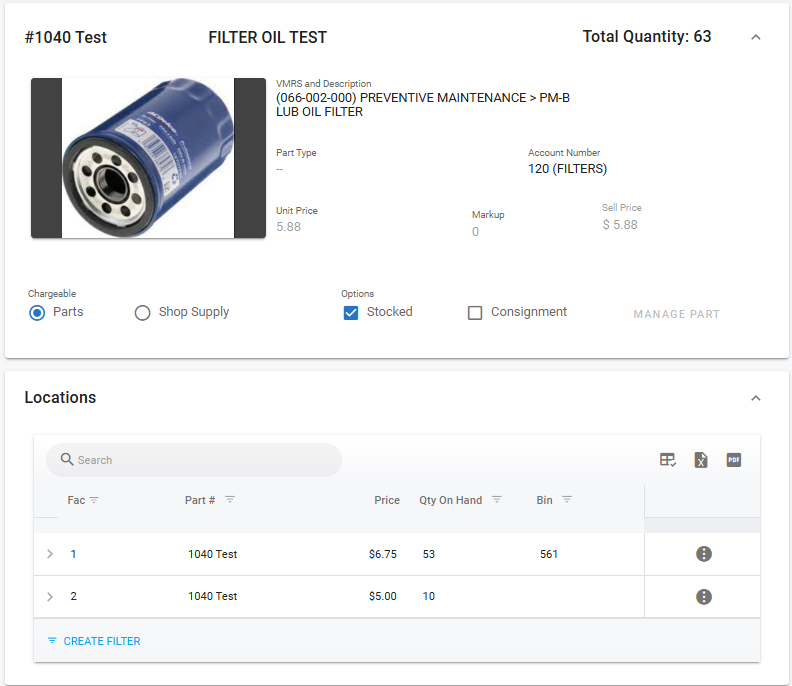
This screen is where you can edit the VMRS, Part description, etc..
Once you select a facility location to view, some items will grey out and are not editable
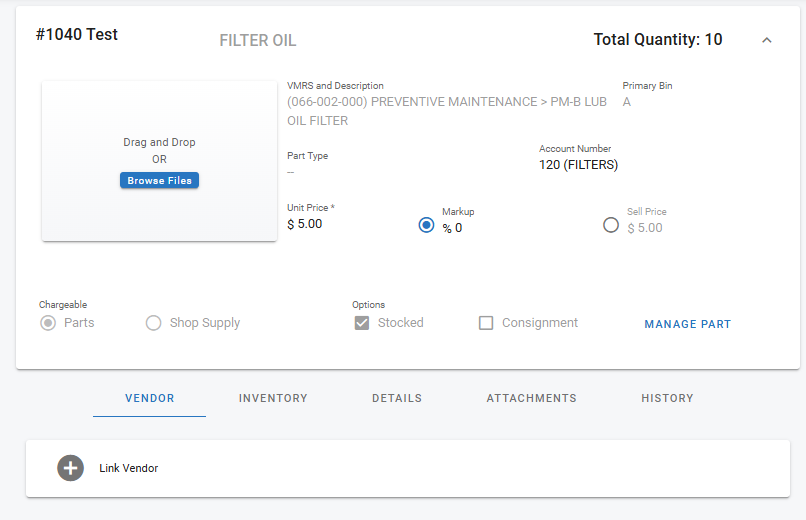
Only those users with access to the main facility will have the ability to edit certain items in the part file
Cascade a part to child facilities
When you save a new part at the main facility, Fleet360 asks whether the part should also be created at your child facilities. This saves adding the same part separately at each location.
You will see two prompts in sequence.
1. Cascade to children?
Select Skip to create the part at the main facility only. The part is saved and you are done.
Select the confirm option to continue to the facility picker.
2. Select Child Facilities
Use Search to narrow a long list of facilities.
Tick each facility that should receive the part, or use Select All to take them all. When only some are ticked, Select All shows a mixed state.
Select Cascade.
Cascade stays disabled until you have selected at least one facility.
Important: These two prompts behave differently if you back out. Skip on the first prompt saves the part at the main facility without cascading. But cancelling or closing the facility picker discards the whole part — nothing is saved, and you are returned to the form. If you decide you do not want to cascade after all, go back and use Skip rather than cancelling the picker.
Facilities that already have the part. A facility that already has a part with the same number is listed but cannot be selected — it appears greyed out with (Part already exists) beside its name. Those facilities are skipped rather than overwritten, so cascading never disturbs a part record that is already in place.
If the list is empty. Fleet360 tells you which of two situations applies: No child facilities available for cascade means the main facility has no child facilities set up, and No child facilities match the search means your search text is filtering them all out — clear the search to see the full list.
If you never see these prompts. They appear only when Centralized Parts is enabled for your organization and the facility you are working in is a part master facility. Adding a part at a child facility does not prompt for cascade.
Add a new part to other facilities
When you save a new part, Fleet360 can ask whether to add the same part to other facilities you have access to. This is a different prompt from the cascade prompt above. On one save you see only one of the two:
If Centralized Parts is on and you create the part at a part master facility, you see the Cascade to Children prompts described above, and this prompt does not appear.
In every other case, when the Prompt to Add to Multiple Facilities switch is on and your organization has more than one facility, you see this prompt.
The prompt appears after the part is saved. Declining it, or closing the facility picker, never removes the part you created.
You will see two prompts in sequence.
1. Add to Other Facilities
The message reads "Add this part to other facilities?".
Select Skip to keep the part at this facility only. You are done.
Select the confirm option to continue to the facility picker.
2. Add to Other Facilities (facility picker)
The picker reads "Select the facilities that should receive this part. Facilities that already have a part with the same number or that use a different master part facility cannot be selected."
Use Search to narrow a long list of facilities.
Tick each facility that should receive the part, or use Select All to tick every facility you can select. When only some are ticked, Select All shows a mixed state.
Select Add.
Add stays unavailable until you have ticked at least one facility. Cancelling the picker keeps the part at this facility only.
Which facilities are listed. The list shows your other facilities where you have permission to add parts. Two kinds of facility are listed but greyed out and cannot be ticked:
(Part already exists) — the facility already has a part with this part number. That part is not changed.
(Different master part facility) — the facility takes its parts from a master part facility that is neither itself nor the facility you are creating the part at.
What is created. Fleet360 creates the part record at each selected facility with a quantity on hand of zero and the new part's average cost as its price. Receive or adjust stock at each facility as usual.
If the list is empty. "No other facilities available." means you have no other facilities with permission to add parts. "No facilities match the search." means your search text filters them all out; clear the search to see the full list.
If some facilities were not added. Fleet360 checks each facility again when it creates the copies. If a facility is excluded because it uses a different master part facility, you see the message "The part was not added to the following facilities because they use a different master part facility:" followed by the facility names. The part is still created at the other facilities you selected.
If you never see this prompt. It appears only when the Prompt to Add to Multiple Facilities switch is on (Admin → System Switches → Parts) and your organization has more than one facility. It also does not appear on a save where the cascade prompts appeared. The same prompt appears when you create a new part from the Work Order part posting screen.