Quick PO
Part Management>PO’s>Quick PO
A Quick PO line that carries a Work Order and Work Order Line posts the part to that work order instead of to inventory. The work order must be open and in the same facility as the Quick PO. See Linking a Work Order and a Purchase Order.
Quick POs Overview
Quick POs streamline the purchase order process by allowing users to add multiple parts to a "shopping cart" and process them simultaneously. This feature enables auto-receiving and auto-posting to work orders (WOs) while running in the background, allowing users to continue other tasks. This feature enhances efficiency by reducing manual PO creation steps while ensuring accurate inventory and work order management.
Key Features:
Receive Checkbox: Determines if a line item should be received. If a WO# is provided, the part is posted to the work order; otherwise, it is added to inventory.
Delete Lines: Users can remove items from the list using a trashcan icon. All selected items are processed together when the Create PO button is clicked.
Stock Needed: Clicking this button opens a modal displaying available stock for the vendor. Users can select items via checkboxes to include in their Quick PO without affecting stock levels until the PO is created.
Creating a Quick PO
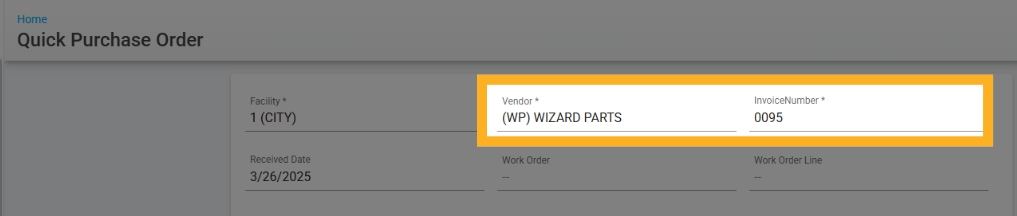
In the Quick PO screen enter the vendor and invoice information. You can identify a Work Order and Work Order Line to auto post the part to the work order.
Click
 Add Part to add a line. In the Part # field, start typing the part number or description and select the part from the list. The list only shows parts that already exist in the parts file for your Working Facility; the description fills in from the part file. Enter the quantity. The price prefills from the part file (you can edit it). Check the Receive box to receive the line to inventory (or post it to the work order) when the PO is created.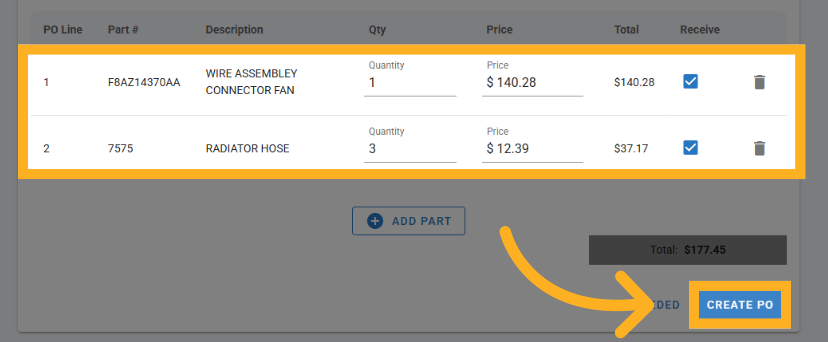
Create PO creates and automatically closes the PO, unless one of the items is not marked as received. If that is the case, that item will transition to an open PO with an open PO line.
Non-File, Service and Sublet Items
Quick PO only accepts parts that are already on file. Unlike a standard purchase order line, Quick PO does not create a non-file line: if you type a part number that is not in the parts file and tab to Quantity, the Part # field clears and no Add Part / Continue prompt appears. That prompt only exists when adding a line to a standard purchase order or when posting parts to a work order.
To buy something that is not on file:
Create the part file first (Part Management > Parts File), then come back to Quick PO and select it. Use this when the item will be ordered again.
Use a standard purchase order instead. A standard PO line accepts a part number that is not on file as a non-file line, and that is also where services, labor and sublet items are ordered. Use this for one-time, non-inventory items.
Refer to Purchase Order Lines.
Refer to Adding Part Files On The Fly.
Refer to Adding a Part File.
Blanket PO's do not link with Quick PO’s. If using a blanket PO, create a traditional PO.