
Department Files
Departments allow grouping of asset records within a facility. Setting up the department file allows many vehicle cost and billing reports to be generated by a specific department (or cost center), a range of departments, or all departments in a facility. For example, a city can be set up as a facility in RTA and the fire, police, and transportation can be set up as departments. Then when vehicle cost reports are generated, costs can be reported for the entire city or just the police department.
Departments can be used even if your company has no departments or locations. For example, group different types of assets by setting up each type as a department (e.g., cars, trucks, tractors, forklifts, Fords, and Chevys). Setting it up in this manner allows cost reports to be produced by asset or asset type
Adding a Department
To add a department record, do the following:
Click on the Organization menu area
Click on Departments
Click the + (add) icon in the upper right corner

Enter the following:
Assign a department number (up to 10 characters, must be unique within the facility). The Department # cannot be changed after the department is created, so choose it carefully.
Enter the department name
Provide Contact information such as Primary contact name, phone number, and address
Add a profile picture if desired by browsing a file or drag and dropping it into the space
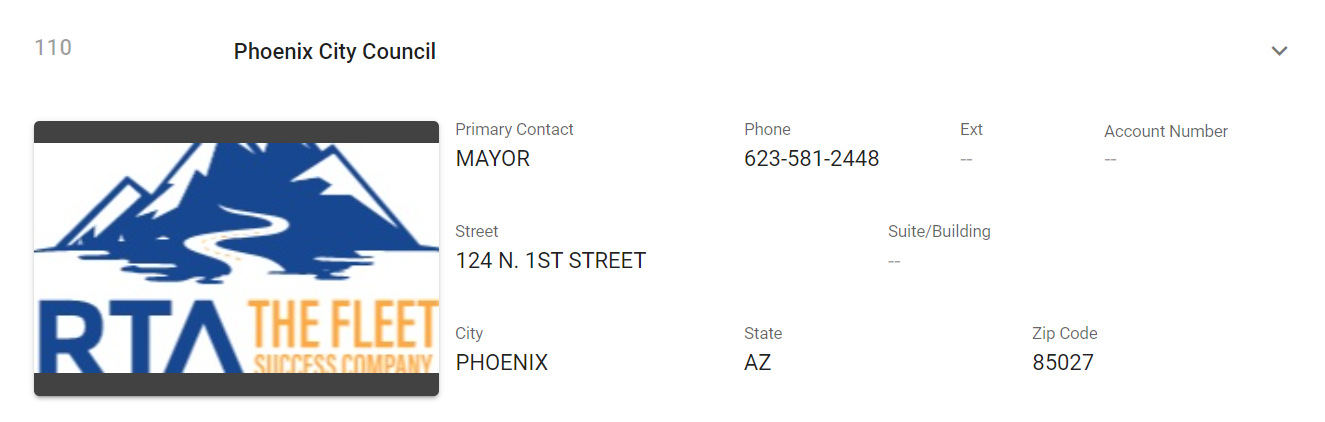
Check the box to create this same information into the customer file as well if applicable
In many fleets, the departments ARE customers and doing this reduces entry time for file creation
Click Create
Editing a Department
To change a department record, do the following:
Click on the Organization menu area
Click on Departments
Locate and click on the department to be edited
Click in a field and make edits
Click the check mark to save edits
The Department # field is locked for existing departments. You can change the Name, Description, Primary Contact, Phone, Email, Account Number, Default WO Facility and address, but not the number. If you need a department to have a different number, see Changing Department Numbers below.
Changing Department Numbers (Organization Changes)
When your organization is restructured you may need departments to carry new numbers. Because the Department # cannot be edited, use one of these approaches:
Only the name or label changed: open the existing department and edit its Name (and contact details if needed). The number stays the same and all asset and history links are unaffected.
The numbers themselves must change: add the new departments with the new numbers, then move the assets to them. On each asset, open the Department Info panel and select the new department in the Department Number or Department Name field. For many assets, the asset import can set the department by Department Number on existing assets - Imports - Asset Import Information. Once no assets remain on an old department you can delete it.
History and reporting. Moving an asset to a new department changes the department on the asset going forward. Work order, fuel, PM and audit records keep the department number that was in effect when they were created, so reports that group history by department will show the old number for transactions before the change and the new number after it. Plan the switch for a period boundary (for example the start of a fiscal year) if you want clean department totals.
Deleting a Department
To delete a department record, do the following:
Click on the Organization menu area
Click on Departments
Locate and click on the department to be edited
Click the Delete option in the upper right corner