Imports - Work Order - Combined
Admin > Imports/Exports > Work Orders > Work Order Combined
The Work Order Combined Import allows Fleet360 administrators to bulk-create and update work orders, work order lines, and post transactions in a single import file. Rather than manually entering work orders one at a time, this import streamlines the process for large maintenance events, historical data migrations, or bulk transaction postings.
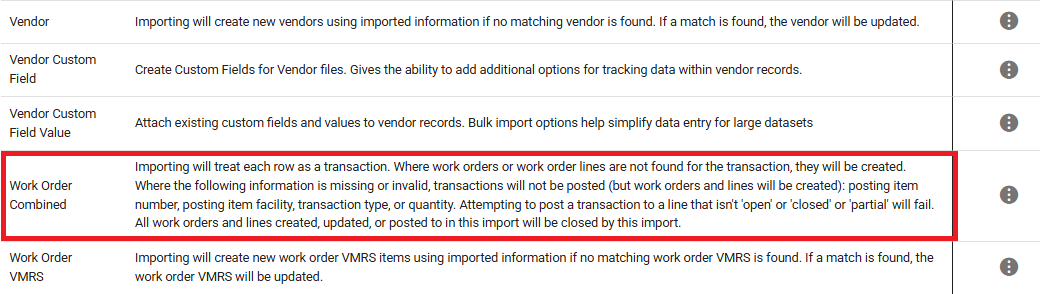
Important: Each row in the import file is treated as a transaction. Where work orders or work order lines do not already exist, they will be created. All work orders and lines that are created, updated, or posted to during this import will be closed upon completion.
Accessing the Import
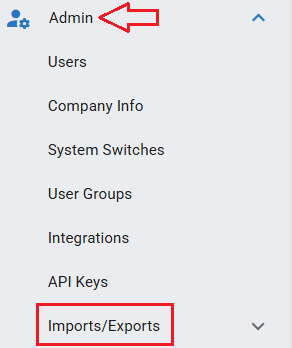
Navigate to Admin in the main menu.
Select Imports/Exports.
Choose Work Order Combined from the list of available import types.
What This Import Does
When processed, this import will
Create work orders and work order lines where they do not already exist.
Update existing work orders and lines with the provided data.
Post transactions to work order lines when valid posting fields are supplied.
Transactions will not be posted (but work orders and lines will still be created) if any of the following are missing or invalid: Post Item Number, Post Item Facility, Transaction Type, or Quantity.
Note: Attempting to post a transaction to a work order line that is not in Open, Closed, or Partial status will fail.
Preparing the Import File
Download the Work Order Combined Import Template from the Import screen. The template is a CSV file. Column headers must appear in the following order:
WO Facility, Transaction Type, WO Line Number, WO Number, Post Item Facility, Post Item Number, Quantity, Post Date, Price, Odometer, Item Description, Work Accomplished Code, Creator ID, VMRS Major, VMRS Intermediate, VMRS Minor, Total Scheduled Hours, Repair Type, Cause Code, Outside Line Flag, OEM Warranty Flag, Warranty Flag, Vendor Facility, Vendor Number, Job Account Code, WO Line Description, Created Date, Line Notes, Correction Note, Complaint Note, Cause Note, Mechanic Facility, Mechanic Number, Priority Code, Asset Facility, Asset Number, Customer Facility, Customer Number, Shop ID, Created Time, Start Date, Start Time, End Date, End Time, Unit Meter, Unit Life Meter, Vehicle Alternate Odometer, Vehicle Alternate Life Miles, Reason Code, PO Number, Invoice, Invoice Date, Capitalize Flag, WO Master Note
Field Reference
WO Facility and Asset Number are required for each row. All other fields are optional unless posting a transaction, in which case Post Item Facility, Post Item Number, Transaction Type, and Quantity are also required.
Field | Format / Notes | Required |
WO Facility | Must match an existing Facility in RTA. Numeric / 5 char limit | ✓ |
Transaction Type | Must match a valid transaction type in the system | ✓ for posting |
WO Line Number | Numeric |
|
WO Number | Alpha-Numeric / 10 char limit |
|
Post Item Facility | Must match an existing Facility in RTA | ✓ for posting |
Post Item Number | Must match a valid posting item in the system | ✓ for posting |
Quantity | Must be numeric | ✓ for posting |
Post Date | Date: M-D-YYYY or MM-DD-YYYY |
|
Price | Decimal (e.g. 100 or 100.00) |
|
Odometer | Must be a whole number |
|
Item Description | Free text / 255 char limit |
|
Work Accomplished Code | Must match a valid code in the system |
|
Creator ID | Must match a valid user ID in the system |
|
VMRS Major | Alpha-Numeric / 36 char limit |
|
VMRS Intermediate | Alpha-Numeric / 36 char limit |
|
VMRS Minor | Alpha-Numeric / 36 char limit |
|
Total Scheduled Hours | Decimal |
|
Repair Type | Must match a valid repair type in the system |
|
Cause Code | Must match a valid cause code in the system |
|
Outside Line Flag | Y or N |
|
OEM Warranty Flag | Y or N |
|
Warranty Flag | Y or N |
|
Vendor Facility | Must match an existing Facility in RTA |
|
Vendor Number | Must match a valid vendor in the selected facility |
|
Job Account Code | Alpha-Numeric / 36 char limit |
|
WO Line Description | Free text / 255 char limit |
|
Created Date | Date: M-D-YYYY or MM-DD-YYYY |
|
Line Notes | Free text |
|
Correction Note | Free text |
|
Complaint Note | Free text |
|
Cause Note | Free text |
|
Mechanic Facility | Must match an existing Facility in RTA |
|
Mechanic Number | Must match a valid mechanic in the selected facility |
|
Priority Code | Must match a valid priority code in the system |
|
Asset Facility | Must match an existing Facility in RTA | ✓ |
Asset Number | Must match an existing asset (Vehicle Link Number) in the selected facility. Alpha-Numeric / 8 char limit | ✓ |
Customer Facility | Must match an existing Facility in RTA |
|
Customer Number | Must match a valid customer in the selected facility |
|
Shop ID | Must match a valid shop in the system |
|
Created Time | Time: HH:MM (24-hour) |
|
Start Date | Date: M-D-YYYY or MM-DD-YYYY |
|
Start Time | Time: HH:MM (24-hour) |
|
End Date | Date: M-D-YYYY or MM-DD-YYYY |
|
End Time | Time: HH:MM (24-hour) |
|
Unit Meter | Must be a whole number |
|
Unit Life Meter | Must be a whole number |
|
Vehicle Alternate Odometer | Must be a whole number |
|
Vehicle Alternate Life Miles | Must be a whole number |
|
Reason Code | Must match a valid reason code in the system |
|
PO Number | Alpha-Numeric / 36 char limit |
|
Invoice | Alpha-Numeric / 36 char limit |
|
Invoice Date | Date: M-D-YYYY or MM-DD-YYYY |
|
Capitalize Flag | Y or N |
|
WO Master Note | Free text |
|
Running the Import
From the Work Order Combined Import screen, click Choose File (or browse) and select your completed CSV file.
Click Import to begin processing.
Fleet360 will validate each row before applying updates.
10. Once processing is complete, a results summary will display: Successful rows (work orders created/updated/posted) and Failed rows (rows that did not pass validation, listed with error details).
Validation Rules
Fleet360 validates every row before processing. Rows that fail validation are skipped; valid rows are still processed (partial success is supported).
Rule | What Happens on Failure |
WO Facility and Asset Number must be present | Row fails — required fields missing |
Asset must already exist in the system | Row fails — no matching asset found |
Posting fields (Post Item Facility, Post Item Number, Transaction Type, Quantity) must all be present and valid | Transaction not posted — work order and line are still created |
Work order line must be in Open, Closed, or Partial status to accept a posting | Transaction fails — invalid line status |
Dates must be valid (M-D-YYYY or MM-DD-YYYY) | Row fails — invalid date format |
Price, Quantity, and numeric fields must be numeric | Row fails — invalid number format |
Flag fields (Outside Line, OEM Warranty, Warranty, Capitalize) must be Y or N | Row fails — invalid flag value |
Rows that fail will appear in the error report with a description of why they were rejected.
Closing Behavior
All work orders and lines that are created, updated, or posted to by this import will be automatically closed upon completion. This applies regardless of whether a transaction was successfully posted. Plan accordingly if you need work orders to remain open after import.
Common Gotchas — What to Watch Out For
This import creates permanent work order history records. Getting the data structure wrong can result in incomplete records, duplicate entries, or incorrect cost data that is difficult to clean up. The table below covers the most common mistakes and how to avoid them.
Gotcha | What Goes Wrong | How to Avoid It |
WO Numbering Switch mismatch | Rows fail silently or WOs don't create at all | Check Admin > Settings > Work Orders before running. The switch must match the format (numeric or alphanumeric) of your WO numbers. Test with 5 rows first. |
Facility + WO# not unique across runs | Import overwrites existing WOs from a previous run in a different facility | The composite key is Facility + WO Number. If you re-use WO numbers across facilities, the import may write to the wrong record. Ensure Facility Number changes when your WO numbers don't. |
Duplicate mechanic on same WO line | Import fails with a duplicate index constraint error on dbo.wolnmech | A mechanic can only appear once per WO line. If your source data has the same mechanic ID on multiple rows for the same WO + Line combination, consolidate to one row before importing. |
All four posting fields must be present | Transaction silently skipped; WO and line still create | Post Item Facility, Post Item Number, Transaction Type, and Quantity must ALL be present. Missing any one means no transaction posts. The WO looks correct but has no cost data. |
Same WO/Line/Facility rows not grouping | Mass record failures; only a handful of WOs create | Every row for the same job line must have identical WO Number, Facility, and Line Number values. Any inconsistency causes the import to try creating a duplicate line — which fails. |
End Date / Close Time overwritten by system | Historical WOs all show today's date as the close date | Known issue. Work around by updating End Date manually post-import, or hold off until the fix is released. |
Large file deadlocks (100+ rows) | Some rows fail; re-importing the error file (unchanged) succeeds | Split large files into batches of 100–200 rows. If deadlock errors appear, simply re-run the error file as-is once the original queue clears. |
Non-file parts post silently | Part costs are recorded but inventory is not reduced | If a part number doesn't exist in Fleet360's parts master, it posts as a non-file part. Verify which parts exist before importing if inventory accuracy matters. |
File format must be CSV | Import fails or produces no records if uploaded as .xlsx | The import expects a .csv file. When editing in Excel, always do File > Save As > CSV (Comma delimited) before uploading. |
Column order and headers must be exact | Fields import into wrong columns; silent data corruption | Never rename, reorder, or delete columns from the template. Even blank optional columns must stay in place. |
Line Notes and 3C Notes not writing | Notes appear in the file but are missing in Fleet360 | Known issue. Currently only WO Master Notes reliably write to WONOTES. Line-level and 3C notes may be silently dropped. |
Tips & Best Practices
Tip | Detail |
Use the provided template. | Column order and header names must match exactly for the import to process correctly. |
Include all four posting fields or none. | If you intend to post a transaction, Post Item Facility, Post Item Number, Transaction Type, and Quantity must all be present and valid. A row missing any one of these will not post. |
Check work order line status before importing. | Lines must be Open, Closed, or Partial to accept a posting. Lines in any other status will cause the transaction to fail. |
Leave optional columns blank rather than deleting them. | The import expects all columns to be present in the file, even if empty. |
Run a small test batch first. | Import a few rows to confirm your file structure and values are correct before processing a large file. |
Save as CSV, not XLSX. | The import expects a .csv file. If editing the template in Excel, save as CSV (Comma delimited) before uploading. |
All work orders close on import. | If you need certain work orders to stay open, process those separately outside of this import. |