Contact Types
Manage Contact Types
Overview
Operator Contact Types let your organization define and manage the labels used for operator contacts across the platform, such as Primary Operator, Billing Contact, or other contact roles that fit your workflow.
These contact types are used in places like assets, facilities, and other contact-related workflows. They also help ensure the correct email addresses and phone numbers are available for messaging and workflow automation.
What you can do
Within Contact Types, you can:
Add a new contact type
Edit an existing contact type
Set one contact type as the default
Delete a contact type
Reassign existing records if a deleted contact type is already in use
Where to find Contact Types
Go to:
Organizations > Settings > Contact Types
In this section, you can view, add, edit, and delete the contact types used by your organization.
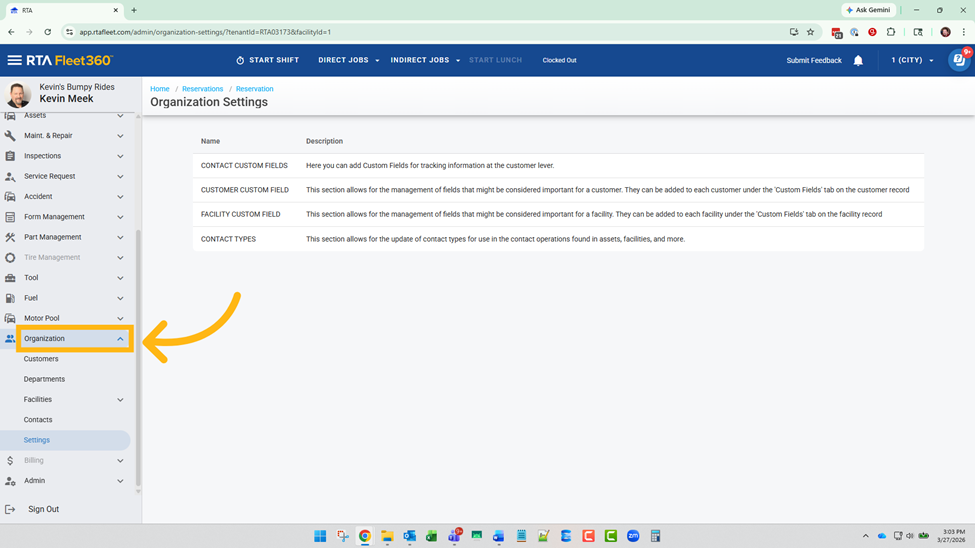
Open Organization Section
Click "Organization" to access the organization management section in Chrome.
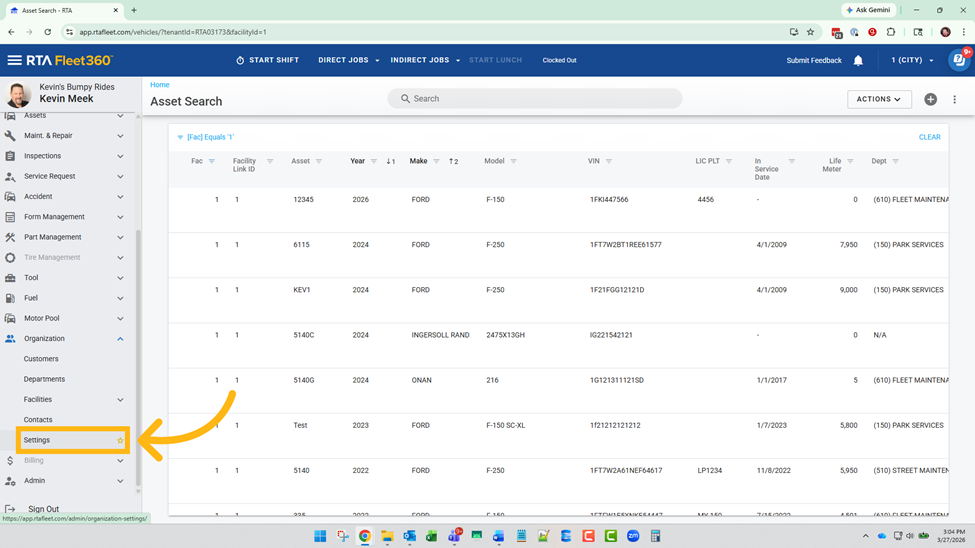
Open Settings Menu
Click "Settings" to access configuration options for the organization.
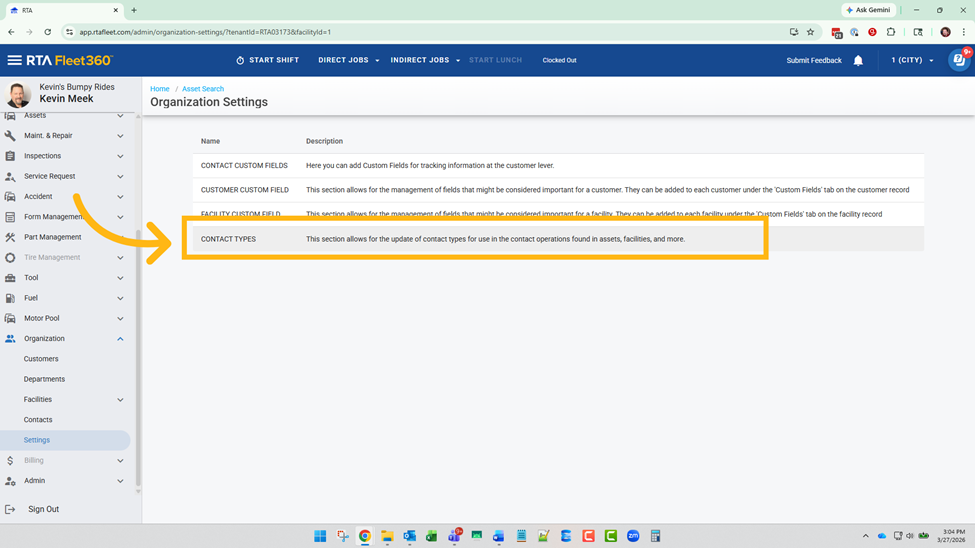
Access Contact Types
Click "CONTACT TYPES" to manage different categories of contacts within the organization.
Add New Contact Type
To create a new contact type:
Navigate to Organizations > Settings > Contact Types.
Select Add Contact Type.
Enter the name of the new contact type.
Choose Make default if you want this type to be automatically selected when assigning an operator contact.
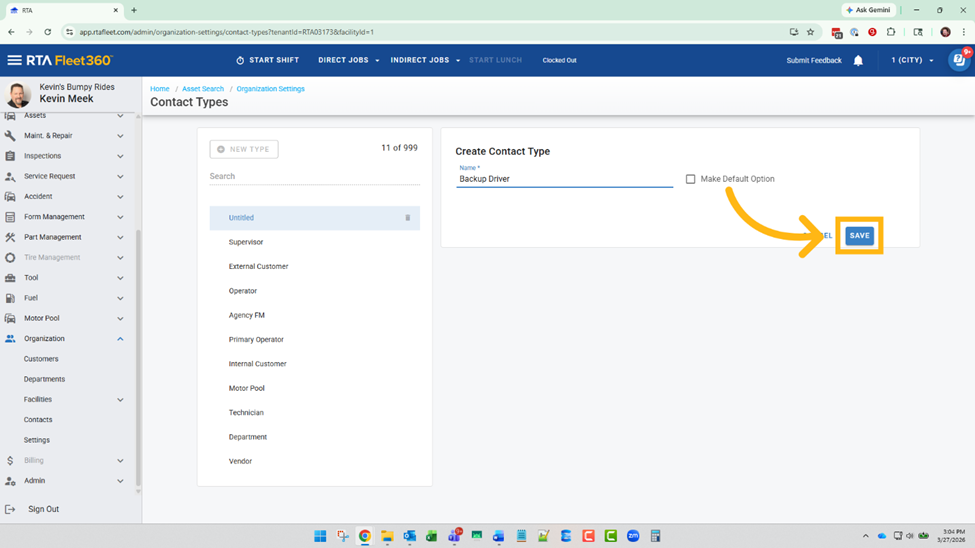
Save your changes.
Click "+ NEW TYPE" to start creating a new contact type category.
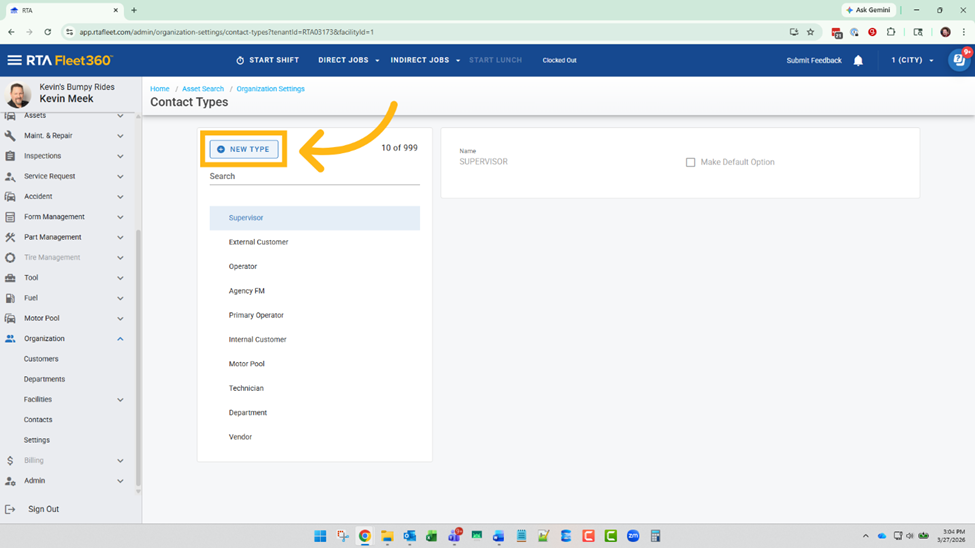
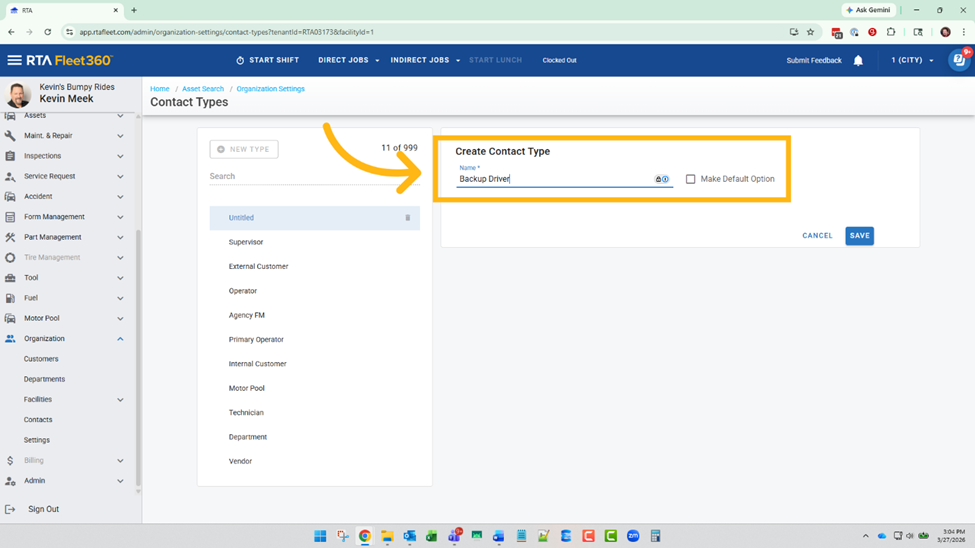
Enter your contact type name as "Backup Driver" to define this category.
Save Contact Type
Edit a contact type
To update an existing contact type:
Go to Organizations > Settings > Contact Types.
Locate the contact type you want to update.
Select Edit.
Update the contact type name as needed.
If appropriate, select or clear the Make default checkbox.
Save your changes.
This is helpful when naming conventions change and your team needs contact labels to better reflect current operations.
Set a default contact type
One contact type can be marked as the default.
The default contact type is automatically applied when an operator is added in the asset header.
For example, if a user assigns an operator to an asset, the system will automatically apply the default contact type to that contact.
Important notes about defaults
Only one contact type can be marked as default at a time.
If no changes have been made, Primary Operator is typically the default contact type.
Changing the default affects which contact type is automatically assigned going forward.
Delete a contact type
To delete a contact type:
Go to Organizations > Settings > Contact Types.
Find the contact type you want to remove.
Select Delete.
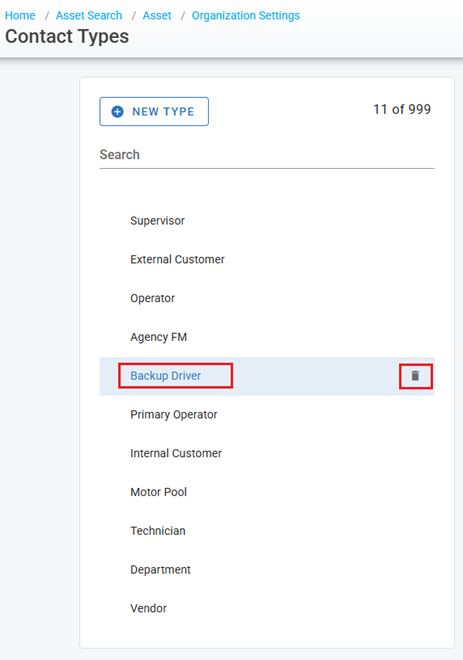
If the contact type is the default
If you try to delete the contact type currently marked as default, the system will prevent deletion and display this message:
“This is the default Contact type. Please select a new default before deleting this type.”
Before deleting it, you must assign a different contact type as the default.
If the contact type is already in use
If the contact type is assigned to existing assets or other records, the system will prompt you to choose a replacement contact type for those records before the deletion is completed.
This helps prevent data gaps and ensures existing contacts remain properly categorized.
How Contact Types are used
Contact Types help organize and standardize operator contact records throughout the system. They are used in contact-related operations across areas such as:
Assets
Facilities
Messaging workflows
Other contact-based processes
By maintaining your organization’s contact types, you help ensure users select the correct contact role and that downstream workflows use valid contact information.
Best practices
Keep contact type names clear and consistent.
Review your default contact type regularly to make sure it matches your current process.
Before deleting a contact type, confirm which records use it and choose the best replacement.
Limit changes to authorized admins to maintain consistency across the organization.
Frequently asked questions
Why can I only set one default contact type?
Only one default can be used so the system knows which contact type to automatically apply when an operator is added.
What happens if I rename a contact type?
Renaming updates the label used by your organization, helping you align contact types with current naming conventions.
What happens if I delete a contact type that is being used?
You will be prompted to select a replacement contact type for any affected records before the deletion is completed.
Can I delete the default contact type?
Not until you choose a new default first.
Why is this important?
Contact Types support contact organization, messaging workflows, and consistent operator contact management across the system.