
Transfer Parts
Transferring a part is sometimes necessary if you need to move part quantities from one facility to another to allow a part to show that it was physically moved from one location to the another. This process will also adjust both inventories as well. The Transfer option will copy over just the main master information for the part found in the main part record screen:
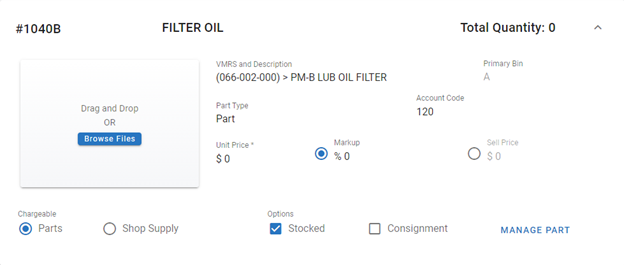
Before you transfer: the receiving facility must already have this part. A transfer moves quantity between two part records that already exist, so the TO: Facility list only offers facilities that already have their own part record with the same part number as the part you are transferring. A facility with no matching part record never appears in the list, no matter what access you have. If the receiving facility does not have the part yet, create it there first, then come back and transfer. See Copy Part Files.
Click Manage Part from the Part File Primary Info Panel
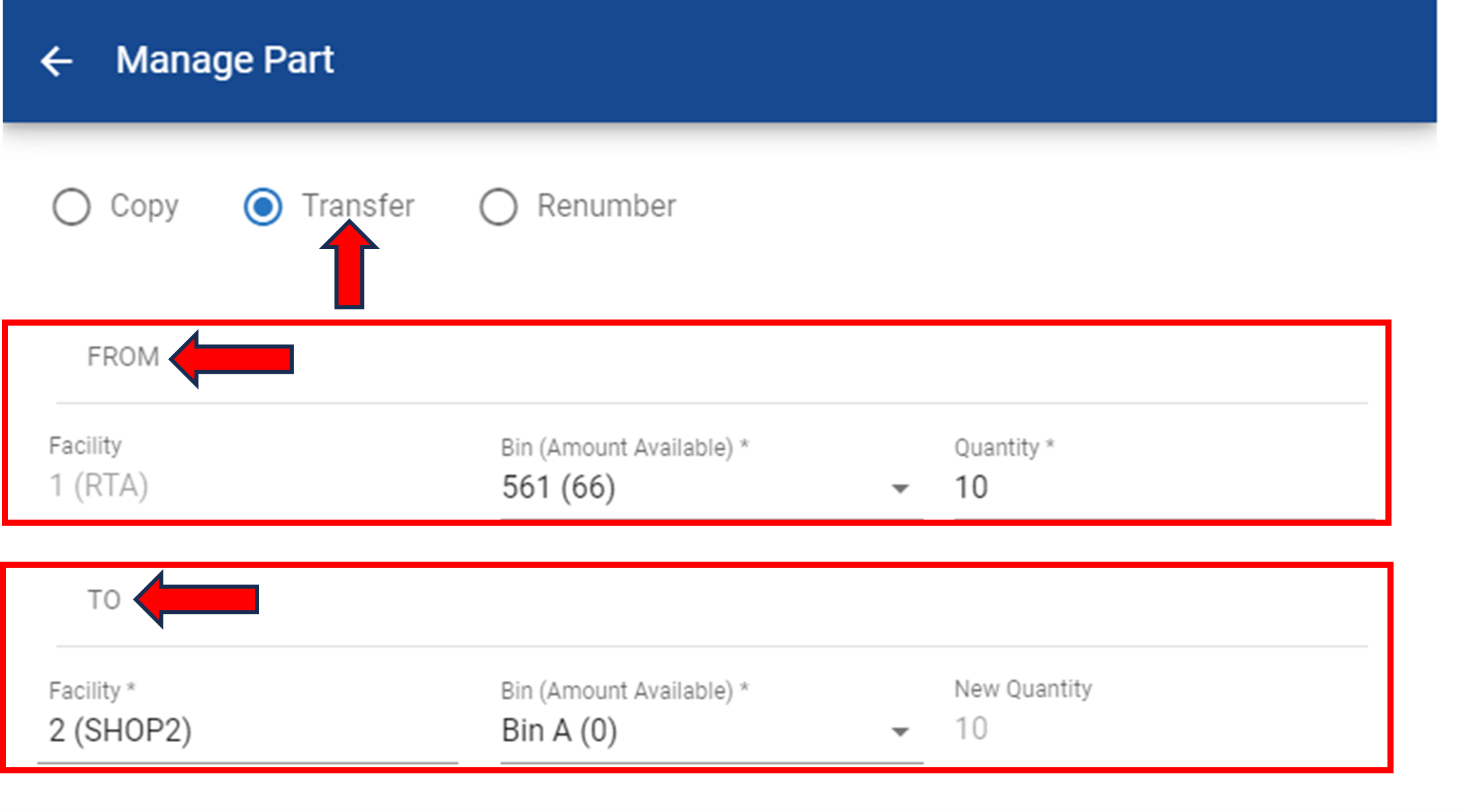
Click Transfer
Select:
The FROM: “Facility” is the facility you are working in. It is shown for reference and cannot be changed on this panel, so if you need to transfer out of a different facility, switch your working facility first
The Bin (Amount Available) Stock area you want to pull quantity from
The Quantity you wish to Transfer
Then Select:
The TO: “Facility” to Transfer the part to, from the drop-down list. Only facilities that already have a part record with the same part number are listed, so if the facility you expect is missing, see “Why the destination facility does not appear” below
The Bin (Amount Available) Stock area you want to push the quantity into
The new quantity will automatically show up
Click Save at the bottom of the side panel
Why the destination facility does not appear
If the TO: Facility list is empty, or the facility you expect is not in it, the part record is almost always the reason and not access or configuration. A facility is offered as a transfer destination only when all of the following are true:
The facility has its own part record with the same part number as the part you are transferring. Fleet360 matches on the primary part number only, character for character: dashes, spaces and leading zeros count, so FT8440 and FT-8440 are two different parts. Alternate part numbers, vendor cross-references (Alt Part #) and the description are not used to match, so a “near match” in the receiving facility is not a valid destination. Two records that describe the same physical part but were entered with different part numbers are separate parts and cannot be transferred between
The facility is active and is not archived
It is not the facility you are transferring out of
Your user account has access to the facility
Access and permissions on their own do not add a facility to the list. A facility you can work in still will not appear as a destination until it has a part record with a matching part number.
What to do
Note the exact part number in the sending facility, including any leading zeros, dashes or spaces
Switch to the receiving facility and search the Part File for that part number
If the part is not there, create it in the receiving facility. The quickest way is to copy it from the facility that already has it: open the part, click Manage Part, select Copy, choose the receiving facility and enter a starting quantity and price (0 and $0.00 are acceptable). A copy keeps the same part number and description, so the two records match. See Copy Part Files
Return to the sending facility, open the part, and click Manage Part then Transfer. The receiving facility now appears in the TO: Facility list
If you select a facility and the transfer fails
A transfer that is rejected after you click Save means the receiving facility does not have a part record with that part number, or the facility is no longer active. Confirm the part number in both facilities character for character, and confirm the receiving facility is active, then try again.
The two facilities use different part numbers for the same part
If you can transfer most parts but one part is refused, compare the primary part numbers in the two facilities. A small difference such as FT8440 in one facility and FT-8440 in the other is enough to make them different parts to Fleet360. Transfer does not offer a way to pick a different destination part or to match on an alternate number. You have two options:
Create the part in the receiving facility under the sending facility’s exact part number (Manage Part > Copy keeps the number), transfer into it, and then merge or retire the differently-numbered record in the receiving facility according to your own parts practices; or
Keep the two records as they are and move the quantity with a part adjustment in each facility instead of a transfer.
This is how Fleet360 is designed to work today, not a fault. If your organization needs transfers to match on alternate part numbers, send that request to RTA Support as product feedback; it is not something Support can switch on.
Centralized Parts. If your organization uses Centralized Parts, part records are added in the main part facility and made available to its sub facilities, so ask whoever maintains your parts setup to add the part to the receiving facility rather than changing the Centralized Parts settings yourself. See Centralized Parts Table of Contents.