
Copy Part Files
Copying a part is sometimes necessary if you would like to create a new part record in another facility but do not necessarily want to create it from scratch. The copy option will copy over just the main master information for the part found in the main part record screen:
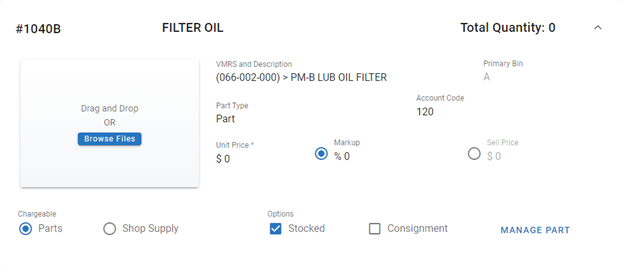
Click Manage Part in the Part File Primary Info Panel
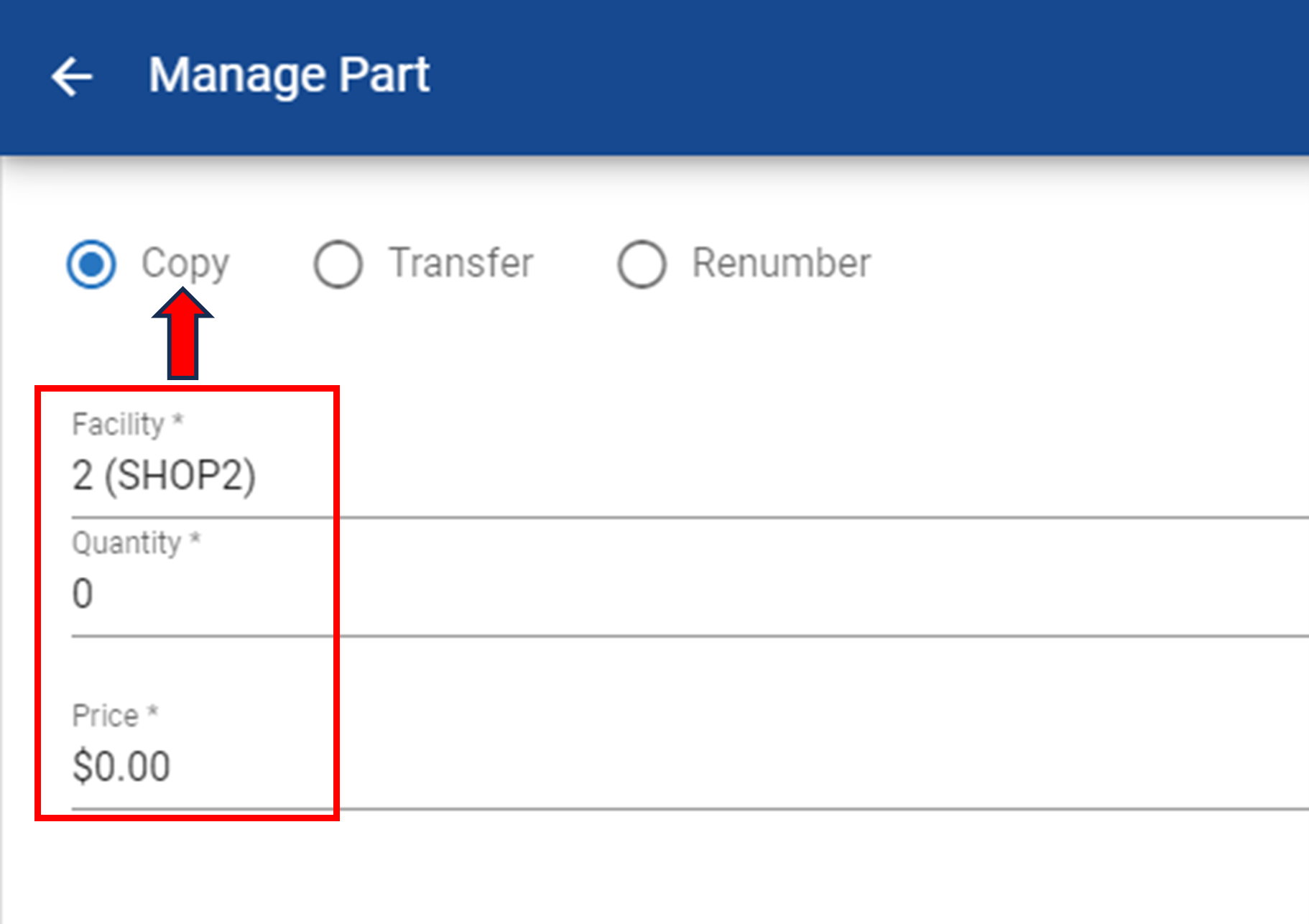
Select the Copy option
Select the “Facility” to Copy to from pull down list
You can select an initial on hand quantity for the new part being copied over or you can put an initial value of 0 (Zero) if you wish
You can select an initial on Part Price for the new part being copied over or you can put an initial value of $0.00 if you wish
Click Save at the bottom of the side panel
Copying is also how you make a facility available for a transfer. A part can only be transferred into a facility that already has its own record for that part number, which is why a facility with no matching part record does not appear in the TO: Facility list on a transfer. Copying the part to that facility first creates the matching record, with the same part number and description, and the facility then appears as a transfer destination. If the facility already has a part with that part number the copy is rejected, which also means the facility is already available for a transfer. See Transfer Parts.