
Attachments in Fleet360
The attachments tab allows you to upload pictures and documents associated with the file. Items that might be considered are pictures of the asset/part, purchase or warranty agreement documents for the asset/part, etc.
Adding Attachments
There are two methods available for adding attachments.
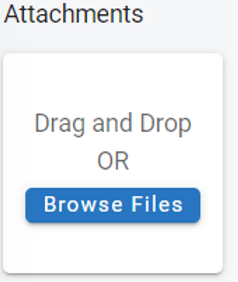
Drag and Drop
Drag and drop allows the user to click and drag a file type saved on their computer directly into the attachments area.
Browse Files
Click Browse Files
Select a file from your computer
Double click on the file
It will be added to the attachments automatically
Viewing Attachments
Click on the attachment thumbnail to view larger image
Picture files (jpeg, png, etc) will display as a larger image
Document files (Excel, Word, PDF, etc) will display a screen asking you to download to open
Make Profile Pic
Hover over the menu option bubble of an attachment select “Make Profile Pic” to set that attachment as the avatar or profile picture for the asset file that will be displayed in the primary asset information panel
If that attachment is deleted from the file, the profile pic will also delete on the primary asset panel
Downloading Attachments
Hover over the menu option bubble of an attachment select “Download File”
Removing Attachments
Hover over the menu option bubble in the top right of the attachment
Select Delete
Editing Attachments
Users have the ability to edit the name of the attachment. It doesn’t need to be unique and is useful for quickly identifying an attachment. This will be used to give a new name to the image, but will not rename the original file in any way.
Access the attachment
Click on or hover over the ellipse icon
Select Edit
Enter the new image title
Click Save
Attachments From the RTA Mobile App
Photos added to a record from the RTA Mobile app are stored as the record’s attachments. They appear on the same Attachments tab in Fleet360 and on the record in the app - no separate sync is needed.
The app displays the record’s photo automatically. To choose which photo is the profile picture shown in the record’s information panel in Fleet360, use Make Profile Pic as described above. Setting a new profile pic replaces the previous one.
If a photo added in the app does not appear on the Attachments tab, confirm the upload finished in the app. Photos that are still uploading, or that failed to upload, do not reach the file. If the upload completed and the photo is still missing, contact RTA Support.