
Sublet Invoice Capture
Sublet Invoice Capture Overview
The AI Invoice Review & Work Order Mapping tool in Fleet360 (Sublet Invoice Capture) streamlines how external vendor invoices are added to your Work Orders. Instead of manually retyping invoice details, the system uses AI to extract line items and presents them in a guided review screen where you can quickly validate and finalize the data before saving.
Within this interface, users can review invoice details side-by-side with the original document, edit line items, assign VMRS and Cause Codes, adjust quantities and costs, and organize entries into Labor, Parts, or Misc. categories. Built-in validation highlights missing or incorrect information, helping ensure everything is complete and accurate before posting.
This tool improves efficiency, reduces data entry errors, and ensures consistency across your fleet data, giving you greater confidence in your reporting, cost’s, and maintenance records. See below to learn how to use this tool.
How To Access Sublet Invoice Capture
Click on Maint. & Repair
Click on Sublet Invoice Capture
This is where you will be able to upload invoices
Access and Availability
Sublet Invoice Capture is an add-on module. It is not included in every Fleet360 account, and it has to be enabled for your organization before anyone can use it. Two things have to line up, and Fleet360 checks them in this order:
Module availability - whether the add-on is included for your account. If it is not, the menu item is visible but greyed out with a padlock icon beside it, selecting it does nothing, and opening the screen by its address sends you to the unauthorized page. This applies to every user, including administrators.
User group permission - once the module is available, a user also needs the Import Sublet Invoices permission in their user group. Without it the menu item is greyed out without a padlock. Your Fleet360 administrator sets this in User Group Maintenance.
Sublet Invoice Capture and Sublet Estimate Capture are enabled together as one add-on and share the same permission, so if one is locked the other is too.
A padlock means the module is not enabled for your account. No setting inside Fleet360, no user group change and no browser or cache fix will unlock it. Enabling the add-on is handled by your Fleet Success Manager, or by emailing addons@rtafleet.com, who can go over pricing and turn it on for your organization; the menu item unlocks automatically once it is enabled. See also Why Custom Dashboard Is Locked or Unavailable, which explains the padlock icon.
Adding an Invoice
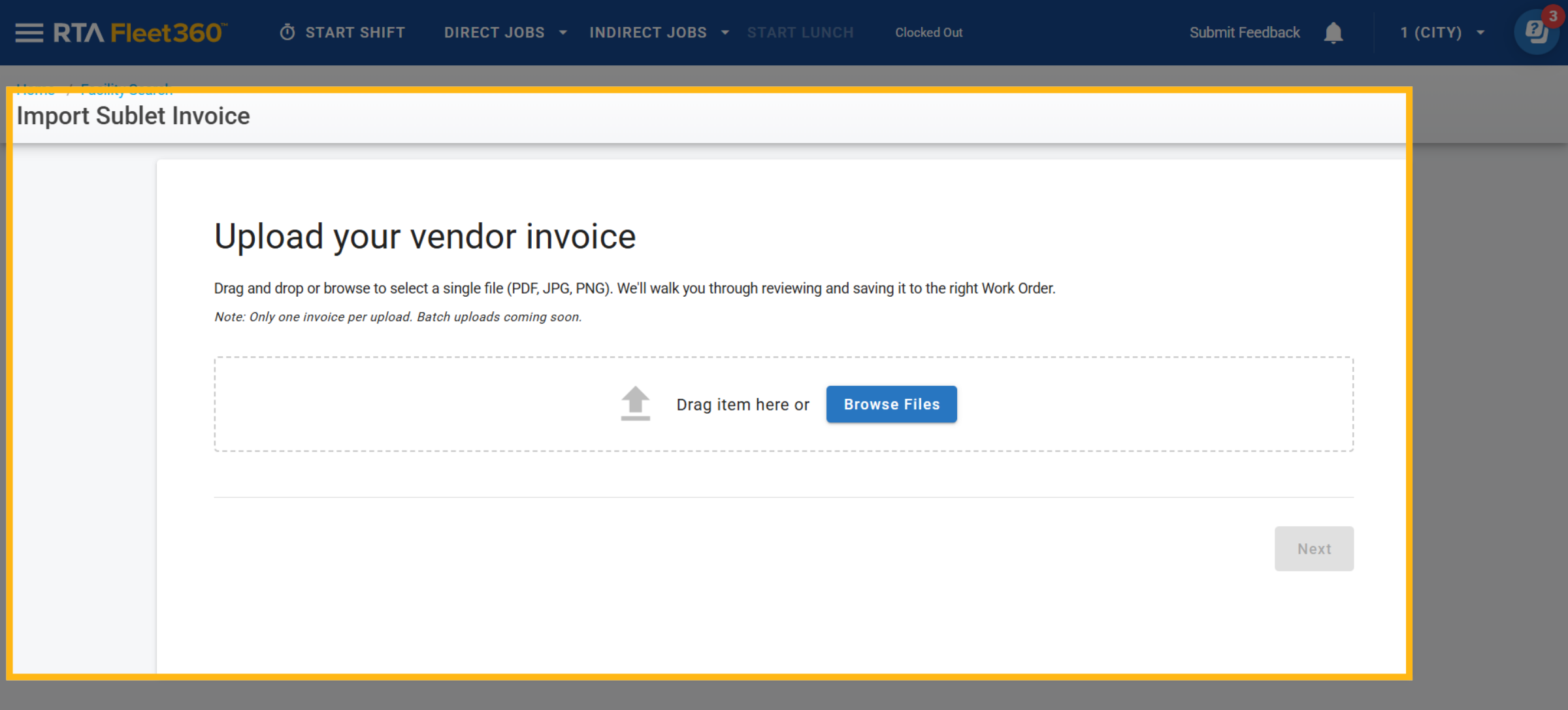
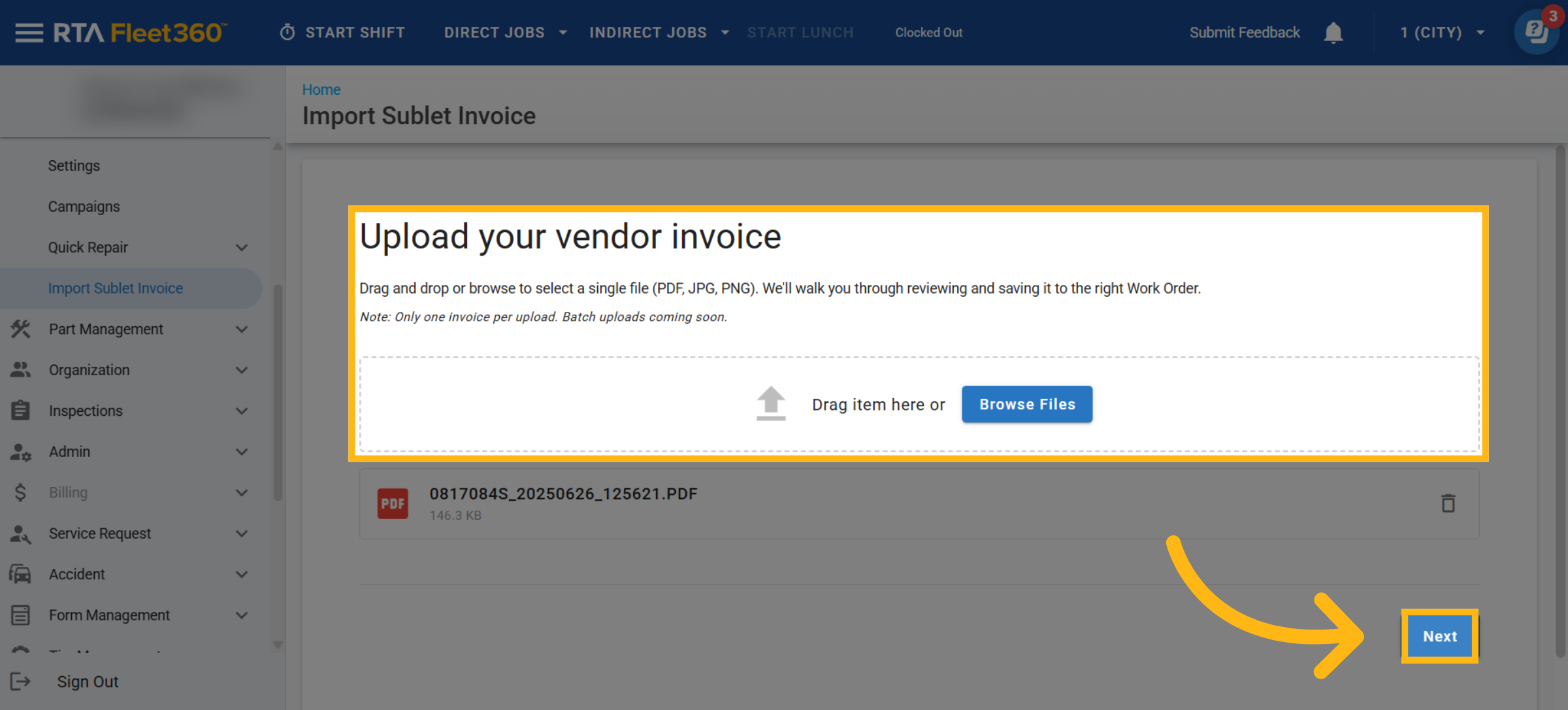
Drag and drop or browse your files to select a single file to upload
Click Next
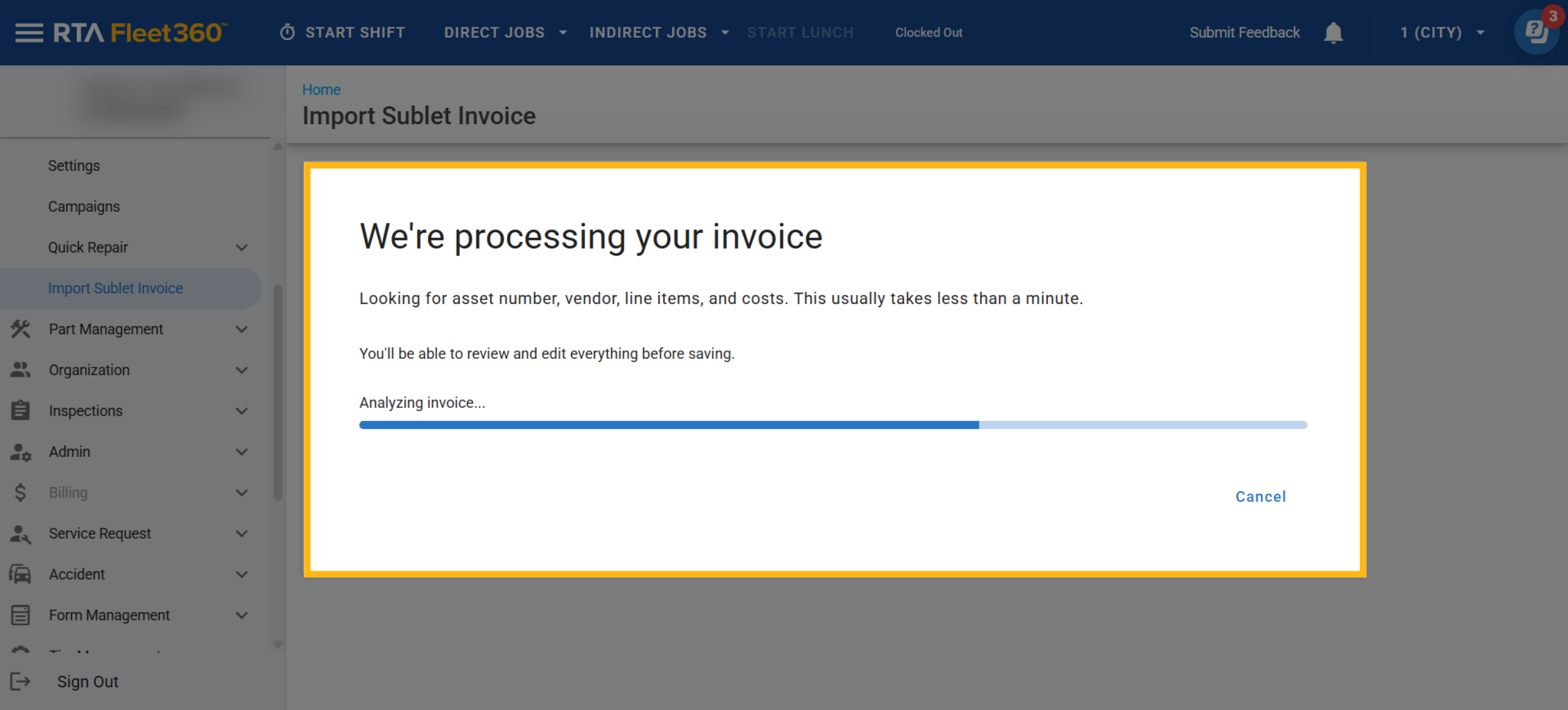
After Next is clicked, there may be a small waiting period while the utility is reviewing the invoice
Attaching an Asset
Once the invoice review is completed you will see asset information and a copy of the invoice
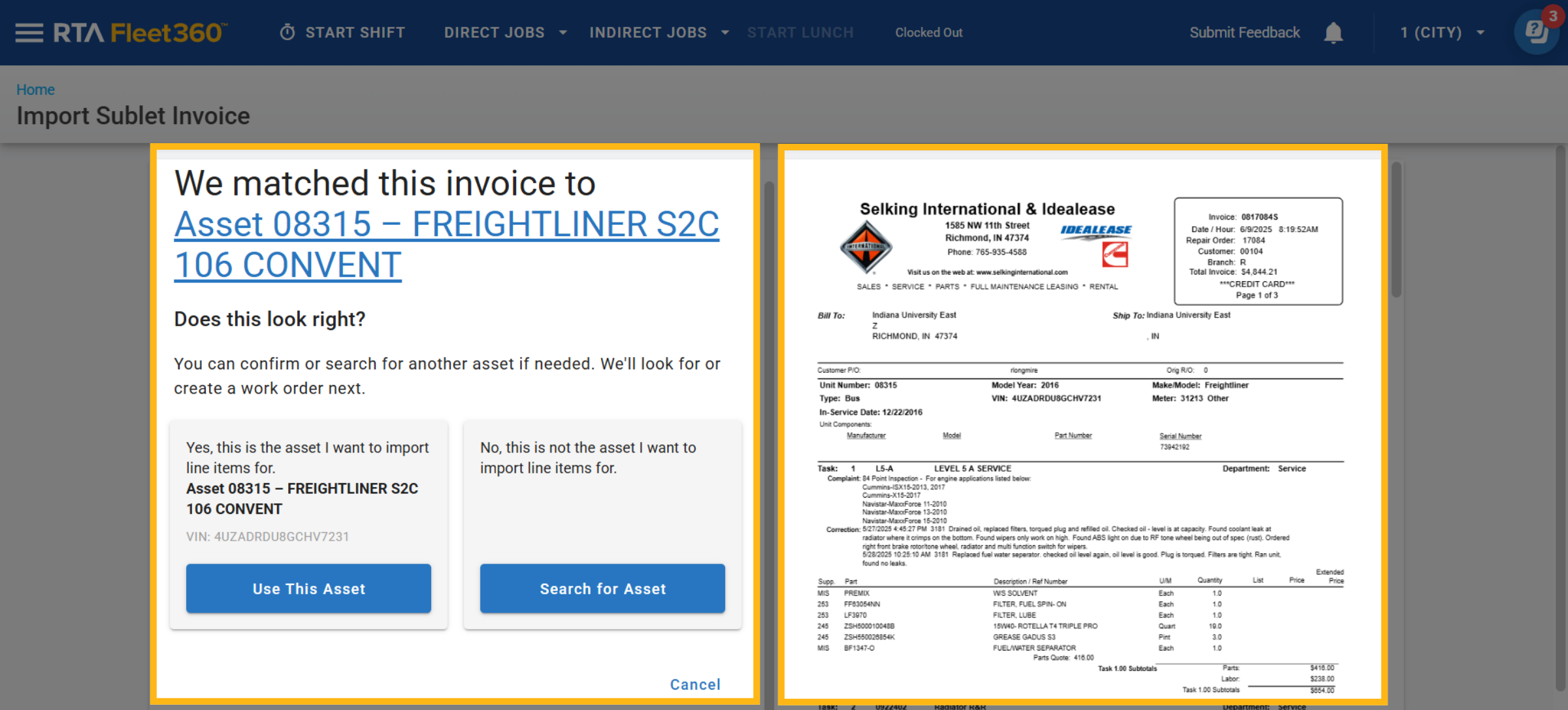
If there is a matching asset click on “Use This Asset”, if you would like to search for the asset click on “Search for Asset” and use the grid to find the asset to use
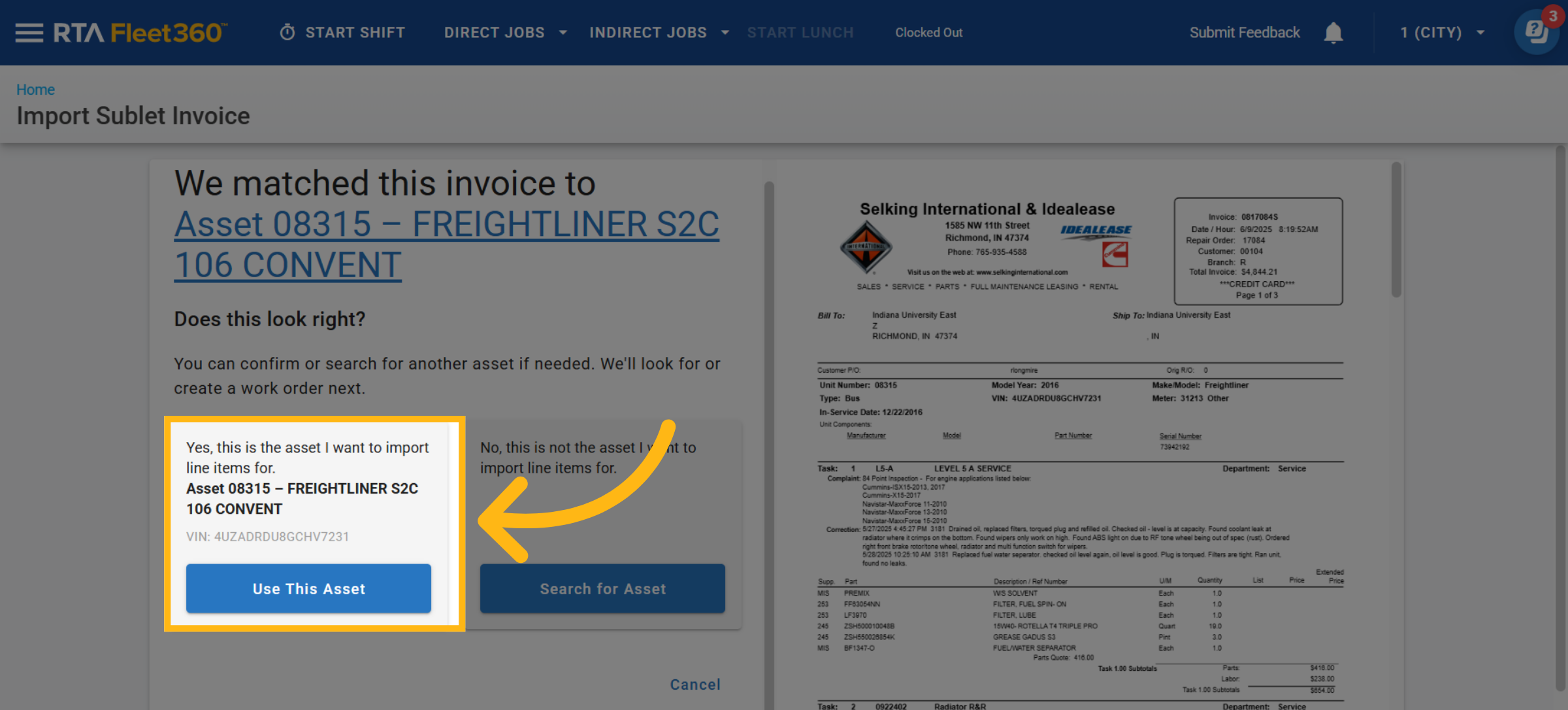
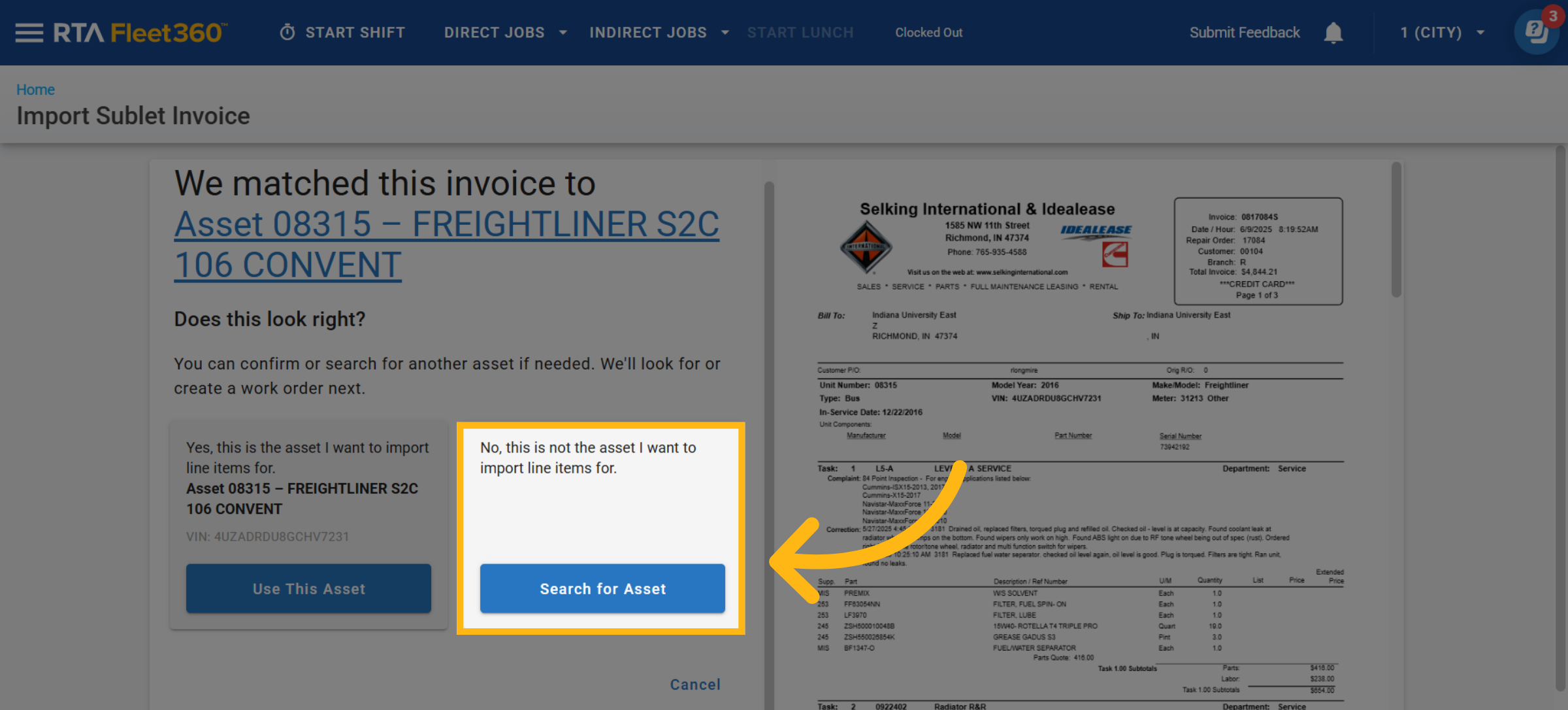
Creating/Preparing Work Order
Once the asset is chosen, the option to create a work order is now available
If there is existing work orders open on the asset, you have the ability to add the lines from the invoice to the existing work orders
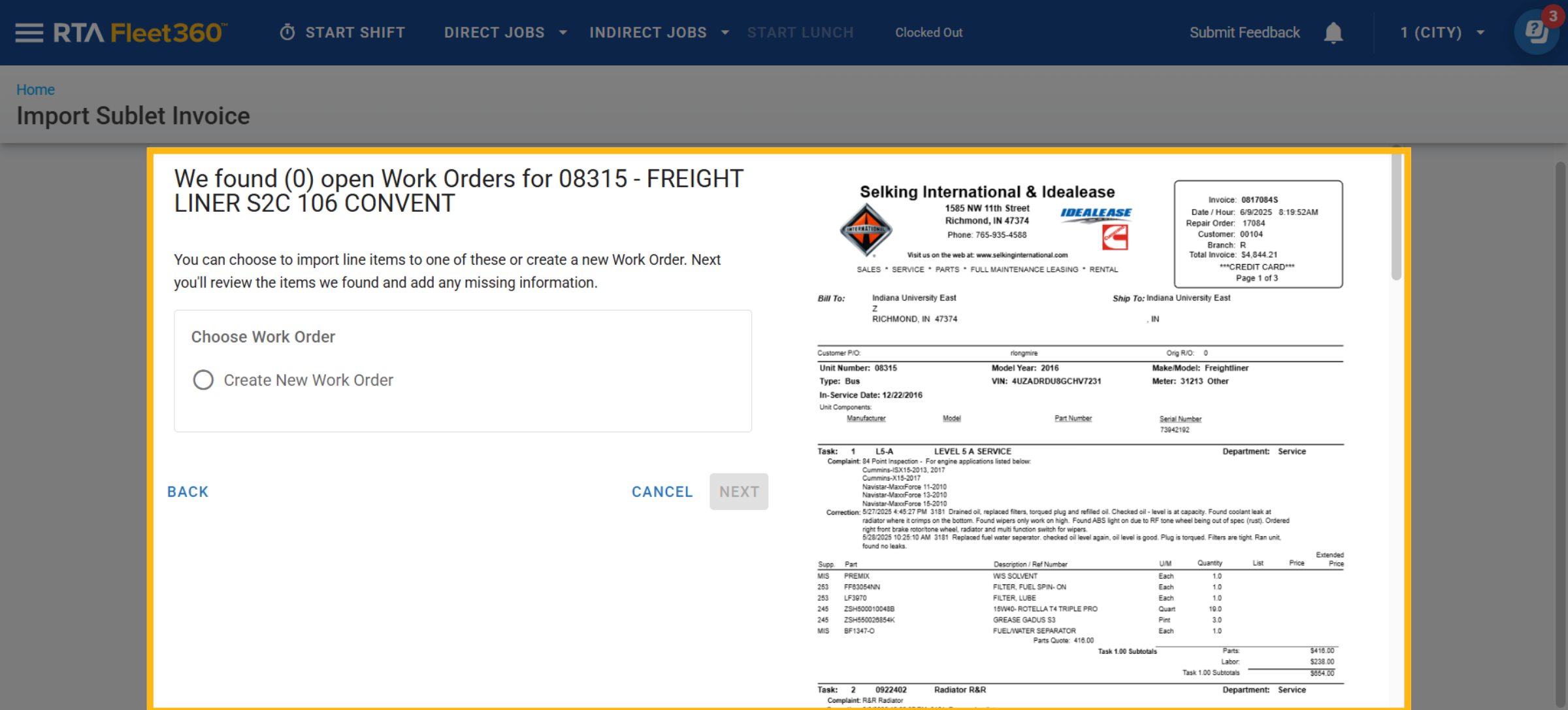
Click Create New Work Order
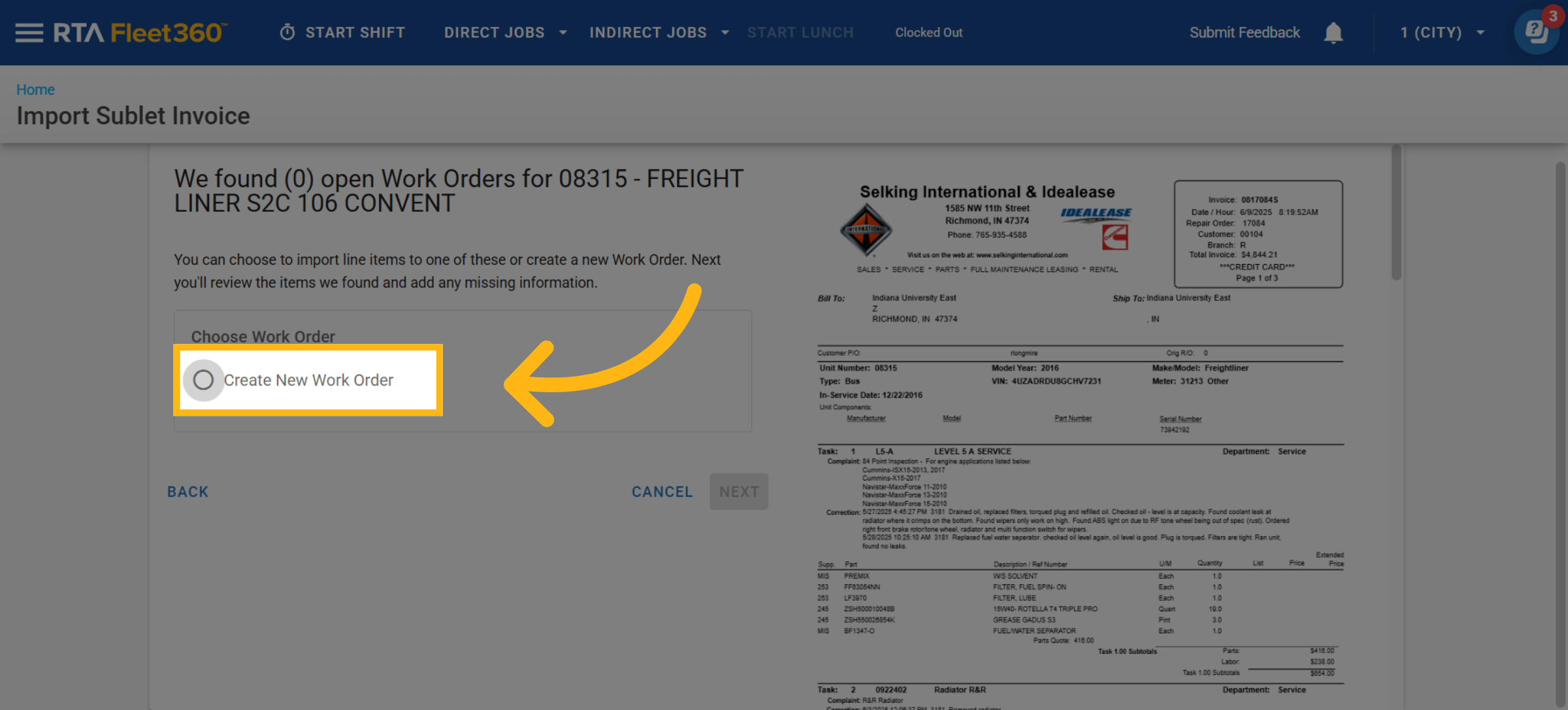
Select the proper Reason Code
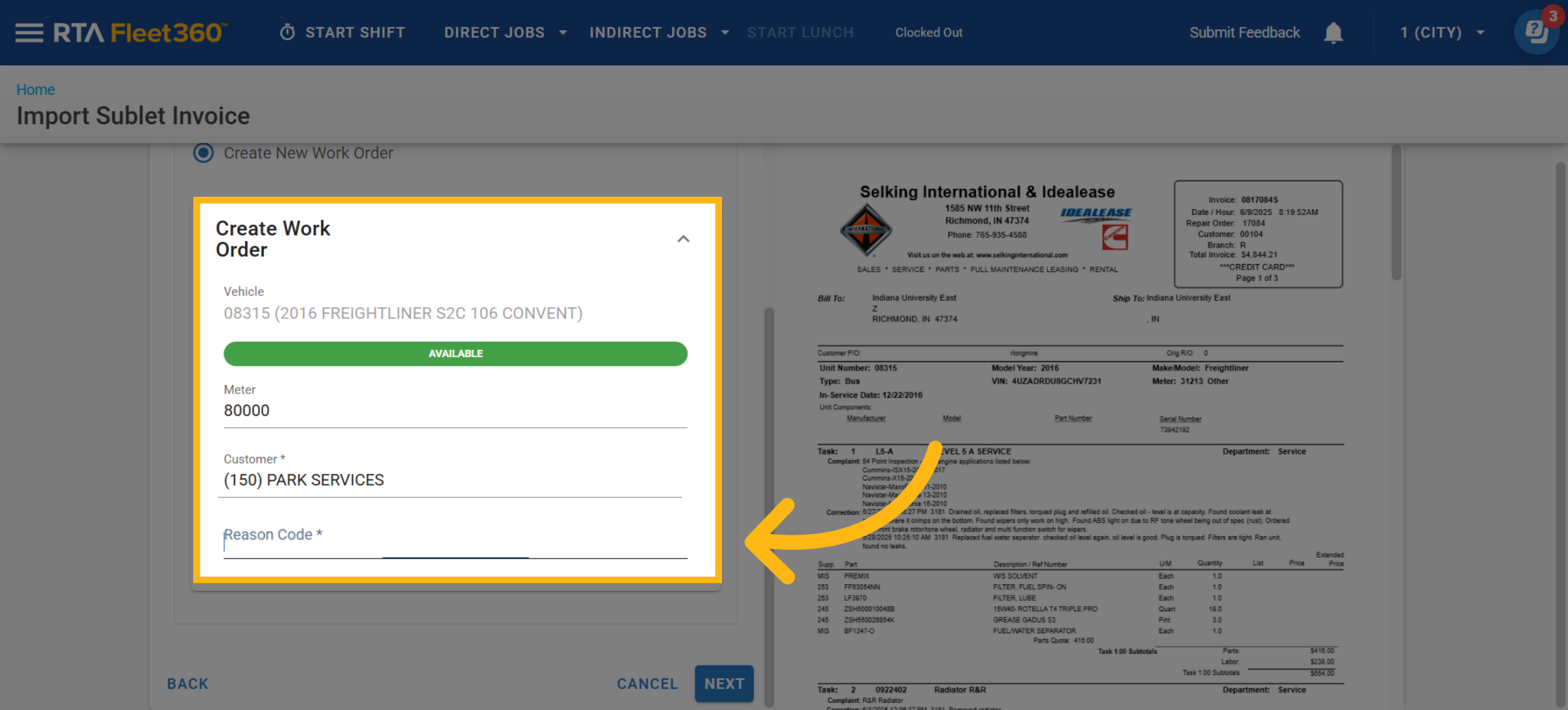
Click Next
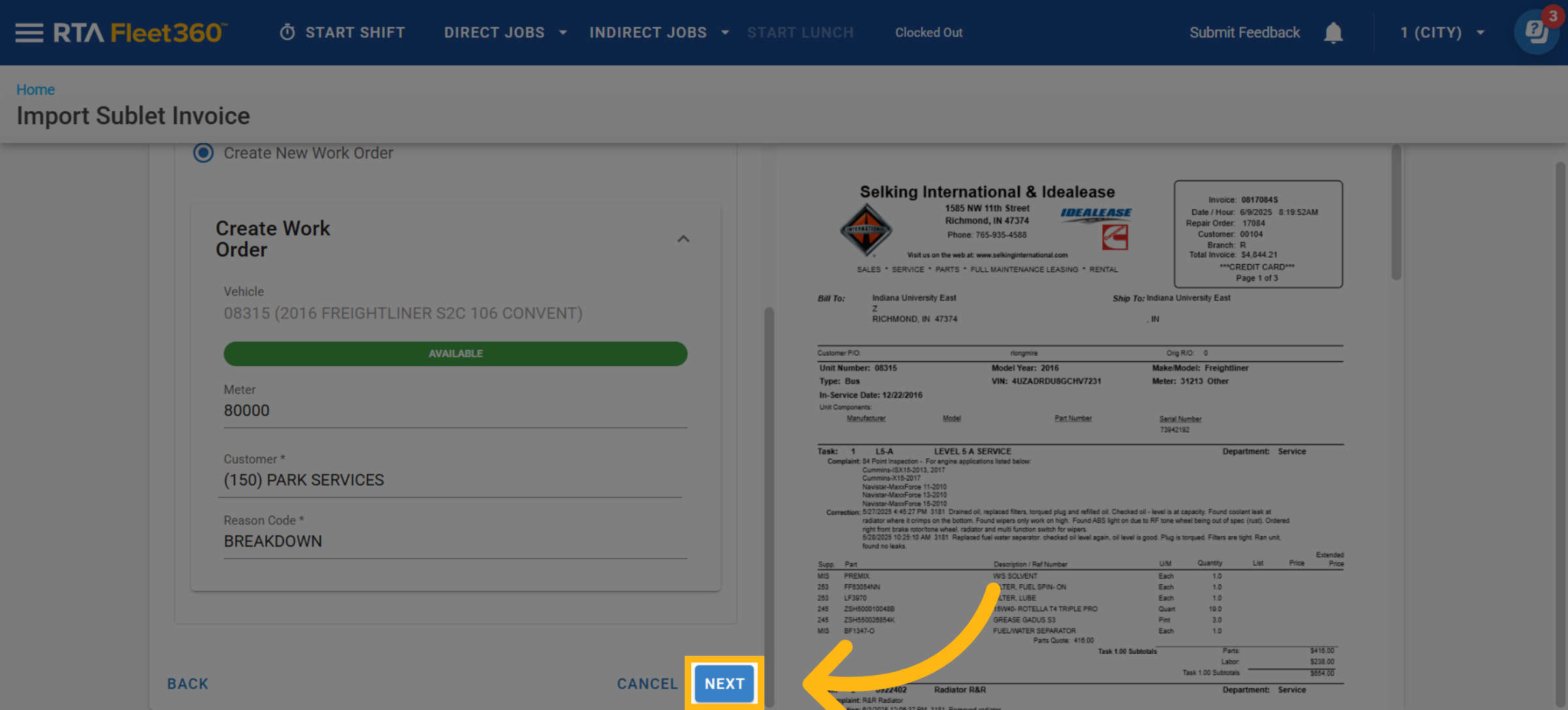
Editing Work Order Lines
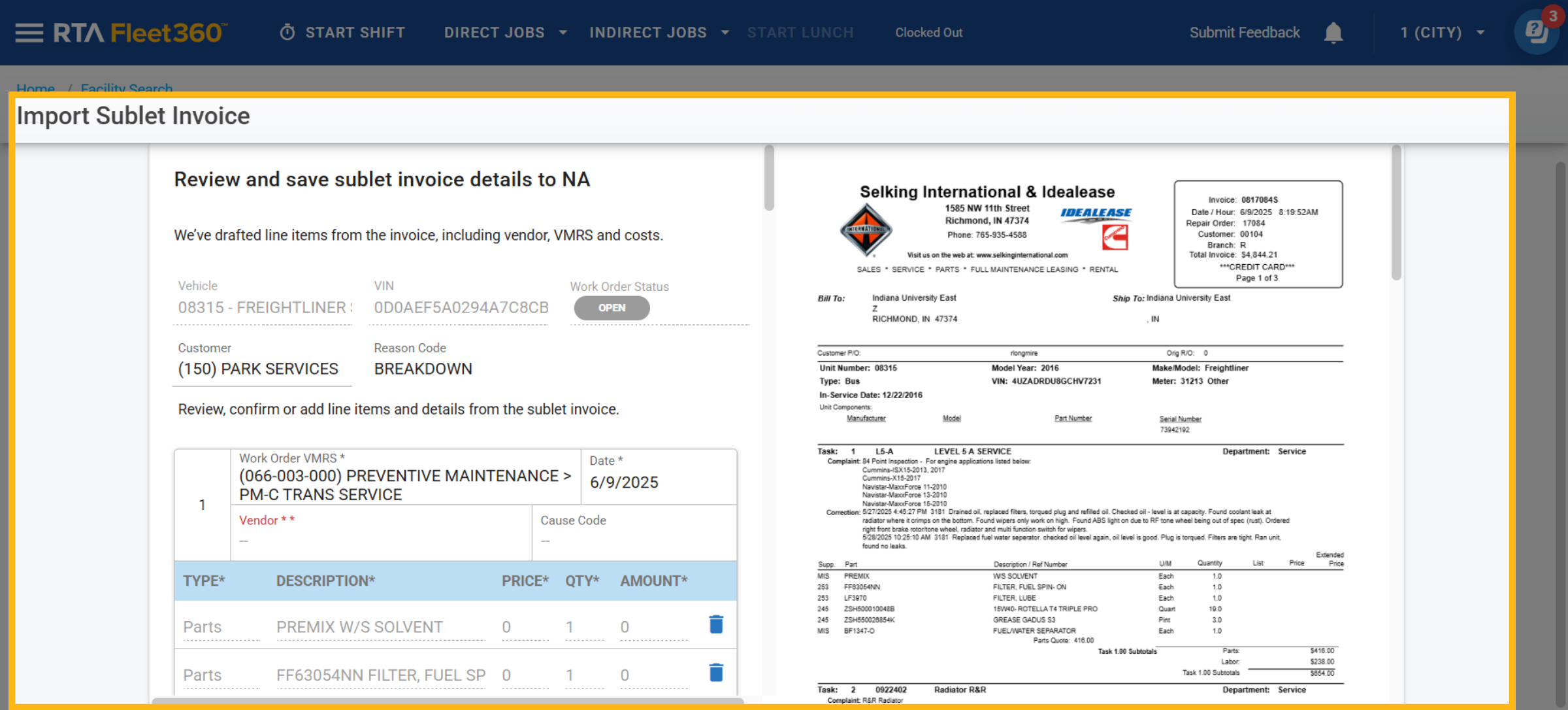
Work order lines will populate based off the information from the imported invoice. You will have the ability to edit Customer information, Reason Codes, Work Order VMRS Codes, Dates, Vendors, NOTES and more. This may all be done while maintaining a view of the invoice to ensure the proper data and costs are being captured. To learn more how to edit these lines to your preference, please see below.
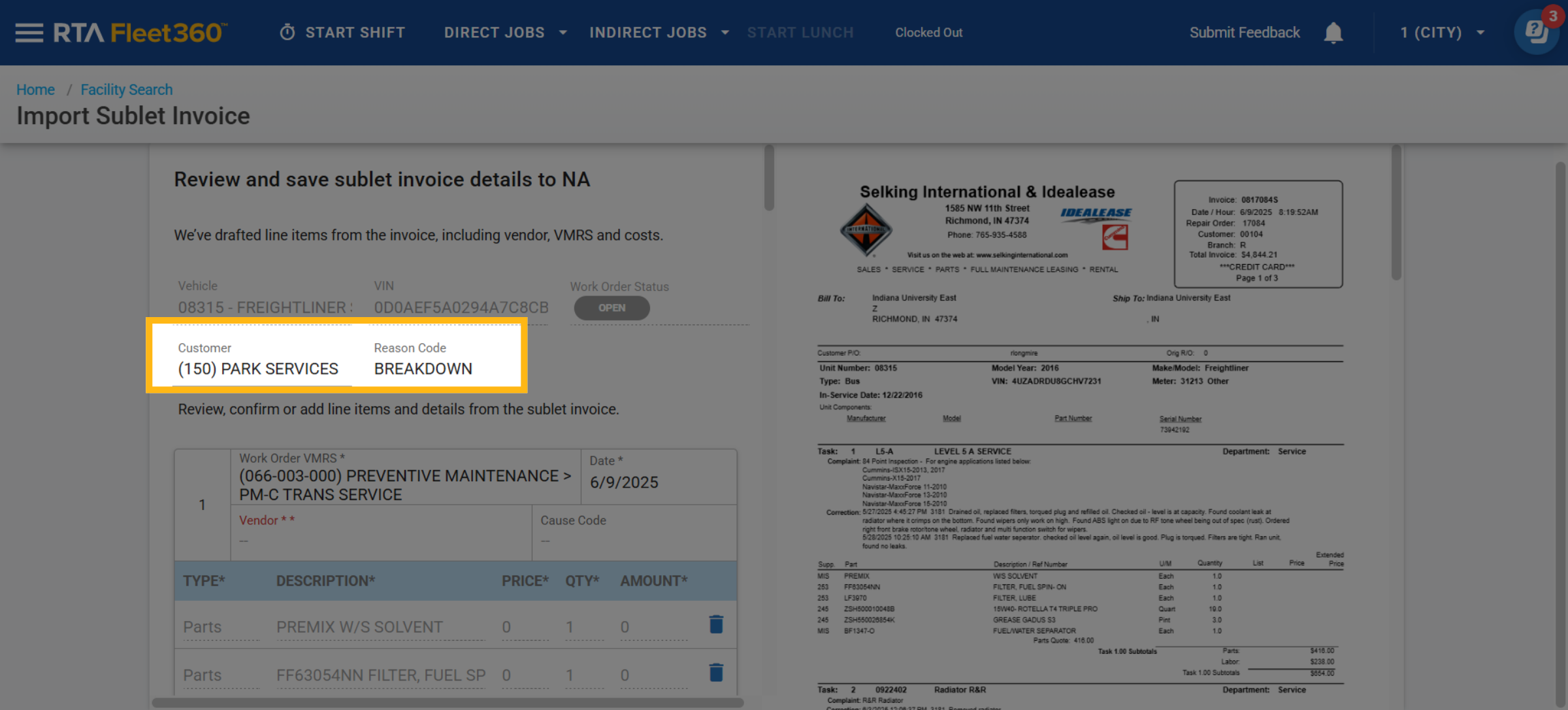
To edit the Customer or Reason Code, simply click on them to change to the appropriate choice
To edit the Work Order VMRS, Date, add Vendor and Cause code, simply click on their associated boxes to select the proper codes
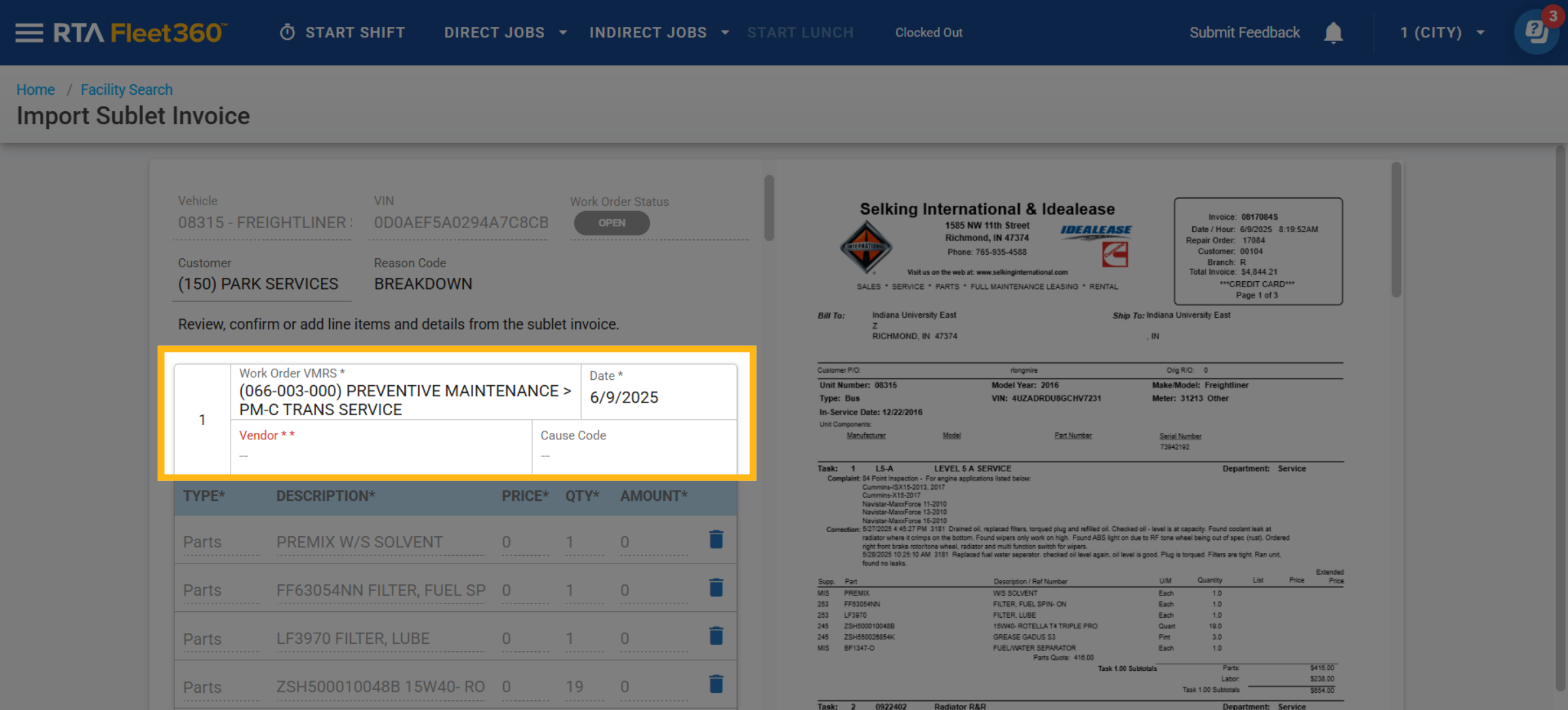
When reviewing Work Order Lines you may notice that a VMRS Codes may not always populate. This may happen because the utility could not exactly provide the best choice as seen in picture below.
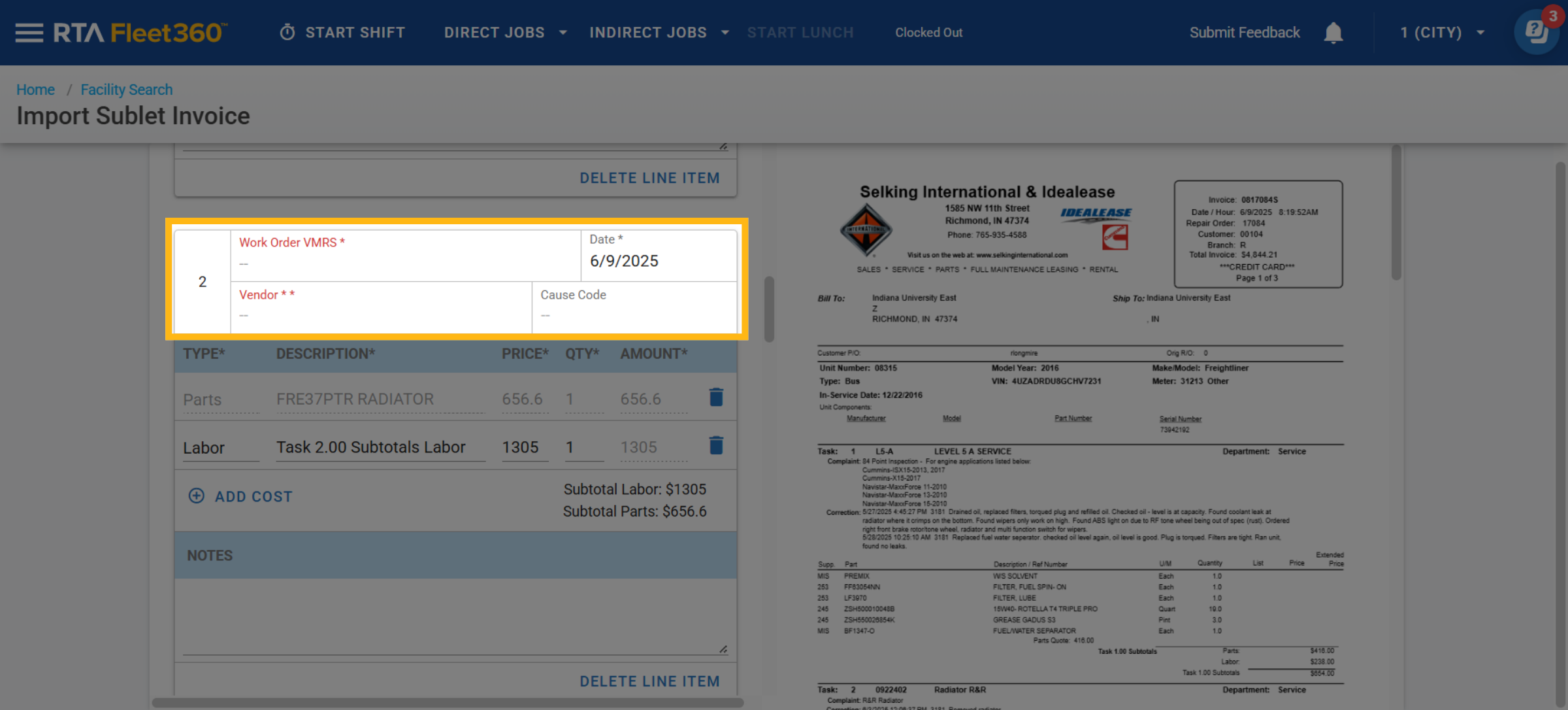
Review posted items with in the Work Order Lines
To delete certain parts you click on the trashcan icon
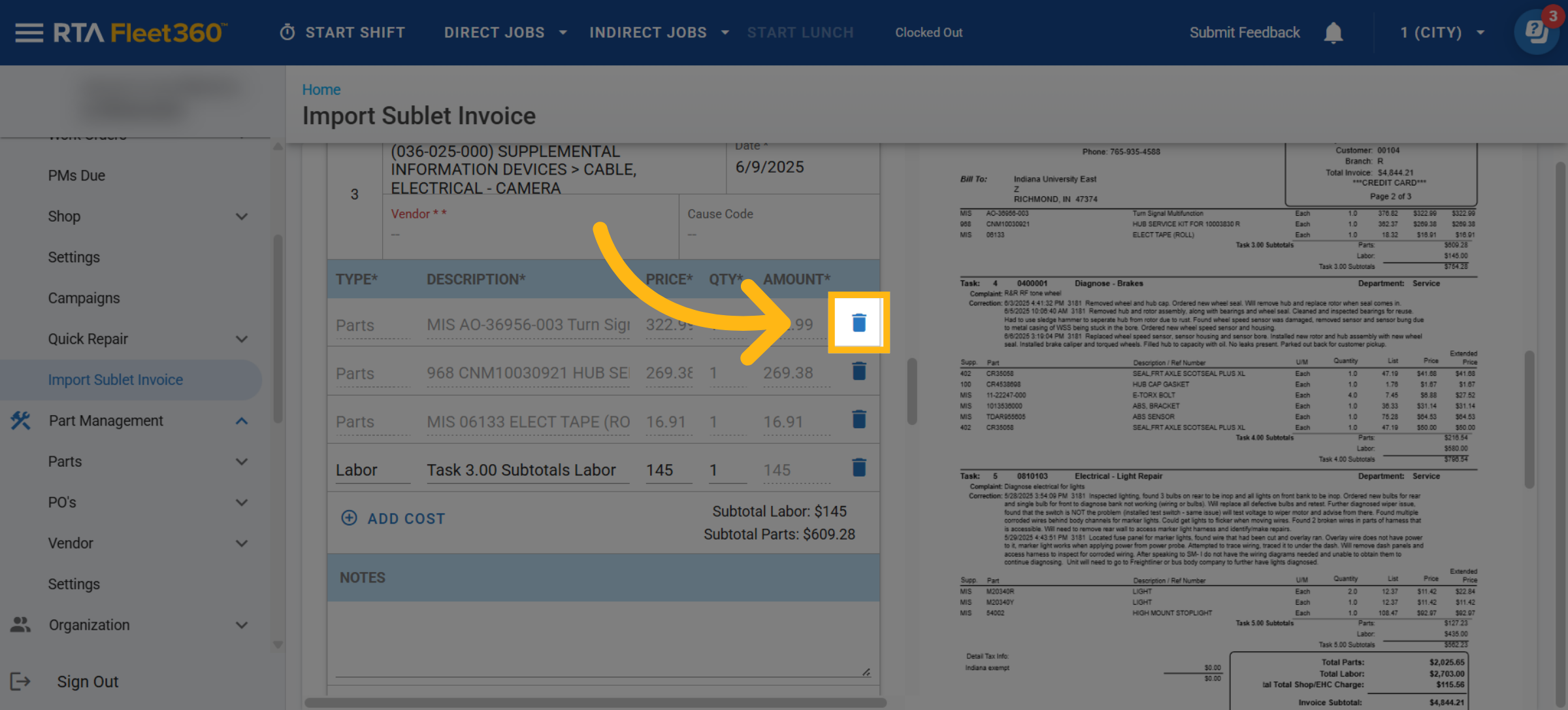
To edit the parts total or labor totals, click on the price and/or quantity to adjust
To delete, click on the trashcan icon
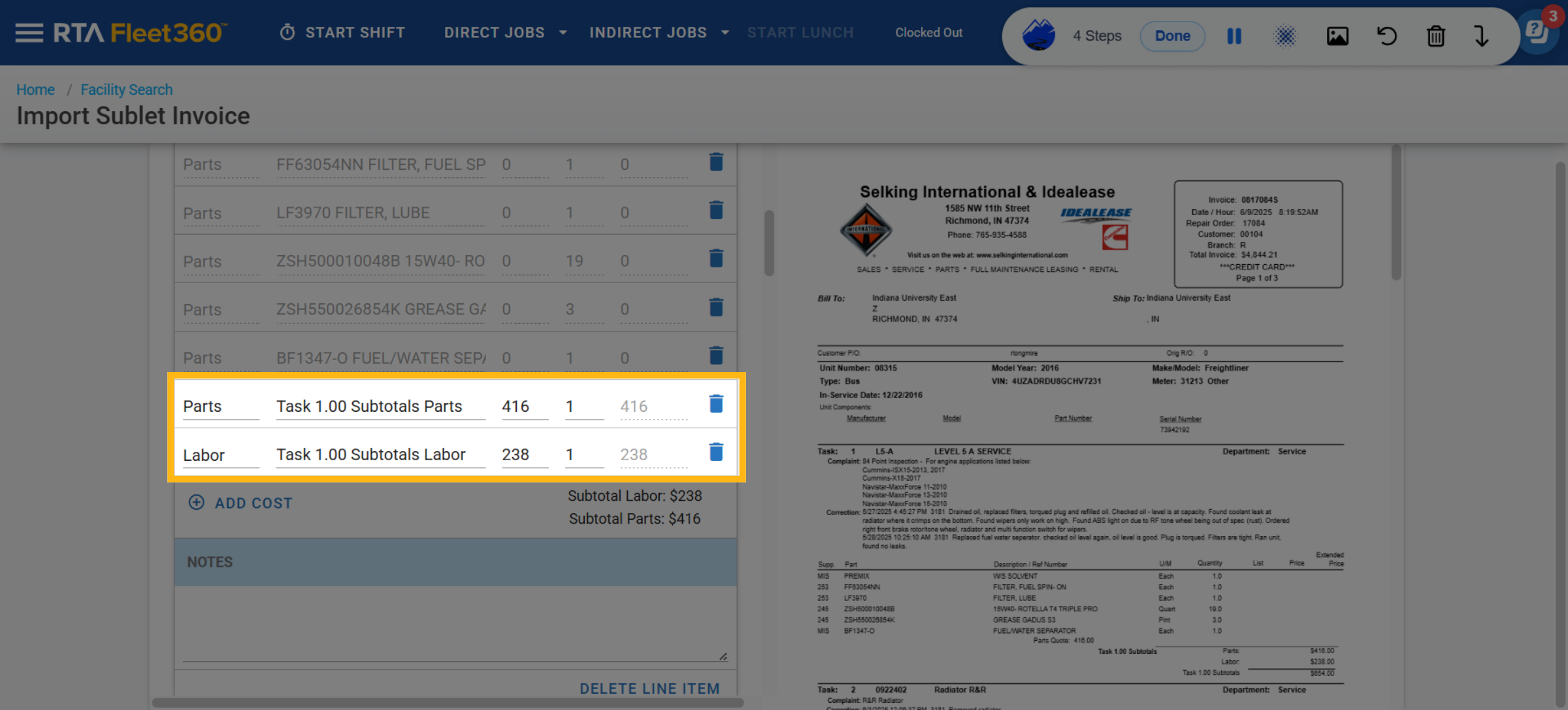
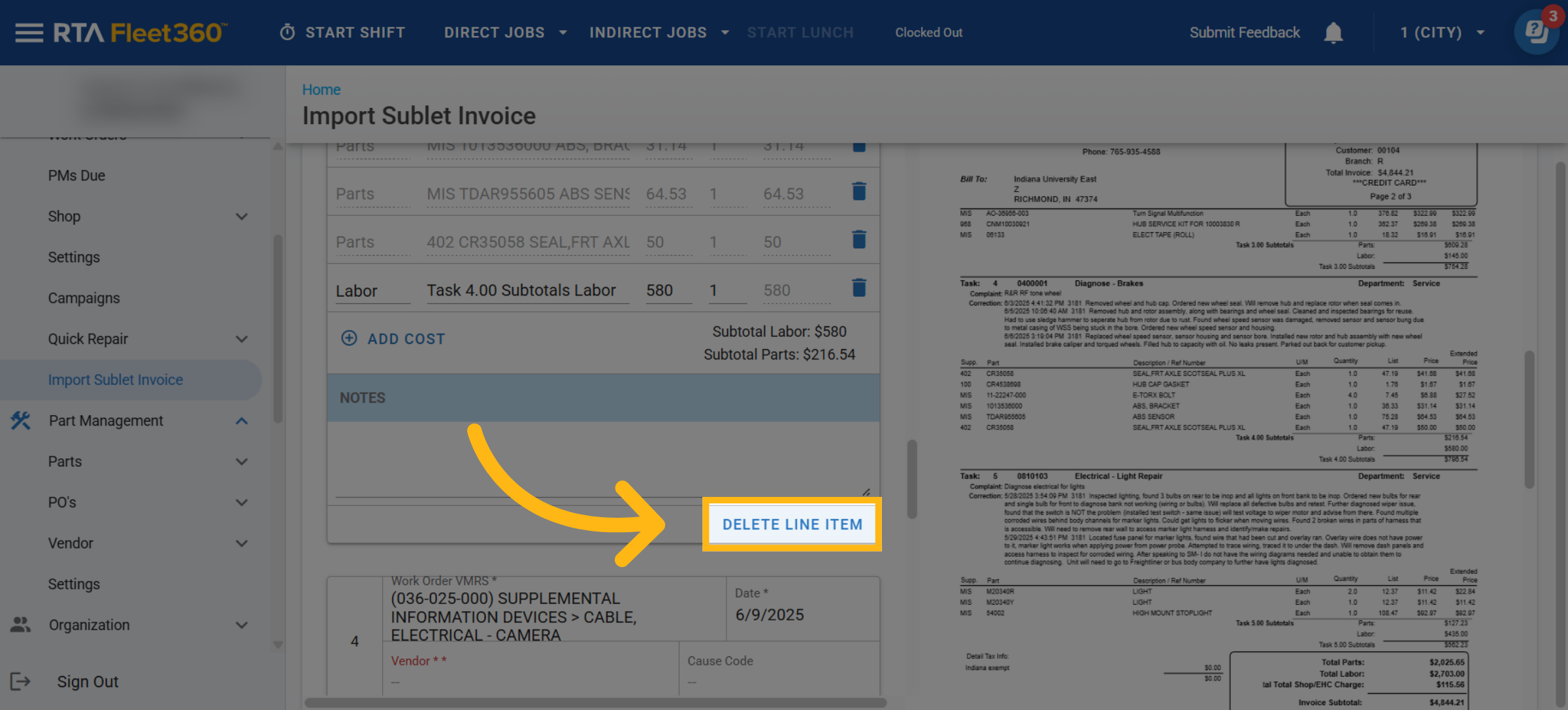
To remove a whole Work Order Line, simply click on the “Delete Line Item”
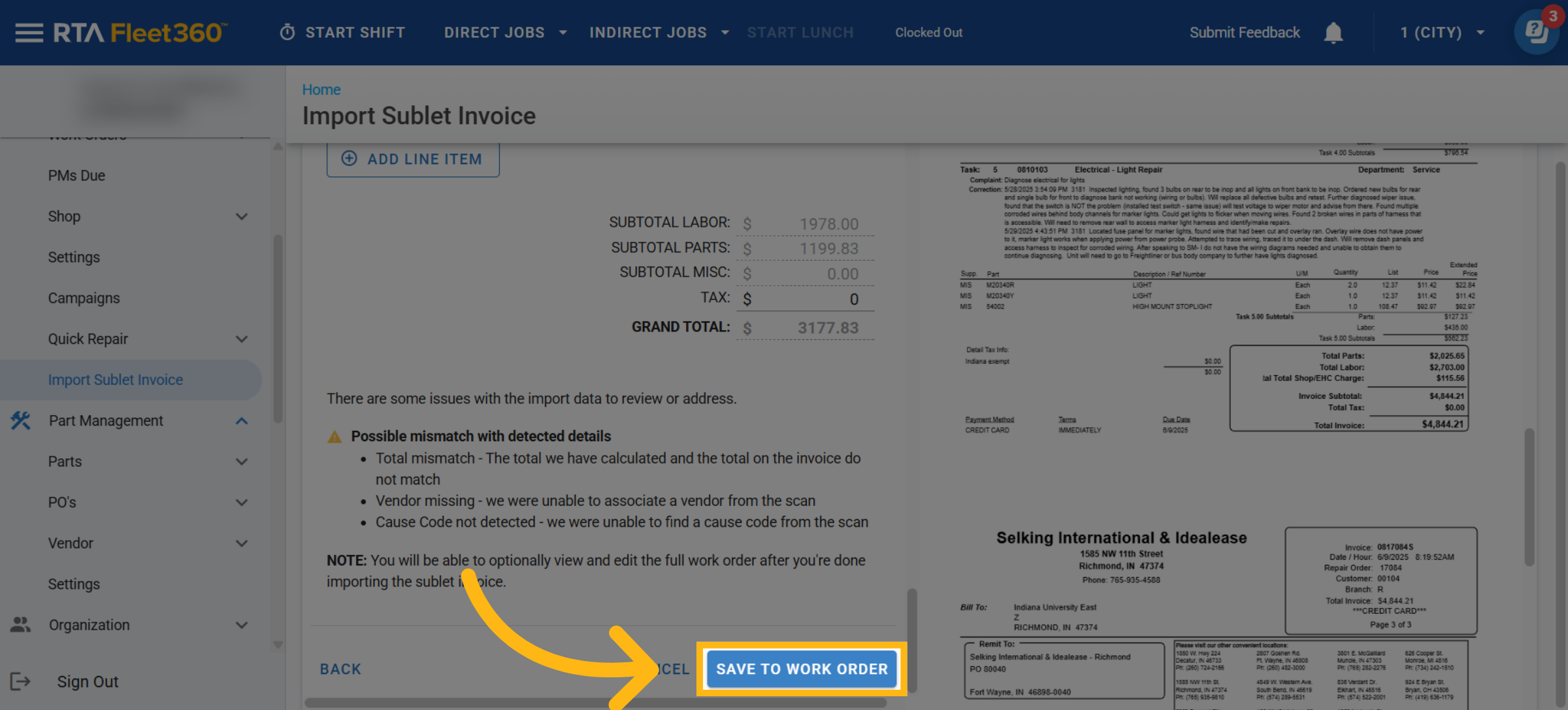
Once everything is reviewed and edits are made, you can then “Save To Work Order”
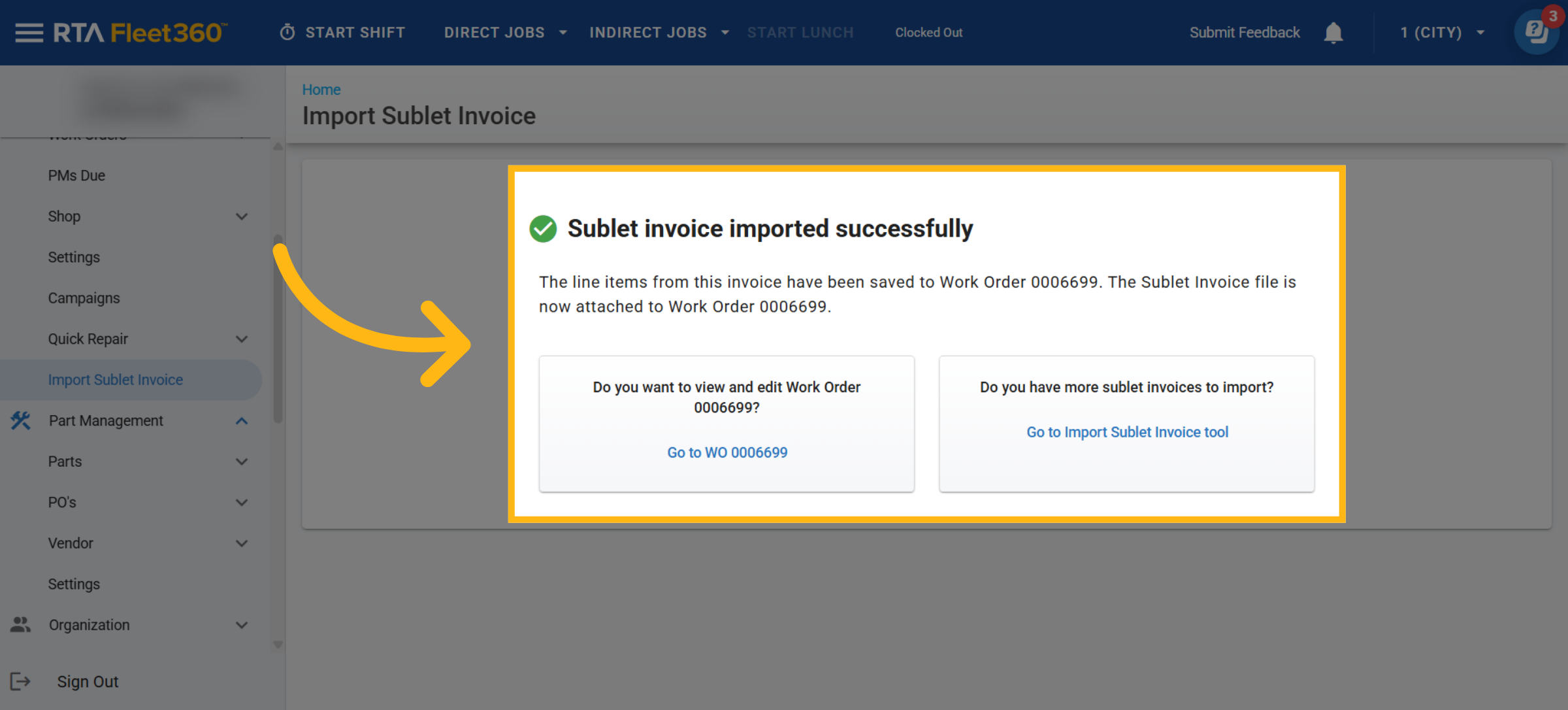
A work order will then be created and you will be asked if you would like to view the work order or if you have more sublet invoices to import
Where a captured invoice goes (and where it does not)
Sublet Invoice Capture is a data-entry shortcut for the Work Order. When you click Save To Work Order, Fleet360 does three things and nothing else:
Adds the reviewed lines to the Work Order as outside work order lines, with the vendor, VMRS and cause code you chose. Each item on the invoice is posted as an Outside Labor, Outside Parts or Misc transaction on that line, dated with the line date; any tax on the invoice header is posted as a Tax transaction on the Work Order.
Attaches the invoice file to the Work Order’s Attachments tab (the attachment description is the file name you uploaded).
Adds any notes taken from the invoice to the Work Order notes and the line notes.
It does not create a Purchase Order, a PO receipt or a vendor invoice record, and it does not store the vendor’s invoice number or invoice date as a searchable field. Fleet360 has no stand-alone register of captured invoices to look them up by vendor, invoice number or date.
To find a captured invoice later, go through the Work Order or the asset:
Open the Work Order and check the outside lines and the Attachments tab; see Work Order Attachments. The asset’s work order history lists every Work Order for that asset.
On the Work Orders list, the outside vendor number and outside cost columns show which Work Orders carry sublet work; see Work Orders list columns.
If you need to find an invoice by its number, type the invoice number into the line notes or Work Order notes when you review the invoice, before saving.
Purchasing reports do not include captured invoices. Receipts by Invoice or Vendor, PO Received Transactions and Purchases by Account Number read Purchase Order receipts, and a captured sublet invoice never touches a Purchase Order, so it will not appear on them. The costs are Work Order transactions: use the Work Order reports instead, for example Work Order Transaction Summary or Repair History, and filter on outside labor and outside parts. If your process needs the vendor invoice recorded against a PO, receive it through a Purchase Order rather than Sublet Invoice Capture.
More than one invoice for the same Work Order
Each invoice is captured separately. When a second invoice arrives for repairs already on an open Work Order, upload it, pick the asset, and choose the existing Work Order instead of Create New Work Order (only open Work Orders on that asset are offered). Fleet360 then adds new lines for the items on the second invoice and attaches the second file; it does not merge them into, or replace, the lines from the first invoice. Expecting new lines is correct. If the second invoice is a revision of the first, delete the duplicated items or lines on the review screen before saving, or remove the earlier lines on the Work Order afterwards. A closed Work Order cannot be selected; reopen it first or create a new Work Order.