Working Facility Selection Option
Navigation: Top navigation bar → Working Facility selector (displayed in the upper-left area of the Fleet360 screen)

Overview
The Working Facility is a session-level setting that tells Fleet360 which facility you are actively working in. It controls the default facility context for grids, records, work orders, and new transactions throughout the application.
Fleet360 is designed to support organizations that operate multiple facilities—such as separate shop locations, departments, or regions—all within a single system. The Working Facility setting allows users to switch between those facilities without requiring a full logout and login, ensuring that records and data are always scoped to the correct location.
When you log in, Fleet360 defaults to the facility assigned to your user account. You can change your Working Facility at any time during your session, and the application will immediately update to reflect the new facility context.
What the Working Facility Controls
Your Working Facility affects how data is displayed and how new records are created across Fleet360. The areas below are scoped by your current Working Facility.
Area | How Working Facility Applies |
Master Lists & Grids | Lists such as the Work Order Master List, Asset List, and Parts List default to showing records assigned to your Working Facility. |
Work Orders | New work orders are assigned to your Working Facility by default. Existing WOs display the facility they were created under. |
Assets / Vehicles | Asset lists filter to vehicles assigned to your Working Facility. Assets can belong to a different facility than the WO facility. |
Parts & Inventory | Parts lookups and inventory counts reflect stock levels at your Working Facility. |
Purchase Orders | New POs are associated with your Working Facility. |
Employees & Technicians | Technician and employee lookups filter to those assigned to your Working Facility. |
Reports & Dashboards | Many reports and dashboard widgets use the Working Facility as a default filter parameter. |
Fuel Transactions | Fuel entries default to the Working Facility’s fuel setup. |
How to Change Your Working Facility
The Working Facility selector is displayed in the top navigation bar of Fleet360. The current facility name is visible at all times so you always know which context you are working in.
Steps to Change Your Working Facility
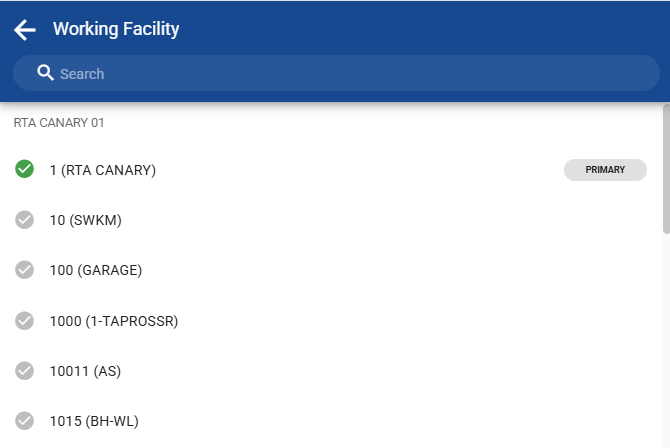
Locate the Working Facility selector in the top-left area of the Fleet360 navigation bar. It displays your currently active facility name.
Click the facility name or selector to open the facility list.
Select the facility you want to work in from the list.
Fleet360 immediately updates to reflect the selected facility. Grids, lists, and new record defaults will now use the facility you selected.
ℹ️ Note: You can only switch to facilities that your user account is authorized to access. If a facility is not visible in the selector, contact your system administrator to review your user permissions. |
Default Facility vs. Working Facility
Fleet360 distinguishes between two facility concepts that are important to understand:
Concept | What It Means |
Default Facility | The facility permanently assigned to your user account. This is the facility Fleet360 loads when you first log in. It is set by your system administrator in your user profile. |
Working Facility | The facility you are actively working in during the current session. This can be changed at any time and does not alter your Default Facility. When your session ends, the next login will return to your Default Facility. |
Customer Facility (not a session setting) | Often confused with the two above, but unrelated: the Customer Facility is the facility that owns a customer record. It is stored with the customer number on assets and Work Orders, and each facility’s Default Customer Facility setting decides which Customer list that facility uses. Changing your Working Facility does not change it. See Customer Files and Facility Settings Tab. |
⚠️ Important: Changing your Working Facility is temporary for your session. It does not change your account’s Default Facility. To permanently change your Default Facility, contact your system administrator. |
Facility Security & Access
Access to facilities in Fleet360 is controlled by your user account permissions. The Working Facility selector only shows facilities you are authorized to access.
Users with access to a single facility will see only that facility in their selector and cannot switch.
Users with access to multiple facilities can freely switch between any authorized facility during their session.
Facility-level security rules always apply, regardless of which facility is selected as the Working Facility. Users cannot view or create records for facilities outside their authorized access.
Refer to User Permission Definitions Chart for details on how facility access is configured for user accounts.
Working Facility and Saved Grid Presets
Grid presets allow users to save a set of column filters—including a facility filter—so those settings can be quickly reapplied. It is important to understand how presets interact with the Working Facility setting.
A preset saves the exact facility filter that was active at the time the preset was created.
If you change your Working Facility after saving a preset, loading that preset will apply the original saved facility filter, not your current Working Facility—unless you have enabled the Working Facility preference described below.
Presets are user-specific. Your saved presets do not affect other users’ views.
Filters you apply directly to a list behave the same way. Each list remembers the filters, sorting, and columns you last used, so changing your Working Facility does not clear a facility filter that is already on the grid. If a list shows the wrong facility, check the filter string at the top left of the list and use Clear, or remove the facility condition, then search again. See Customizing Master List Columns.
Default Grids to Working Facility Preference
Users can enable a preference in their Profile Settings that causes all applicable grids to automatically follow the current Working Facility, even when a saved preset contains a different facility filter.
To enable this preference:
Click your user name or avatar in the top-left corner of Fleet360 to open your Profile Settings.
Locate the Default Grids to Working Facility checkbox and check it to enable.
All applicable grids will now load using your current Working Facility. Changing your Working Facility will automatically update those grids.
To disable the preference, uncheck the box. Grids will return to honoring the facility filter saved in each preset. Enabling or disabling this preference never modifies or deletes any saved preset configurations.
ℹ️ Tip: This preference is particularly useful for users who frequently switch Working Facilities and want their grids to always reflect their current context without manually updating presets. |
Opening a record can change your Working Facility
Opening a record that belongs to another facility — for example a work order opened from a cross-facility search, an asset’s repair history, or a shared link — sets your Working Facility to that record’s facility. The next record you create (a work order, purchase order, or fuel entry) is then filed under that facility, not the one you last picked.
The Default Grids to Working Facility preference governs grid loading only — it does not prevent this context change.
Before creating records, confirm the facility name in the top-left navigation bar.
A work order keeps the facility it was created under. It does not follow later Working Facility changes, and it can belong to a different facility than the asset’s home facility.
If work orders were created under the wrong facility after a context change, delete and recreate them under the correct facility where that is safe; otherwise raise an RTA case with the work order numbers and the intended facility ready.
Tips for Multi-Facility Users
If your organization operates more than one facility and you regularly work across them, the following practices will help you stay in the correct facility context:
Always confirm your Working Facility in the top navigation bar before creating new records such as work orders, purchase orders, or fuel transactions. New records will be assigned to whichever facility is currently selected.
If grid results look unexpected, check whether your Working Facility has changed or whether an active preset contains a saved facility filter that differs from your current facility.
Enable the Default Grids to Working Facility preference in your Profile Settings if you want grids to always reflect your current Working Facility automatically.
Contact your system administrator if you need access to a facility that does not appear in your Working Facility selector.