
Vehicle Status Settings
You have the ability and control to set up, change and color-code asset statuses to keep track of your assets. This is a great tool to look at your asset list to see specific statuses or export your status list to different people inside or outside your organization.
Overview
The system has six statuses set up by default.
Available
Scheduled for Repair.
Awaiting PM.
Waiting for Parts.
Red Tagged to be Repaired.
Currently being Repaired.
Add an Asset Status
In the main menu select Assets> Settings > Vehicle Status
Click
 New Status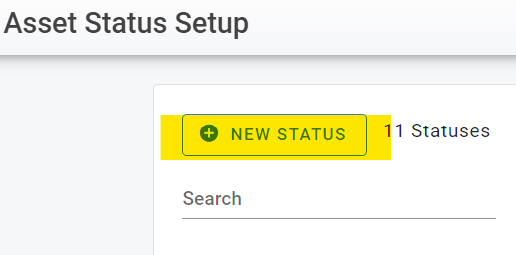
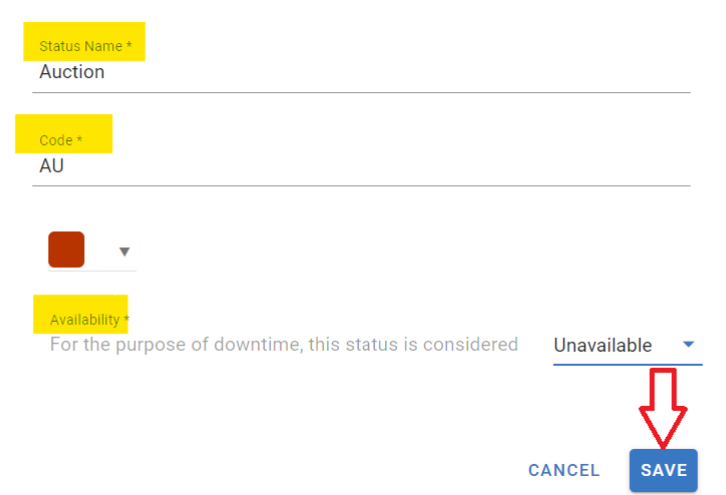
Enter the Status name to be used.
Enter the status code which is an abbreviation for the code. For example, waiting for parts may have (WP) as its abbreviation.
Choose the color to be associated with the status.
Select whether the newly created status considers the asset to be available or unavailable for downtime purposes.
Click Save
Once you set up your custom statuses, you can see them in many areas of RTA. You can view all asset statuses in the Asset Status Search Screen.
Editing an Existing Asset Status
In the main menu select Assets> Settings > Vehicle Status
Click on the status to be edited from the list.
Edits can be applied to the status name, color, and availability.

The top status “Available” is the only status that may not have changes or edits.
Deleting an Asset Status
In the main menu select Assets> Settings > Vehicle Status
Click the trashcan icon next to the status to be deleted.
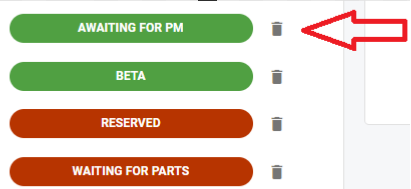
Click Delete in the confirmation window.
This action removes the status as an option to add to assets going forward, though any asset that currently has that status applied will remain in that status until it is changed.
Automatic Vehicle Status and who can change an asset status
Asset statuses can be maintained in two ways, and the setting that decides which one your system uses is Automatic Vehicle Status Update, found in Admin ➝ System Switches ➝ Work Order, under the Work Order Status switch. It applies system wide. Can’t see the switch? Automatic Vehicle Status Update only appears when the Work Order Status switch is turned off - when Work Order Status is on, asset statuses are already driven by the work order status workflow, so the separate Automatic Vehicle Status option is not shown.
Automatic Vehicle Status enabled. The asset status is driven by the work order workflow. As jobs and work orders are added, changed, and closed, the system sets the asset status from the rules on the work order status codes, and the Status field is read only on the Asset Status Search Screen and in the asset header. Nobody can select a status there, including users with full access.
Automatic Vehicle Status disabled. Users change the status themselves. The Status field is editable on the Asset Status screen and in the asset header for users who have permission to update asset status, and closing a job or a work order prompts for the status to set on the asset.
Users cannot change an asset status even though permissions look correct
When the Status field is visible but greyed out or will not accept a selection for anyone, this is the expected result of Automatic Vehicle Status being enabled rather than a permissions or licensing problem. Adding permissions or changing a role does not restore direct status editing while the setting is on. Work through it in this order:
Confirm the behavior is the same for a user with full access. If it is, it is not permissions.
Check the vehicle status switch in Admin ➝ System Switches. It controls whether the asset status is updated automatically from the work order workflow or set manually by users. Set it to manual if your fleet wants to change asset statuses directly. Changing a system switch requires admin access.
If it stays enabled, review the rules on your work order statuses so the workflow sets the asset statuses you expect. See Work Order Status Setup.
If only certain users cannot change the status while others can, that is a permissions question. Check the asset status update permission on those users.
Changing this switch changes how every asset status is maintained, so confirm with your fleet before changing it.
Not being able to open the Asset Status screen at all, or seeing an unauthorized access message, is a different problem. That is a permissions or license issue, not Automatic Vehicle Status.