
Renumber Asset or Change Asset Facility
Where to see an asset’s facility, and where to change it
To see it: open the asset, go to the Asset Management tab, and look under Org Structure at Facility, Facility Abbreviation and Facility Name. These fields cannot be typed in, and there is no facility box on the asset info banner
To change it: use the steps in this article, either Manage Asset for one asset or Move Assets for several. You need the Renumber Asset permission for the facility the asset is in now
Customer is not the same thing as facility. The Customer field on the asset info banner holds a customer record, and each customer belongs to a facility of its own. Picking a customer therefore sets the customer facility on the asset, which is the value the Adjust Customer Facility option below updates when the asset moves. Changing the customer never moves the asset itself. Refer to Asset Primary Information Panel.
Renumbering changes an asset’s number or facility and keeps its history; it does not combine two assets. If you are cleaning up a duplicate asset (same VIN on two asset numbers), refer to Removing Assets first.
There will be times when assets need to be renumbered. For example, when assets are sold or auctioned, you may still want to retain the costs for that asset at least until the end of the year.
Some state and federal regulations require vehicle information to be kept for up to five years. For these reasons, RTA recommends that vehicles be renumbered and moved to another facility rather than being deleted from the system.
Renumbering an Asset
Assets can be renumbered in the following ways using the “Manage Asset” button on the Asset info banner in RTA:
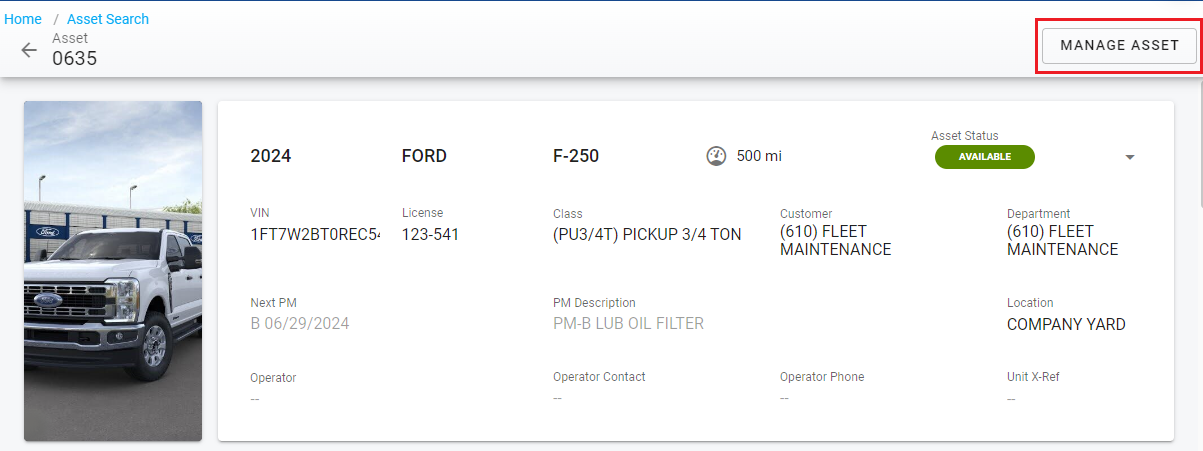
An individual asset can be renumbered and remain in the same facility
Click “Manage Asset” from the Asset Info Banner in the asset file
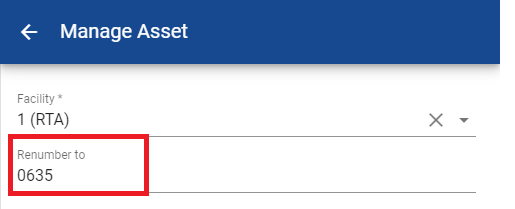
A side panel will open up
Leave the Facility Number alone
Change the asset number in the “Renumber To” field
Click Save at the bottom of the side panel
Moving Assets to a New Facility
Moving Assets in Bulk
When needing to transfer more than one asset from one facility to another, use a bulk action to save time and effort.
Moving assets in bulk only works when the assets being moved are coming from the same facility and moving to the same facility
From the main menu, click on <Assets>
Click on <Actions> in the upper right corner to expand the drop down
Click on <Move Assets>
The user will be presented with a multi-step utility screen
Step 1: Select Assets
Select all assets to be moved by clicking the selection box next to the asset number
TIP: Use filter and sort functions to reduce the list where applicable
Click <Next>
Step 2: Choose Facility
Use the Facility field to select the facility the assets will be moved to
If wanting to adjust the customer facility as well, select the box in the <Adjust Customer Facility> selection area
TIP: This will only work if the customer currently assigned to the asset also exists in the facility it is being moved to. If it does not, the customer would need to be created in the receiving facility before the transfer is made OR the transfer can be made, and the customer can be added to the receiving facility and then each relocated asset would need to have the customer manually added to the asset file
If wanting to adjust the PM Template WO Facility, select the box in the <Adjust PM Template WO Facility> selection area
TIP: This will only work if the PM Template exists in the receiving facility. If it does not, the PM WO Template field will be left blank in the asset file
Click <Next>
Step 3: Review and Confirm
Before finalizing the transfer, a review window will populate that shares the number of assets being moved and which facility will receive them
TIP: Any active/open work orders for assets being transferred will remain in the facility where they were created
Click <Next>
Step 4: Completion
The completion screen will display how many assets were successfully moved as well as how many failed to transfer
Assets that failed to transfer will display in a grid on the completion screen with a reason for failure
Common reasons these transfers may fail include:
Asset exists in destination facility - The receiving facility already contains an asset with the same asset number
Open WOs, cannot archive - Receiving facility is an archive facility and the asset has an open work order
Open Fuel, cannot archive - Receiving facility is an archive facility and the asset has open fuel transactions
Open Accidents, Cannot archive - Receiving facility is an archive facility and the asset has an open accident report
Open Motorpool reservations - Asset has an open motor pool reservation
Two notes on the destination facility: the picker lists active facilities only — an inactive facility must be enabled before assets can be moved into it. And if the destination is an archive facility, each asset that passes its archive checks is archived by the move itself — use this to archive a facility’s assets in bulk. See Archive or Disable Facility.
Moving Assets Individually
An individual vehicle can be renumbered and moved to a new facility, with the same or new vehicle number
Click “Manage Asset” from the Asset Info Banner in the asset file
A side panel will open up
Choose the appropriate Facility from the “Facility*” dropdown (Refer to Add a Facility for instructions on creating facilities in RTA)
Select the appropriate options applying to the facility change
Adjust Customer Facility (Select if the customer attributed to the asset should also be tied to the new facility)
Adjust PM Template WO Facility (Select if the PM records for the asset have a WO template that need to be moved and attributed to the new facility as well)
A whole department of assets is moved with the same Move Assets utility. In Step 1, sort or filter the asset list on the Department column, select the assets, and continue through the steps above. The asset numbers and department numbers are not changed by the move.