Export Functions
Purpose
Not the right tool for a quick list? Imports/Exports produces bulk data-file templates for updating records in bulk. For a filtered list from any master list screen (including cost/price columns you add to the grid), use the list’s own Export to Spreadsheet instead - see Exporting a Master List.
Exports will make it easier to either get a blank template that is pre-populated with data field columns that can be easily filled to import data in bulk the first time or to export the existing data that exists for that export type so that items can be adjusted in bulk and reimported.
How to Download a Blank Template
From the main menu, expand <Admin> area (You must have access rights to imports/exports.
Click on <Imports/Exports>
Locate the data file set for which the template is needed from the list
Hover over the Action Menu <three dots> located under the Import/Export column directly following the import type
Click <Download Template>
The template will be added to your downloads as a .CSV file
Access your downloads by clicking on either your folder icon in your task bar or by searing for file explorer on your computer
The download notification may also populate in your browser where you can click the file from there as well
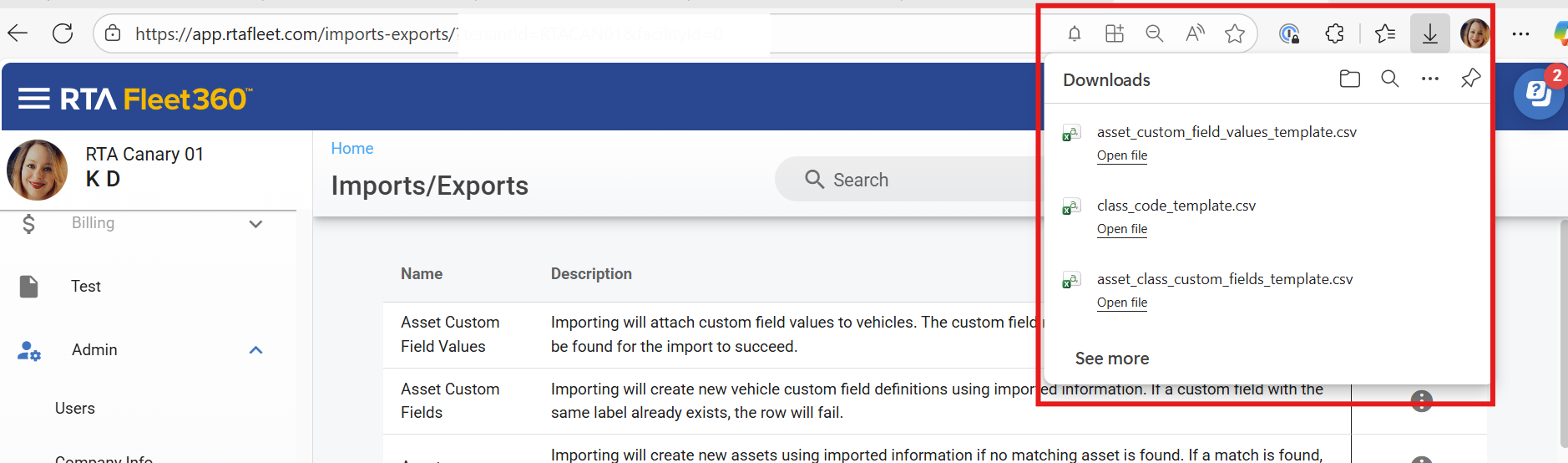
Locate your downloads folder and click on it to open it
Locate the downloaded template which should be at the top of the list
How to Export a Data Set
From the main menu, expand <Admin> area (You must have access rights to imports/exports.
Click on <Imports/Exports>
Locate the data file set for which the template is needed from the list
Hover over the Action Menu <three dots> located under the Import/Export column directly following the import type
Click <Export File>
A confirmation pop up will appear to ensure the export is wanted
Click <Export> to proceed with the export or Click <Cancel> to dismiss the export action
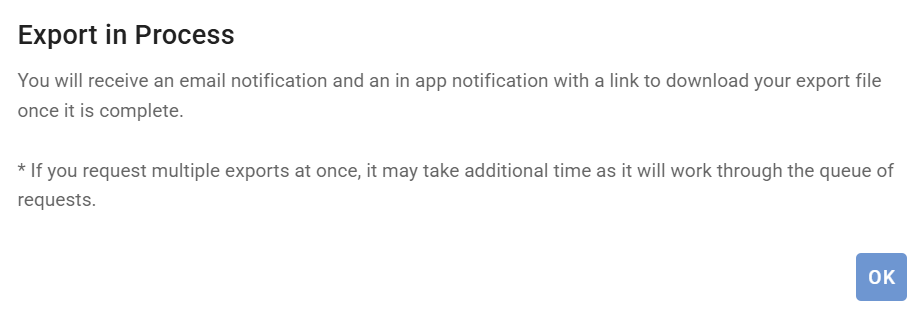
If Export was selected in step 7, a dialogue box will appear to show that the export is in process and that an email notification and an in-app notification with a link to download the export file once it is completed processing. Click <OK>
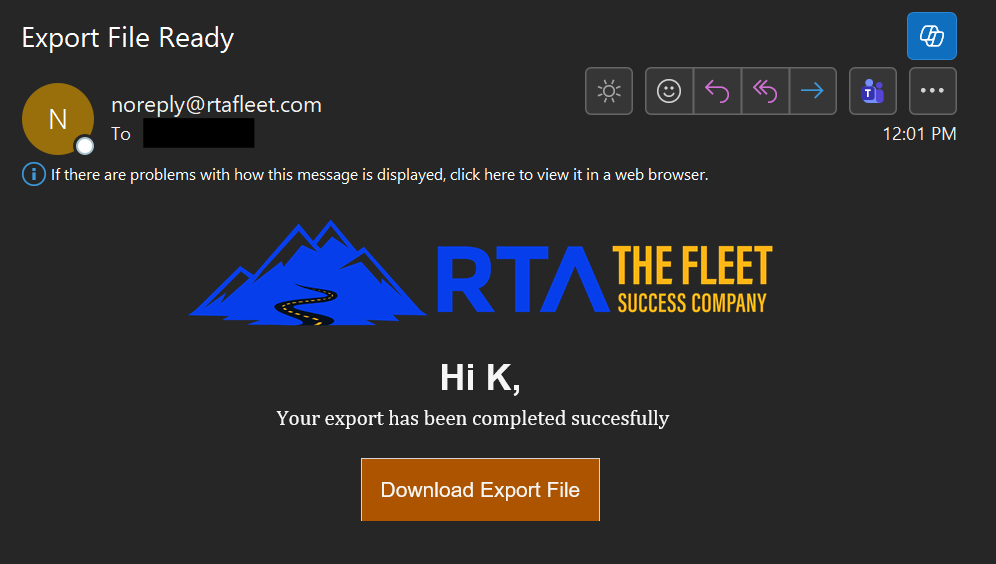
An email will only be sent if there is an email existing in the Fleet360 User Profile
The email subject line will be Export File Ready
The sender will be noreply@rtafleet.com
The body of the email will state that the export has been completed and provide a link to download the export file
The in-app notification will appear in the bell icon at the top of the Fleet360 application

Import Types Without an Export Function
There are a few data sets/import types that do not have a corresponding export function.
PMs - Coming in a future release
Employees - Coming in a future release
WO Combined - will be part of a future system enhancement and feature
Tricoder Inventory - Not applicable as this is an import utility only