Manual Parts Charge Out
Summary/Use Case
Report Summary
The Manual Parts Charge Out report displays itemized details of parts issued manually from inventory, including account numbers, part details, quantities, costs, and authorizations. This report is essential for fleet managers to monitor parts expenses and track inventory usage accurately across departments.
Use Case
Track manual parts issuance for accounting and auditing purposes
Identify high-usage parts and manage inventory effectively
Analyze parts costs by facility or department for budget planning
Ensure accurate record-keeping for internal or external audits
Support maintenance cost control by monitoring parts usage per job or mechanic
Location: Where to Find It
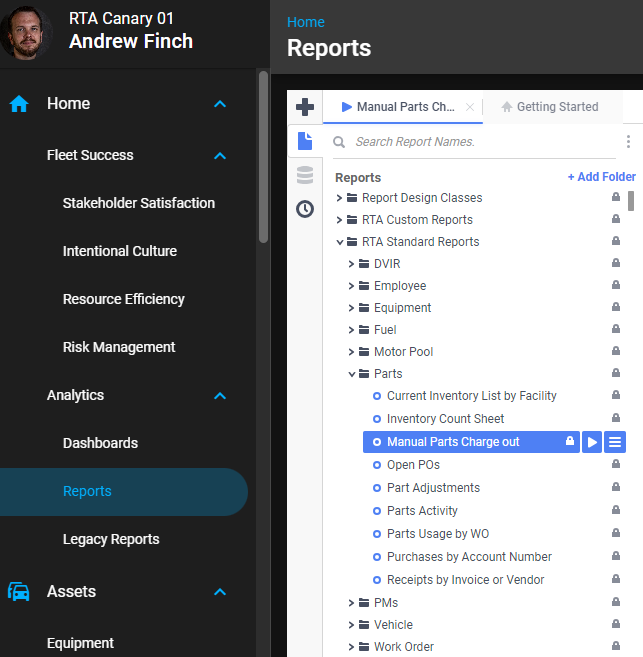
Reports > RTA Standard Reports > Parts > Manual Parts Charge Out
Data Filter Prompts
You will be prompted for filtering of the Data to specify and narrow down the data that will be pulled. See Data Filter List Below for Options.
Data Filter List

Filter Name | Recommended Filter Condition(s) | Value (Options) | Value (Default) |
|---|---|---|---|
Date Range | Is Between | Any Date Range | First of the Current Month to Current Day |
Account Number | Is Between | blank - zzzzzzzzzzzzzzzzzz | blank - zzzzzzzzzzzzzzzzzz |
What Qualifies for This Report
This report covers manual parts charge-outs only, meaning parts issued from inventory on the Manual Parts Charge-Out page in Part Management. Parts activity recorded another way is not included, such as:
Parts posted to a work order or a job.
Parts received or issued through requisitions and purchase orders.
Inventory adjustments, transfers between facilities, and physical count corrections.
If nothing was charged out manually in the period you selected, the report correctly returns no data even though parts were used. For parts issued to work orders, use the work order and parts usage reports in Parts Reports instead.
Troubleshooting: the report returns No Data Qualified
No Data Qualified means no records matched the filters, not that the report failed. Work through these checks in order:
Confirm charge-outs exist. Open Part Management, then Parts Chargeout, and look at the Manual Charge-Out History grid. It lists recent manual charge-outs for your facility. If the grid is empty, there is nothing for the report to return.
Check the Date Range. The prompt defaults to the first of the current month through today. The date on a charge-out is entered by the user and can be backdated, so widen the range to cover the dates on the records you saw in the history grid.
Check the Account Number filter. Leave it at the default blank through zzzzzzzzzzzzzzzzzz. If you enter a specific account, charge-outs that were saved without an account number will not be returned.
Check your Working Facility. Manual charge-outs are recorded for the facility they were entered in. Switch the Working Facility (top right) to the facility where the parts were charged out, then run the report again.
Confirm you can see charge-outs at all. Access to the Parts Chargeout page is controlled by the Access Parts Charge-Out permission. If you cannot open that page, ask your administrator to review your user group.
Replacing a Classic PAP Report
The Fleet360 Manual Parts Charge Out report and a Classic PAP report are not always a one-to-one replacement. Before assuming data is missing, confirm which activity the Classic report included. If the Classic report also covered parts posted to work orders or other inventory movement, no single Fleet360 report will match it, and you should compare against the other reports in Parts Reports.
If you have confirmed a manual charge-out in the history grid that the report still does not return, contact support with the report name, the date range and account filter you used, your facility, and the transaction number and date of the missing charge-out.
Report Output and Data Elements
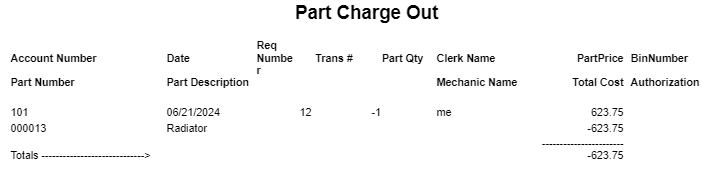
Once the "Manual Parts Charge Out" report runs, it displays details on each part manually issued from inventory, organized by account and part numbers. This includes the date of issuance, transaction numbers, quantities, costs, and any additional authorizations, which allows for a clear tracking of parts and associated costs.
Report Output
Report Data Elements
Column Number | Column Title | Data Notes |
|---|---|---|
1 | Account Number | The account number associated with the part charge |
2 | Part Number | Unique identifier for each part issued |
3 | Date | Date the part was issued |
4 | Part Description | Description or name of the part |
5 | Req Number | Request number tied to the part issuance transaction |
6 | Trans # | Transaction number for tracking |
7 | Part Qty | Quantity of parts issued. Manual charge-outs cannot be posted with a negative quantity, so returns and corrections do not appear here - see Parts Chargeout. |
8 | Clerk Name | Name of the clerk who processed the transaction |
9 | Mechanic Name | Mechanic who used or requested the part |
10 | Part Price | Price per unit of the part |
11 | Bin Number | Bin location in inventory |
12 | Total Cost | Total cost of the parts issued in the transaction |
13 | Authorization | Additional authorization or notes related to the transaction |