Fuel Ticket Entry
Fuel Entry allows quick fluid top offs and fuel tickets to be entered easily and quickly.
Each fuel ticket entered immediately updates the vehicle's meter reading(s), fuel usage, and cost(s). If you're tracking utilization, alternate meters, fuel taxes, turnpike miles, and fuel billing, these records are also updated with each fuel ticket entry. In addition, the fuel entry action also allows the following to happen without having to input any fuel data:
Update fuel meter readings
Update alternate meter readings
Post oil and/or part usage
Posting Fuel
To record a fuel transaction, follow the steps listed.
Click on Fuel Entry from the Fuel menu dropdown
Select the Facility you wish to select the Asset From or leave it set to pull from ALL Facilities:
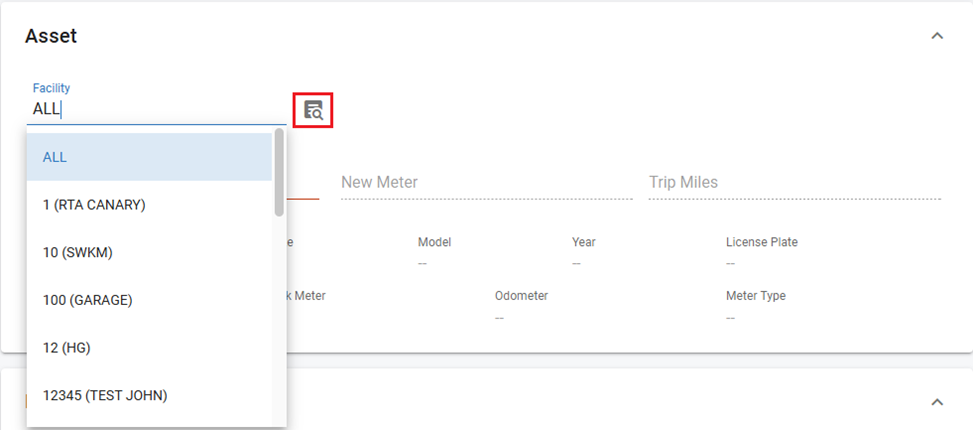

Or you can select the Facility Search list Button to select a facility from the master list
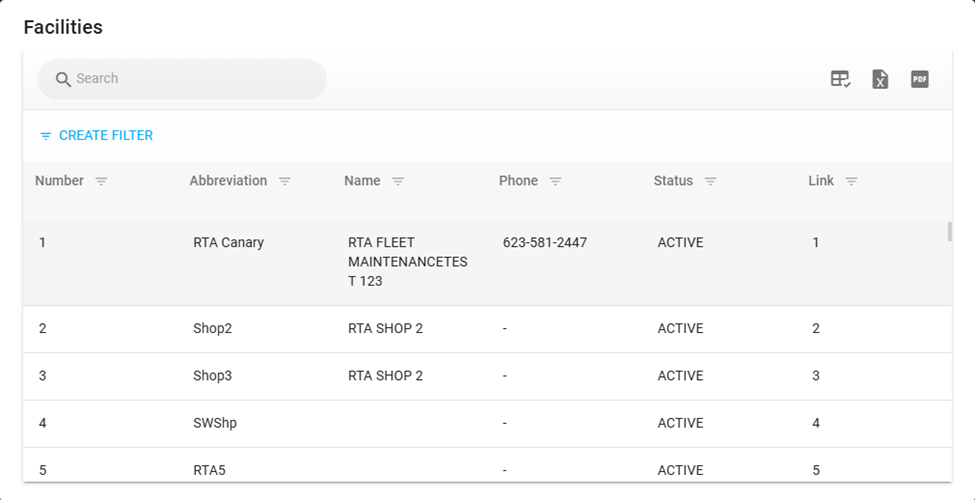
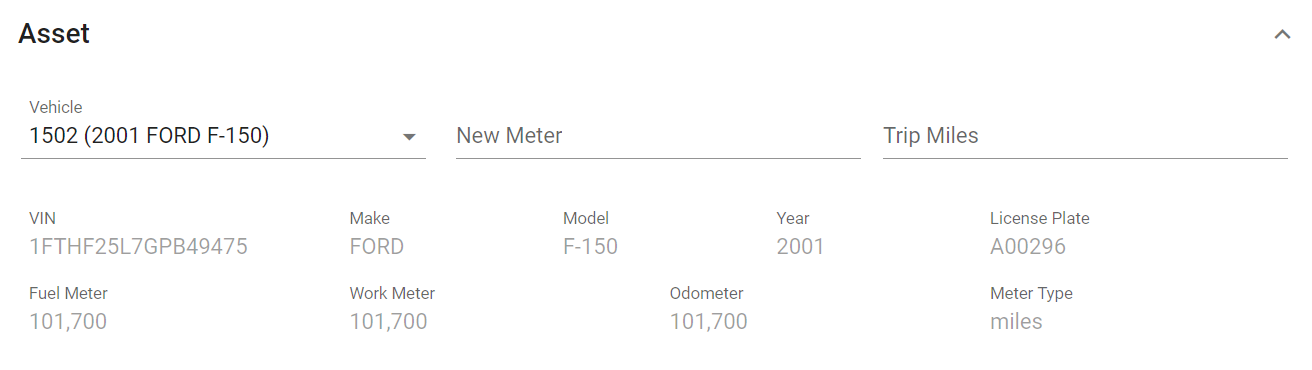
Once the Facility is Selected: in the Asset Panel, enter the following:
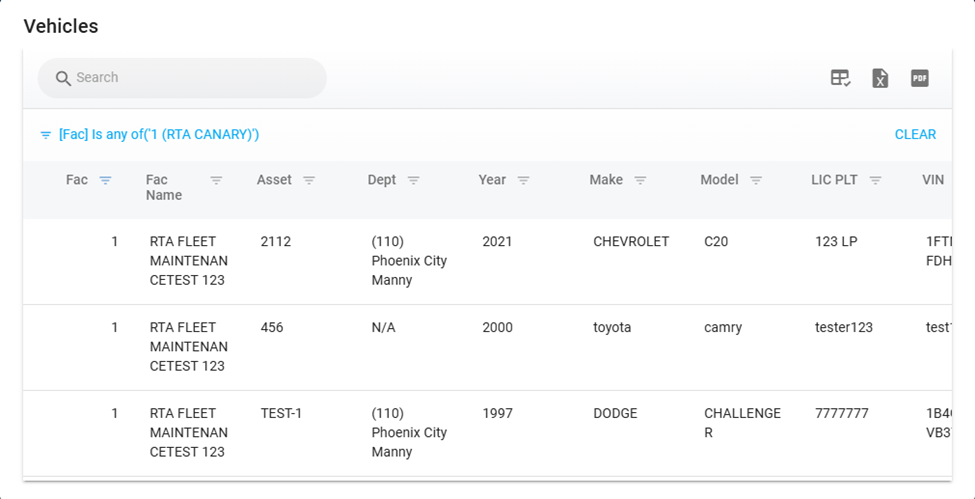
Vehicle/Asset number
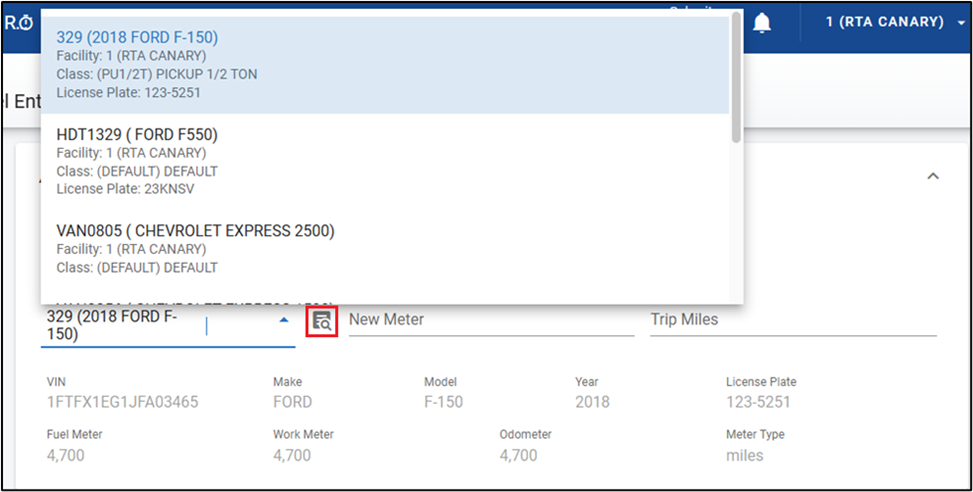
Or you can select the Asset Search list Button to select an asset from the master list
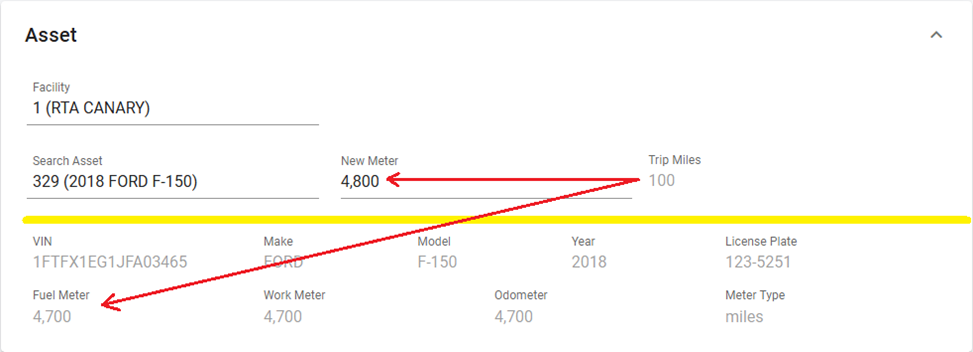
Enter either the new meter reading or the trip miles total (when you enter one, the other will fill automatically based on the last fuel meter reading)
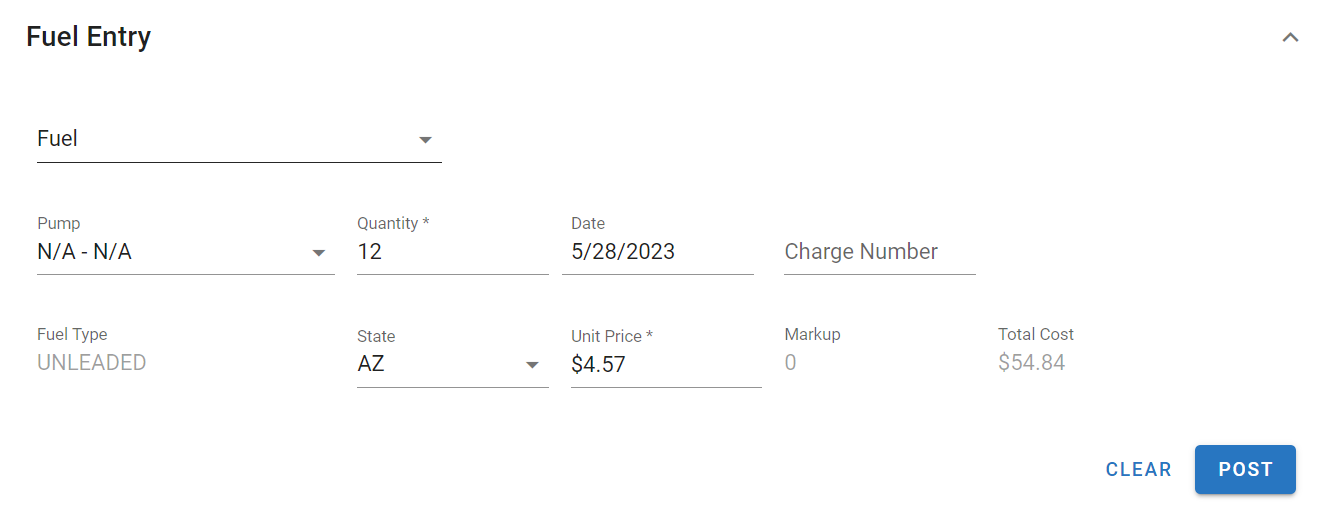
In the Fuel Entry Panel, enter the following:
Pump Number or N/A-N/A
If fuel pumps and tanks are set up in Fleet360 (coming soon) for an onsite depot and the fuel was pumped via those pumps and tanks, be sure to use the correct pump number associated with the fuel transaction
Quantity equal to the number of gallons received on the ticket
Date of fueling
Charge number if applicable
State where fuel was pumped
Unit Price per gallon of fuel
If fuel was received from an onsite depot pump that has been set up in Fleet360 (coming soon), the unit price will fill in automatically based on the fuel price set up in the pump file
If no pump is selected, the price will default to the “default fuel price” that was set up in the fuel type setting
If a markup percentage has been added to that same fuel parts file, it will display
The total cost will include the sum of the unit price multiplied by the quantity along with the markup percentage
Click Post
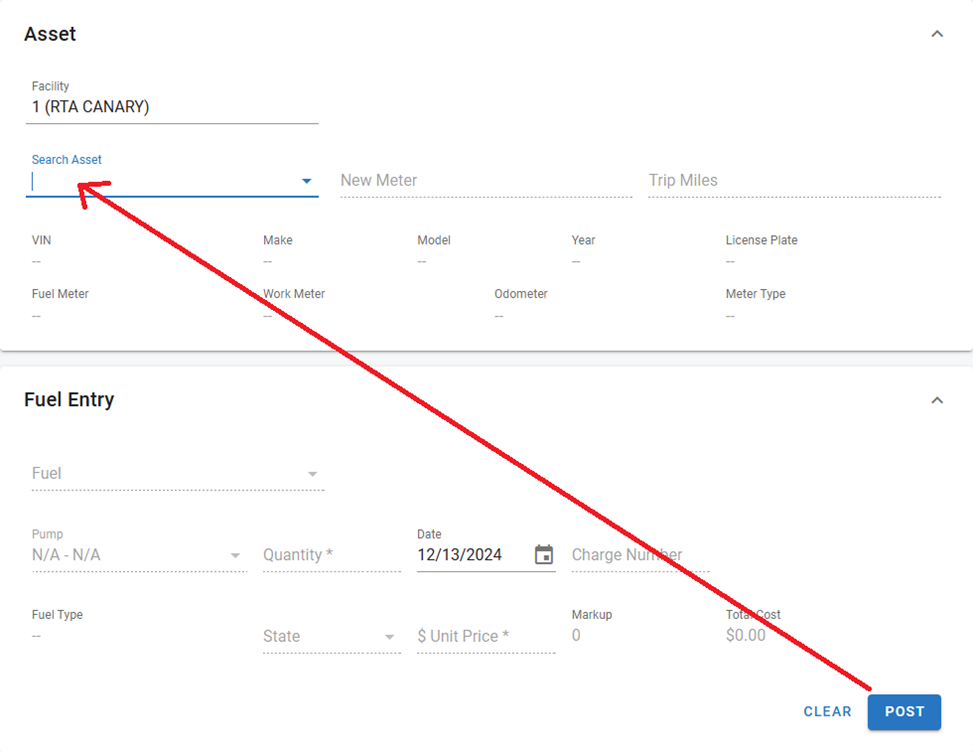
After posting a fuel transaction, the program automatically returns to the Search Asset field, streamlining the entry process for faster and more efficient transaction logging.
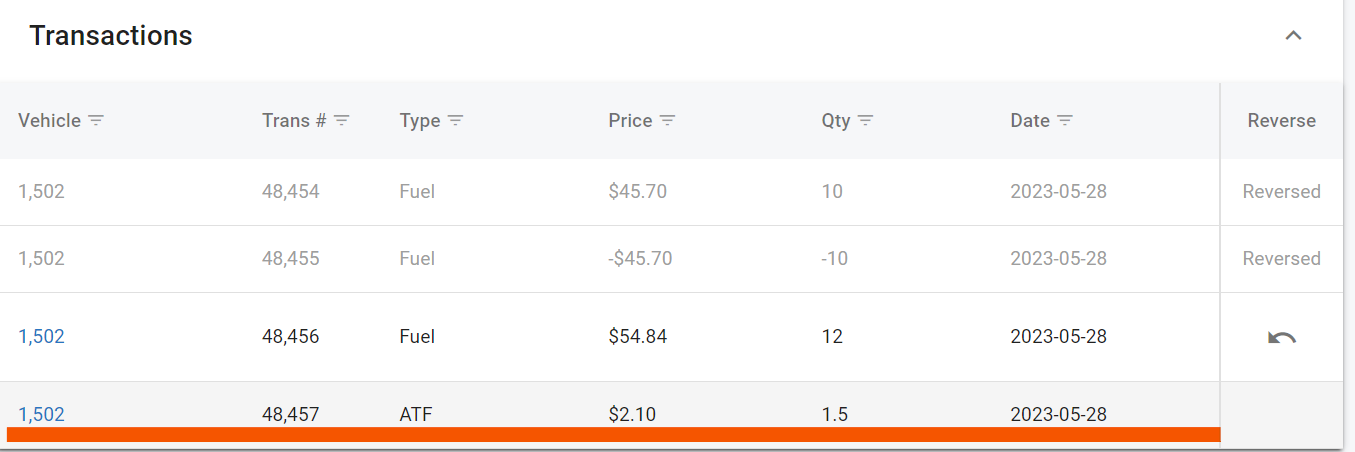
Also once Posted the transaction will now display in the transaction panel below the fuel panel. The panel lists the fuel transactions entered today for the working facility, and a transaction entered today can be reversed if an error was made by clicking the reverse arrow in the Reverse column.
When reversing a transaction, the original transaction will still be reflected along with a subsequent negative posting for cleaner reporting and auditing. Don’t forget to post the transaction correctly where applicable to ensure costs and totals reflect correctly.

Reversing a Fuel Transaction
The transaction panel below the fuel panel is the only place in Fleet360 where a fuel transaction can be reversed. Keep the following in mind:
Same day only. The panel shows only the fuel transactions entered today (based on the facility's time zone) for the working facility. Once the day rolls over, the transaction drops off the panel and the reverse arrow is no longer available for it.
Permission. Reversing requires the Reverse Work Order Posting permission (Work Orders section of the User Group) for the facility the transaction was posted to. Without it, the reverse arrow displays a “no permission” message when clicked.
One reversal per transaction. A transaction that has already been reversed shows “Reversed” in the Reverse column and cannot be reversed again.
Open Fuel Transactions does not reverse. The Fuel → Open Fuel Transactions screen is for reviewing and posting open transactions to pumps and tanks. It has no reverse, edit or delete option.
To reverse a transaction entered today:
Open Fuel Entry from the Fuel menu and make sure the working facility is the facility the transaction was posted to
Locate the transaction in the transaction panel below the fuel panel
Click the reverse arrow in the Reverse column and click Proceed on the click Continue on the confirmation messageldquo;Reverse Transactionclick Continue on the confirmation messagerdquo; confirmation
Re-enter the transaction correctly where applicable
To correct a fuel transaction from a prior day, or one that has already been posted to pumps and tanks, contact RTA Support and include the asset number, transaction date, quantity and a screenshot of the transaction.
Refer to Open Fuel Transactions (Post To Pump & Tanks).
Posting Fluids/Other
This allows for posting of oil/part types. Most common use for this is something like DEF, or other additives to the fuel itself.
To record a quick fluid top off transaction, follow the steps listed.
Click on Fuel Entry from the Fuel menu dropdown
In the Asset Panel, enter the following:
vehicle/asset number
In the Fuel Entry Panel, enter the following:
Click the drop down and change option to Fluids/Other
Enter the part number from the RTA files associated with the fluid being added
Enter the quantity of the fluid being added based on it’s unit of issue
Enter the Bin location from where the fluid was pulled from
Enter the date of the fluid add
Click Post

The transaction will now display in the transaction panel below the fuel panel.