Shift Management
Shift Management in Maintenance and Repair settings are used to add or edit labor recordings for technicians over a period of time that are recorded from Paperless Shop transactions.
This may become necessary if a technician fails to clock into a job, clocks onto the wrong job, stays clocked in too long, clocks off too early, or just forgets to clock off.
Who Can Use Shift Management
Shift Management needs its own access, separate from Paperless Shop and Shop Activity:
Shift Management is enabled by RTA per company. If it is not in your Maintenance & Repair > Settings list even with the permissions below, ask RTA to enable it.
Configuration Manage (Admin) opens the Maintenance & Repair > Settings page where the Shift Management tile lives.
Manage Shift (under Shift in the User Group matrix) is needed to open a shift and add, edit or delete its lines. Without it the shift list is read-only.
Ending a technician’s current shift from Shop Activity is a different action: it needs the Work Orders Manage permission and only works while the shift is Idle or on Lunch with no job line left open. If End Shift fails there, fix the open line here first. Refer to Shop Activity.
If you have these permissions and still cannot see or use the option, ask your internal system administrator to check your user group for the facility.
Shift Management Search Screen Overview
Access Shift Management via Maintenance and Repair and Settings on the software main menu.
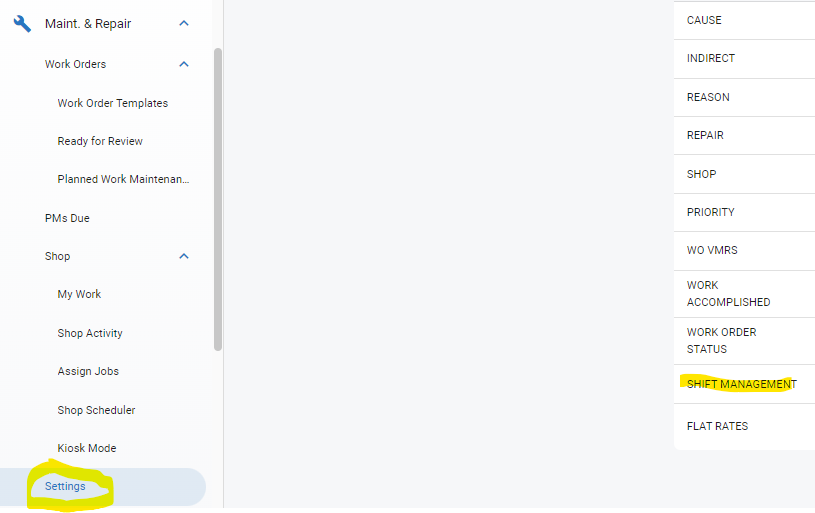
After clicking on Shift Management in the Settings area, a list of shifts will be presented based on the date range that is present in the upper right corner of the screen.

Adjust the date range to see different shifts for different ranges.
The ability to customize and export the Shift Management List exists using the Master List Functions instructions if needed.
Shift Management List Column Definitions
Technician = Technician the shift transactions belong to
Begin Shift = Date and Time when the Shift was started
# of Completed Jobs = Number of lines/jobs that exist for that entire shift
Direct Hours = Total number of hours in that shift that were posted to direct labor (hours spent working on assets)
Indirect Hours = Total number of hours in that shift that were posted to Indirect labor (hours spent doing other tasks other than working directly on an asset)
% Direct = Percentage of total shift time spent on direct hours
To access the detailed transactions in a shift, click the shift line for the technician to open the shift detail view
Shift Management Shift Detail View Column Definitions
This view is only viewable after clicking on a shift from the Shift Management Search Screen.
Technician = The technician the shift item belongs to
Begin Date = The date the shift line item began
Begin Time = The time the shift line item began
Type = The type of shift that created the transaction (begin shift, lunch, Indirect, Direct, End Shift)
End Date = The date the shift line item ended. Empty while the line item is still open.
End Time = The time the shift line item ended. Empty while the line item is still open.
Work Order = The work order number associated with the line item if applicable (Direct hours)
Work Order Line = The line associated with the work order number with the line item
VMRS = The Work Order job code associated with the work order line for that shift line
Description = Description of the line item
For Direct, this will display the VMRS job code description for the work order line
For Indirect, this will display the indirect job code selected for the line item
Total Time = Total time spent on that line item. Calculated when the line item has an end date and time.
Edit Pencil = Used to edit a line item
Open line items. A direct or indirect line item, or a shift, can be saved without an end date and time when it started within the last 12 hours. This records work that is still in progress. Add the end date and time when the work is done. For the rule and how to add the end time later, see Adding and Deleting Shift Lines via Shift Management and Editing Existing Shift Lines via Shift Management.