Zonar DVIR Integration
Admin>Integrations>Geotab
Overview
The Zonar DVIR Integration allows Fleet360 users to import Driver Vehicle Inspection Reports (DVIRs) submitted through Zonar directly into Fleet360. This integration helps streamline inspection workflows by ensuring driver-reported vehicle issues captured in Zonar are visible and actionable within Fleet360 without manual re-entry.
To use this integration, administrators must configure the Zonar connection details and define any required locations of interest. Once enabled, Fleet360 will continuously sync DVIR data from Zonar and associate it with the appropriate assets.
Functionality
When the Zonar integration is enabled, Fleet360 will:
Import DVIRs submitted through Zonar into Fleet360.
Automatically associate DVIRs with assets based on VIN matching.
Provide an Issues screen to identify VIN mismatches between Zonar and Fleet360.
Allow administrators to temporarily disable the integration without deleting the configuration.
Setup Instructions
Access the Integration
Navigate to:
Admin > Integrations > Zonar
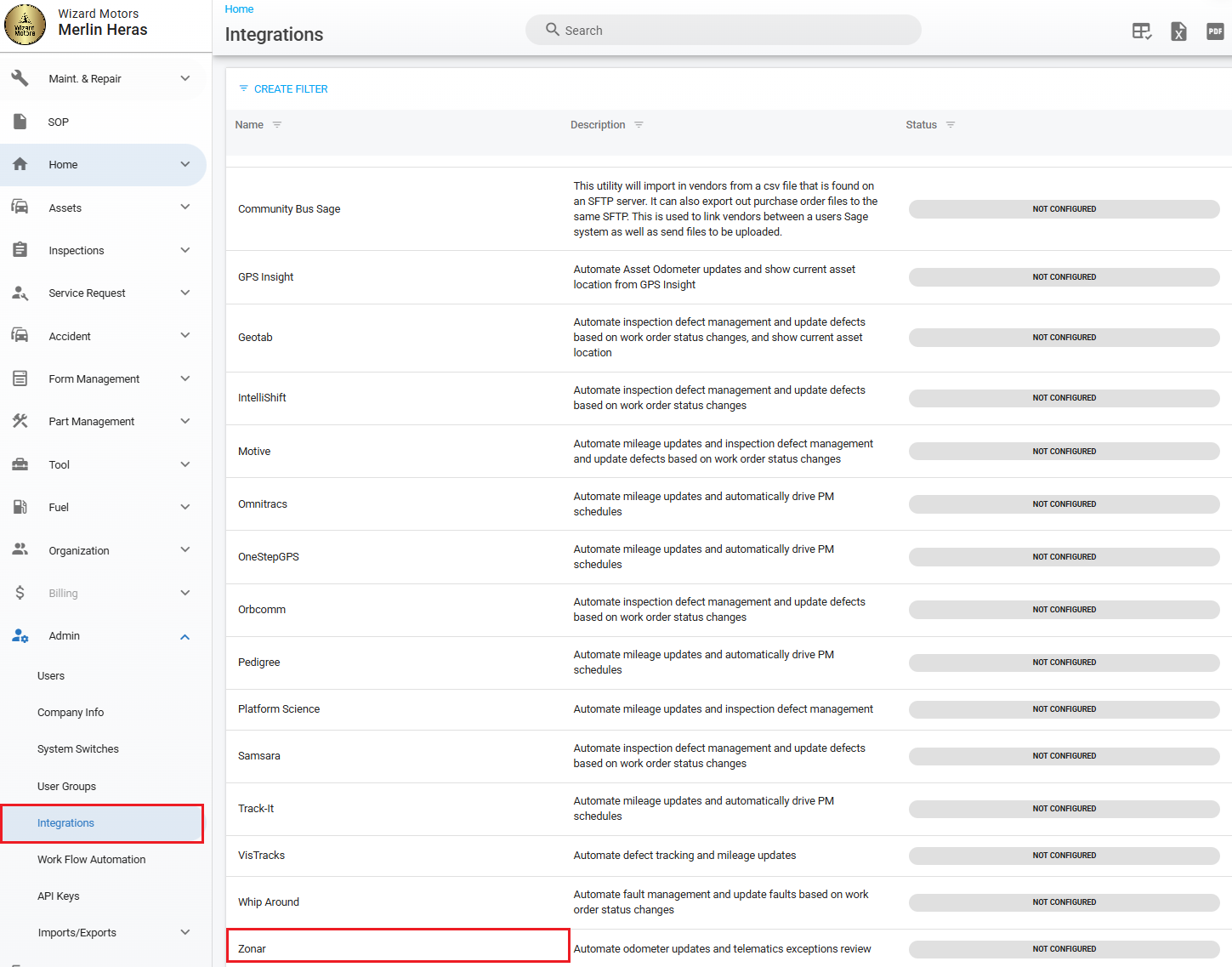
From the Integrations screen, click into the Zonar integration and select Add in the top-right corner.

Configure Zonar Connection Details
From the configuration screen, enter the required Zonar connection credentials. The exact fields displayed are based on Zonar’s API requirements (refer to Zonar documentation if needed).
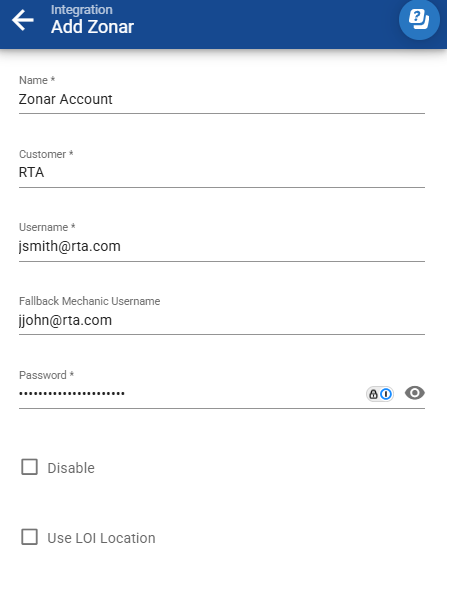

Typical fields include:
Name
An internal alias or account name for the integration.Authentication Fields
These may include an API key, token, username/password, or other credentials required by Zonar.Disable
A checkbox that temporarily disables the integration. When disabled, no new data will be pulled from Zonar, but the configuration is retained.
Note: If you do not have the required Zonar credentials, contact your Zonar representative or Zonar Systems Support.
Issues Screen
Once the integration is configured and active, an Issues button will appear.
VIN Mismatch
VIN mismatches occur when the VIN received from Zonar does not match the VIN stored in Fleet360 for the corresponding asset.
The Issues screen will:
Display a list of assets with VIN mismatches.
Compare VIN data from Zonar against Fleet360 asset records.
Highlight assets that cannot be confidently linked due to mismatched or missing VINs.
Resolving VIN Mismatches
To resolve a VIN mismatch:
Navigate to the affected Asset in Fleet360.
Open the Asset Primary Information Panel.
Update the VIN to match the VIN provided by Zonar.
Save the asset record.
Re-run the Issues check. Successfully matched assets will drop off the list.
Note: If you do not want a specific Zonar vehicle to link to Fleet360, leave the VIN unchanged in Fleet360. That asset will be skipped.
Troubleshooting
If DVIRs are not appearing in Fleet360:
Verify the Zonar integration is enabled.
Confirm valid API credentials are configured.
Check the Issues screen for VIN mismatches.
Ensure DVIRs are successfully submitted in Zonar.
Contact Zonar Systems Support if data transmission issues persist.